How to Create and Print Compliant Candle Labels at Home
Build a Google Sheets database for your candle line, add required safety and compliance info, and print professional labels at home using free templates.
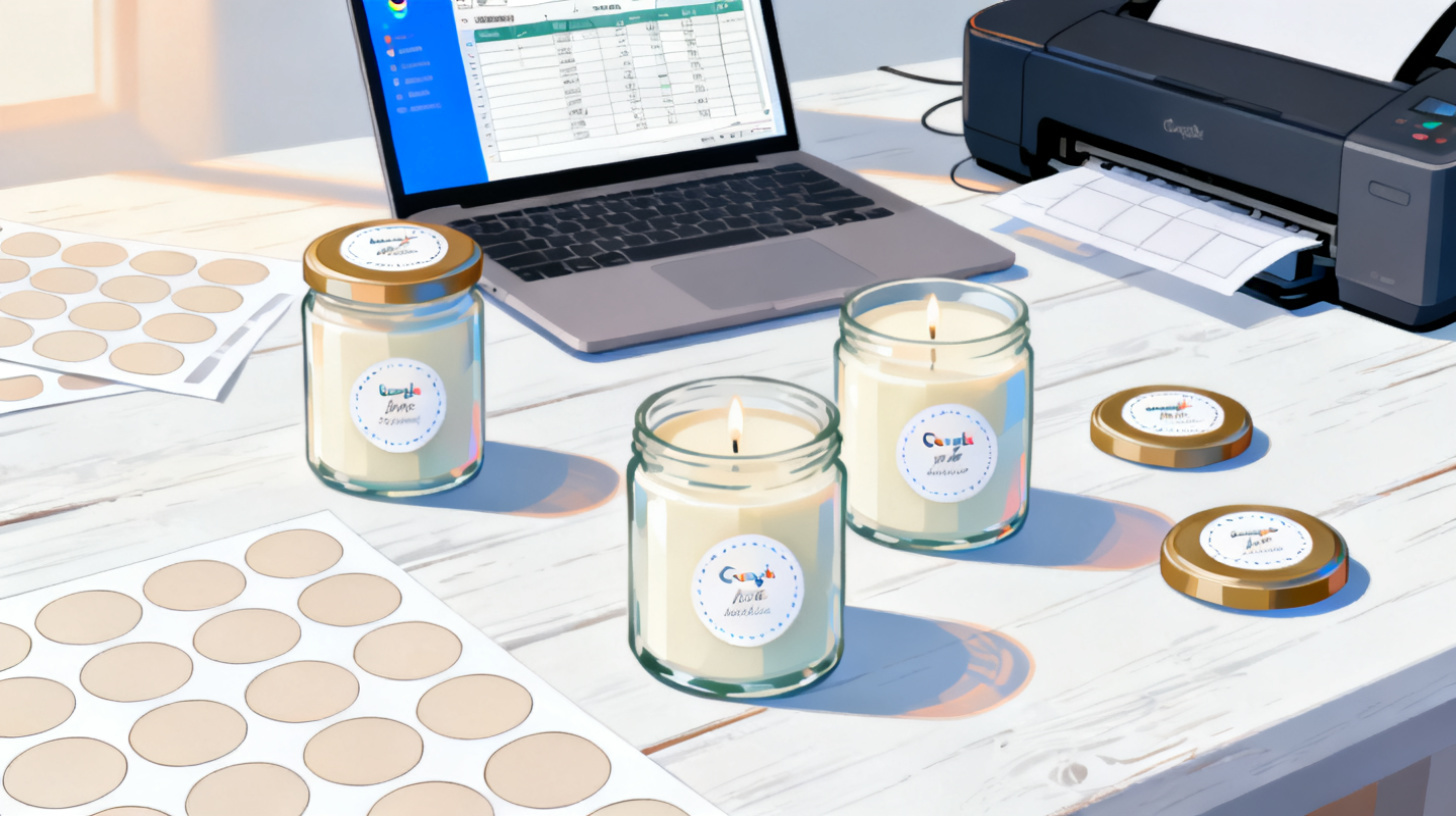
You've poured, cured, and scented the perfect candle. But before you sell a single jar, there's a step many makers overlook: the label. And not just any label. Your candle needs specific safety and compliance information to meet federal guidelines and industry standards. The good news? You don't need expensive design software or a professional print shop to get it right.
With a Google Sheets spreadsheet and a label printing workflow, you can design, populate, and print fully compliant candle labels for every scent, size, and batch in your lineup. Whether you're selling at a craft fair, through an Etsy shop, or stocking local boutiques, this guide walks you through exactly what your candle labels need, how to organize that information in a spreadsheet, and how to print professional results on standard label sheets at home.
Ready to turn your spreadsheet into beautifully labeled candles? A tool like Foxy Labels makes it simple to merge your candle data from Google Sheets directly onto printable label templates, with plans designed for makers who need to print across multiple products and scents.
Let's break down the full process.
What Your Candle Labels Actually Need to Include
Before you touch a single cell in Google Sheets, you need to know what goes on the label. Candle labeling isn't purely decorative. There are real compliance requirements that protect both your customers and your business. Let's separate what's legally required from what's recommended by industry standards.
Federal Labeling Requirements
The Fair Packaging and Labeling Act (FPLA), enforced by the Federal Trade Commission, applies to most consumer products sold in the United States, including candles. Under the FPLA, your candle label must include:
Product identity: A clear statement of what the product is (e.g., "Soy Wax Candle" or "Scented Candle")
Net quantity of contents: The weight (in ounces or grams) or volume of the candle
Manufacturer or distributor information: Your business name and place of business (city, state, and ZIP code)
These three elements are non-negotiable for any candle sold to consumers. Missing even one can expose your business to regulatory action or marketplace listing removal.
ASTM F2058 Fire Safety Warnings
Beyond the FPLA, the candle industry follows ASTM F2058, a voluntary standard that has become the de facto safety benchmark. Major retailers and many online marketplaces expect compliance with this standard. The ASTM F2058 fire safety label includes specific warning text and symbols:
A flame icon or pictogram
The signal word "WARNING" in uppercase
Specific cautionary statements such as:
"Burn within sight."
"Keep away from things that catch fire."
"Keep away from children and pets."
The standard also specifies minimum text sizes and label placement. The warning label should be visible on the product itself, not just on outer packaging that gets discarded.
Branding and Optional Elements
Once you've covered the compliance basics, you can layer in branding elements that make your candles stand out:
Scent name (e.g., "Lavender Fields" or "Fireside Vanilla")
Burn instructions (trim wick to 1/4 inch, burn for a maximum of 4 hours at a time)
Ingredients or wax type (soy, coconut, beeswax blend)
Batch or lot number for quality tracking
Website or social media handle
Barcode or SKU if selling through retail
Many candle makers use two labels per product: a decorative brand label on the front or lid and a compliance label on the bottom or back. Both can be printed from the same spreadsheet using different label templates.
The key takeaway here is that compliance isn't complicated once you know the checklist. And once you've built that checklist into a spreadsheet, every new scent or batch becomes a matter of filling in a few cells rather than redesigning a label from scratch.
Setting Up Your Google Sheets Candle Label Database
The real power of printing candle labels from a spreadsheet is the ability to manage your entire product line in one place. When you add a new scent, change a supplier, or update your burn instructions, you make the edit once and it flows to every label you print. Here's how to structure that spreadsheet for maximum flexibility.
Building Your Column Structure
Open a new Google Sheets document and create columns that map to every piece of information on your label. A solid starting structure looks like this:
Column | Example Data | Purpose |
Product Name | Lavender Dreams Soy Candle | Product identity (FPLA) |
Scent | Lavender & Chamomile | Front label branding |
Net Weight | 8 oz (227 g) | Net quantity (FPLA) |
Wax Type | 100% Soy Wax | Ingredient transparency |
Company Name | Bloom & Wick Co. | Manufacturer info (FPLA) |
Address | Portland, OR 97201 | Place of business (FPLA) |
Warning Text | WARNING: Burn within sight. Keep away from things that catch fire. Keep away from children and pets. | ASTM F2058 compliance |
Burn Instructions | Trim wick to 1/4" before each use. Do not burn for more than 4 hours. | Safety guidance |
Batch Number | B2024-LV-042 | Quality tracking |
SKU | BW-LAV-8OZ | Inventory management |
Qty to Print | 24 | Number of labels needed |
Each row represents one product variation. If you sell Lavender Dreams in both 8 oz and 12 oz sizes, those are two separate rows with different net weights, SKUs, and possibly different batch numbers.
Tips for Keeping Data Clean
A messy spreadsheet leads to messy labels. Follow these practices to keep your data print-ready:
Use consistent formatting. If one row says "8 oz" and another says "8oz" or "eight ounces," your labels will look inconsistent. Pick a format and stick with it.
Keep warning text in a single cell. It's tempting to split the warning across multiple columns, but for label printing, having the full warning block in one cell makes template design much simpler.
Use data validation. Google Sheets lets you create dropdown lists for columns like Wax Type or Scent Category. This prevents typos and keeps your catalog standardized.
Add a "Qty to Print" column. When it's time to print, you'll want to specify how many labels of each variety you need. This is especially useful for seasonal batches or craft fair prep.
Freeze the header row. Click View > Freeze > 1 row so your column headers stay visible as your product list grows.
Once your spreadsheet is populated, it becomes the single source of truth for your entire candle line. For a detailed walkthrough on connecting your spreadsheet to printable templates, the step-by-step tutorial on printing labels from Google Sheets covers the full mail merge process, from selecting your data range to previewing your final output.
With your data organized, you're ready to choose the right label template and start printing.
Choosing Label Templates and Printing Your Candle Labels
Your spreadsheet is loaded with product data. Now you need to get that information onto physical label sheets that fit your candle jars. This is where template selection and print settings make the difference between professional-looking labels and frustrating misalignment.
Picking the Right Label Size and Shape
Candle labels come in all shapes, but a few formats dominate:
Round labels (1.5" to 2.5" diameter) are the most popular choice for candle jar lids and the tops of tin candles. A 2-inch round label fits neatly on most standard jar lids.
Rectangle labels (2" x 3" or 2.5" x 4") work well for the side of straight-sided jars or as back/bottom compliance labels.
Oval labels offer a more elegant look for front-facing branding on tapered jars.
For jar lid warning labels, the Avery 22817 round label template is an excellent match. It gives you 12 two-inch diameter labels per sheet, which means you can print a full dozen warning labels in a single pass through your printer. The template is already formatted to align with Avery label sheets, so there's no guesswork on margins or spacing.
If you need a different size or shape, the full template catalog lets you search over 1,000 Avery-compatible templates by dimensions, shape, and labels-per-sheet count. This is particularly helpful if you sell candles in multiple container styles and need different label formats for each.
Connecting Your Spreadsheet to the Template
Here's where the magic happens. Instead of manually typing each candle's information onto a label design, you merge your spreadsheet data directly into label fields. The workflow looks like this:
Open your label template in Google Docs through Foxy Labels.
Connect your Google Sheets candle database as the data source.
Insert merge fields where you want dynamic data to appear. For example, place
{{Product Name}}at the top,{{Net Weight}}below it, and{{Warning Text}}in a smaller font at the bottom.Style your template with fonts, sizes, and alignment that match your brand. Bold the word "WARNING" to meet ASTM visibility recommendations.
Preview the merge to verify that all your product variations render correctly on the label layout.
Generate and print your labels onto the corresponding Avery label sheets.
The preview step is especially important for candle labels. Warning text tends to be lengthy, and you need to confirm it fits within the label boundaries at a readable font size. If the text overflows, you have two options: reduce the font size (the ASTM standard recommends a minimum of 6-point type for warning text) or switch to a larger label format.
Print Settings That Actually Matter
Home printing is where many candle makers run into trouble. A few settings adjustments prevent the most common problems:
Set scaling to 100% (Actual Size). Any scaling, even "Fit to Page," will shift your label alignment and cause text to print off-center.
Select the correct paper size. Most Avery label sheets are US Letter (8.5" x 11"). Confirm this in your printer dialog.
Print a test page on plain paper first. Hold the test print behind your label sheet and check alignment against a light source. This saves expensive label sheets.
Use the correct print quality setting. "Normal" or "High" quality produces cleaner text than "Draft" mode, which can make small warning text look fuzzy.
Feed label sheets one at a time if your printer has a straight-through paper path option. This reduces the chance of jams and peeling.
For makers who use Dymo or other thermal printers for individual labels rather than sheets, the process adapts well. You can learn about that approach in this guide on printing Dymo labels from Google Sheets.
Scaling Your Label Workflow as Your Candle Business Grows
Printing 24 labels for a weekend market is one thing. Printing 500 labels across 15 scent variations for wholesale orders is another. The spreadsheet-to-label workflow scales naturally, but there are strategies that keep the process smooth as your product line expands.
Managing Multiple Label Types Per Product
Most candle businesses eventually need more than one label per candle. A common setup includes:
A front brand label with the scent name, logo, and weight
A bottom compliance label with the full warning text, company info, and batch number
A lid label with a short brand mark or scent identifier
You can manage all three from the same spreadsheet. Each label type uses a different template, but they all pull from the same rows of data. When you change a scent name or update your business address, every label type reflects the change automatically.
Create separate tabs in your Google Sheets workbook if you want to customize data for each label type. For instance, the front label tab might include only Scent, Net Weight, and Company Name, while the bottom label tab includes the full warning text and batch information.
Batch Printing and Seasonal Prep
Craft fair season, holiday rushes, and wholesale orders all demand efficient batch printing. Here are practical ways to streamline:
Use the "Qty to Print" column to specify exact quantities per scent. If you need 48 Lavender labels and 36 Vanilla labels, set those quantities in the spreadsheet rather than manually counting sheets.
Group similar label types together. Print all your round lid labels in one session and all your rectangular bottom labels in another. Switching label sheets mid-print increases the chance of alignment errors.
Keep a "master" and "print batch" version. Your master spreadsheet holds every product. For a specific print run, copy the relevant rows into a separate "Print Batch" tab so you're only merging the labels you need right now.
Order label sheets in bulk. Avery and compatible label sheets are significantly cheaper per sheet when bought in packs of 100 or more.
When to Upgrade From Free Tools
If you're just starting out and printing a few dozen labels, free tools and trial tiers work perfectly. But as your catalog grows, you'll run into limits. Paid plans typically unlock features like unlimited label generation, bulk printing, and the ability to save multiple templates, all of which matter when you're managing a business rather than a hobby.
Foxy Labels offers plans designed for exactly this growth curve, from free tiers for testing the workflow to annual and lifetime options for makers who print regularly across multiple products. If you're printing more than a couple of sheets per month, the time savings alone justify the investment.
A Quick Compliance Checklist Before You Ship
Before any batch goes out the door, run through this final check:
Product identity is clearly stated on the label
Net weight is displayed in both ounces and grams
Company name and address are present
Fire safety warning includes the word "WARNING" and all required cautionary statements
Warning text is legible (minimum 6-point font)
Warning label is on the product itself, not just the box
Batch or lot number is traceable to your production records
Labels are aligned, unwrinkled, and securely adhered
Print one extra label from each batch and keep it in a binder with your production notes. If a customer or retailer ever questions your compliance, you have a physical record of exactly what was on the product.
Making candles is a craft. Labeling them doesn't have to be a headache. With a well-structured Google Sheets database, the right label templates, and a reliable print workflow, you can produce compliant, professional candle labels entirely from home. Start by building your spreadsheet, choose a template that fits your jars, and print a test batch. Once you see how smoothly it works, you'll wonder why you ever considered hand-writing labels or paying a print shop for every small update.
Your candles deserve labels as polished as the product inside the jar. Go make them.
Install Foxy Labels
Get started with Foxy Labels and create perfectly aligned labels in minutes.
Get Started