How to Create and Print QR Code Labels from Google Sheets
Generate QR codes directly in Google Sheets and print them on adhesive label sheets. This step-by-step guide covers formulas, template selection, automation, and troubleshooting.
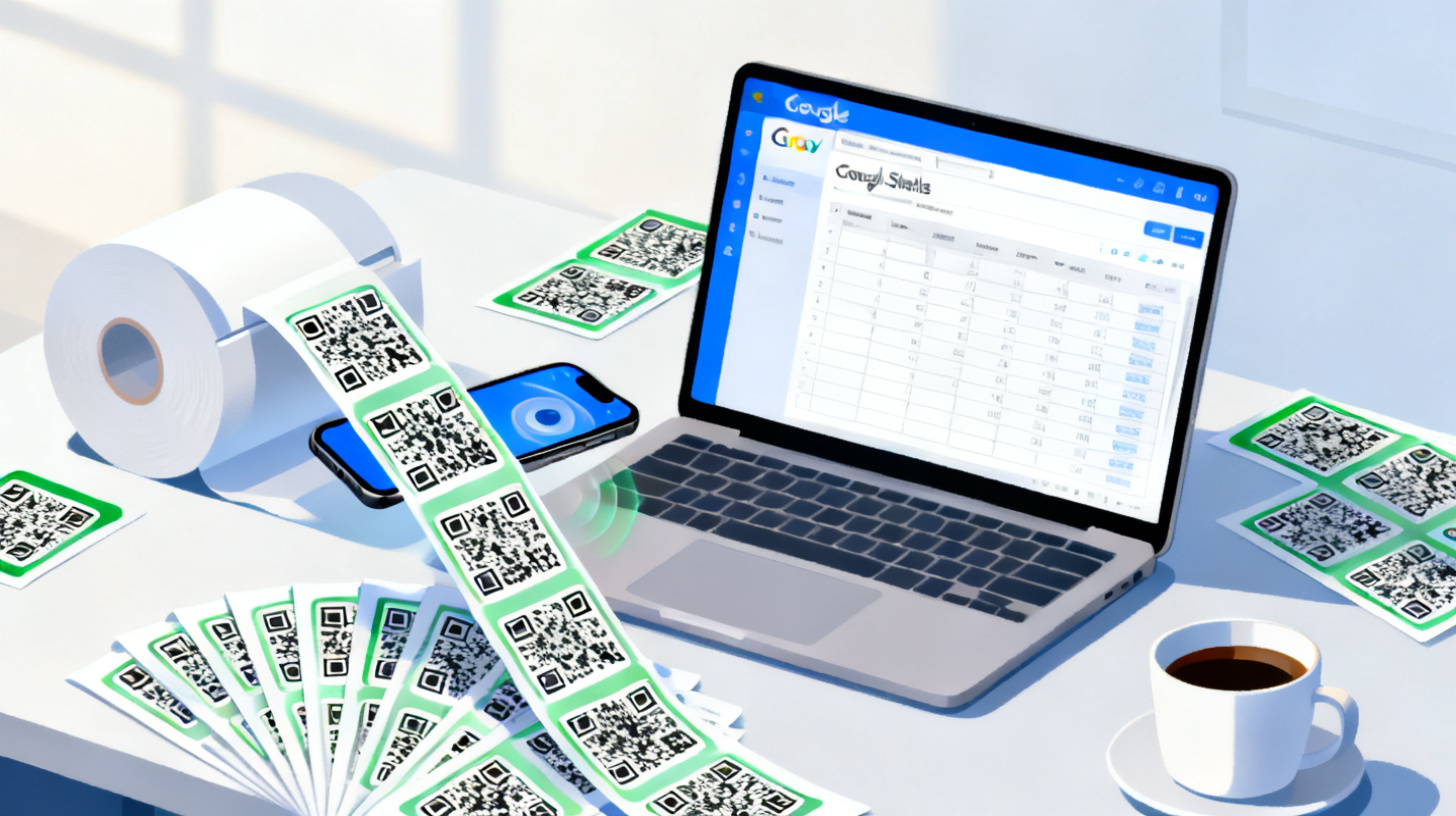
Picture this: you've got a spreadsheet full of product URLs, inventory codes, or event registration links, and you need each one turned into a scannable QR code on a physical label. Doing it one at a time would take hours. But with Google Sheets and the right label template, you can generate and print dozens (or hundreds) of QR code labels in a single workflow.
Whether you're organizing warehouse inventory, labeling equipment for an IT department, or creating event badges with scannable check-in links, this guide walks you through every step. You'll learn how to generate QR codes directly inside Google Sheets, format them for printing, and get them onto adhesive label sheets using free label templates from FoxyLabels. No expensive software, no complicated design tools.
Let's get into it.
Setting Up Your Google Sheet for QR Code Generation
Before you can print anything, you need a clean, well-organized spreadsheet. The structure of your data determines how smooth the rest of the process goes, so it's worth spending a few minutes getting this right.
Organize Your Data Columns
Start by opening a new or existing Google Sheet. At a minimum, you'll want two columns:
Column A: Label or identifier (product name, asset ID, employee name, etc.)
Column B: URL or data to encode (the actual content the QR code will contain)
For example, if you're labeling products for a small e-commerce shop, your sheet might look like this:
Product Name | QR Code URL |
Organic Honey 12oz | |
Lavender Soap Bar | |
Beeswax Candle Set |
You can encode more than just URLs. QR codes work with plain text, email addresses, phone numbers, Wi-Fi credentials, vCard contact info, and even geographic coordinates. But URLs are by far the most common use case for printed labels.
Generate QR Codes with a Formula
Here's where Google Sheets gets surprisingly powerful. Google Charts provides a free QR code generation API that works directly inside the IMAGE function. In Column C, add this formula:
Let's break that down:
chs=200x200sets the QR code image size to 200 by 200 pixelscht=qrtells the API to generate a QR code chart typechl=followed byENCODEURL(B2)encodes the URL from cell B2 so special characters don't break the requestIMAGE()renders the result directly in your cell
Drag that formula down for every row, and you'll see QR codes appear right in your spreadsheet. Resize Column C and the row heights so the QR codes display as readable squares, roughly 100x100 pixels or larger.
Tips for Clean QR Code Data
A few things to watch out for before moving on:
Remove trailing spaces from URLs. Even an invisible space at the end of a URL can cause a QR code to point to a broken link.
Test a few codes with your phone's camera before printing an entire sheet. Scan 3 or 4 random codes to confirm they resolve correctly.
Keep URLs short when possible. Shorter data strings produce simpler QR patterns that scan more reliably, especially at small print sizes. If your URLs are long, consider using a URL shortener first.
Use HTTPS links rather than HTTP. Most modern devices and apps handle both, but HTTPS is the standard and avoids potential redirect issues.
Once your spreadsheet has clean data and working QR code images, you're ready to move to the label layout.
Choosing the Right Label Template for QR Codes
QR codes need enough physical space to be scannable. Print them too small, and even the best phone camera will struggle to decode them. The label size you choose matters more than you might think.
Matching QR Code Size to Label Dimensions
As a general rule, a QR code should be at least 0.8 inches (about 2 cm) on each side to scan reliably from a normal distance. Here's how common label sizes stack up:
Label Template | Dimensions | Labels Per Sheet | QR Code Fit |
Avery 5160 | 1" x 2.625" | 30 | Good for QR + short text |
Avery 5163 | 2" x 4" | 10 | Excellent, room for QR + details |
Avery 5195 | 0.66" x 1.75" | 60 | Tight, QR only, no text |
Avery 8165 | 8.5" x 11" | 1 (full sheet) | Oversized, great for signs |
For most QR code label projects, Avery 5163 (2" x 4") is the sweet spot. You get enough room for a clearly scannable QR code alongside a product name, serial number, or brief description. If you need maximum labels per sheet and your QR codes encode short strings, Avery 5160 works well too.
You can browse and download templates for all of these sizes in the FoxyLabels template catalog. Templates come in Google Docs, PDF, DOCX, and other formats, so you can pick whichever fits your workflow.
Why Template Accuracy Matters
Here's something people learn the hard way: not all label templates are created equal. A template that's off by even a fraction of a millimeter will cause text and QR codes to drift out of alignment across the sheet. By the time you reach the bottom row, your QR codes might be printing halfway off the label.
Professional templates from FoxyLabels are precision-matched to specific label sheet products. That means the cell dimensions, margins, and gutters align exactly with the adhesive label areas on the physical sheet. This saves you from the frustrating cycle of printing a test page, discovering the alignment is wrong, adjusting manually, and printing again.
Setting Up Your Label Document
Once you've downloaded your template, open it in Google Docs (or your preferred editor). You'll see a grid of empty label cells that match your physical label sheet. Now comes the fun part: populating those cells with your QR codes and text.
For a small batch (under 30 labels), you can manually copy and paste QR code images from your Google Sheet into each cell of the template. Here's how:
In your Google Sheet, right-click a QR code image cell
Select "Copy" (or press Ctrl+C / Cmd+C)
Switch to your label template document
Click inside the first label cell and paste (Ctrl+V / Cmd+V)
Resize the image to fit within the label boundaries
Add any text below or beside the QR code (product name, SKU, etc.)
Repeat for each label
For larger batches, this manual method gets tedious fast. That's where automated label generation from Google Sheets becomes a game-changer, which we'll cover in the next section.
Automating QR Code Label Printing at Scale
Copying and pasting works for a dozen labels. But what if you have 200 product codes, 500 asset tags, or a constantly updating inventory list? You need automation.
Using Mail Merge for Labels
The concept behind automated label printing is the same as mail merge for letters: you have a data source (your Google Sheet) and a template (your label layout), and software merges them together to produce a print-ready document.
FoxyLabels offers a Google Sheets integration that handles exactly this workflow. Instead of manually placing each QR code, you connect your spreadsheet data to a label template, and the tool populates every label on every page automatically.
Here's the general workflow:
Prepare your data in Google Sheets with all the fields you want on each label (name, QR code URL, description, etc.)
Select a label template that matches your physical label sheets from the FoxyLabels template catalog
Map your columns to template fields so the system knows which data goes where on each label
Generate the document and review it before printing
Print on label sheets using your regular printer
For users who need advanced features like automatic QR code embedding, dynamic field mapping, and batch generation, FoxyLabels subscription plans unlock the full Google Sheets integration toolset.
Real-World Scenarios
Let's look at three practical examples of QR code label printing to make this concrete.
Scenario 1: Warehouse Inventory Management
A small warehouse tracks 400 products across multiple shelving units. Each product gets a QR code label that links to its inventory record in a cloud-based system. The warehouse manager maintains all product data in Google Sheets, generates QR codes using the IMAGE formula, and prints labels on Avery 5163 sheets. When a worker scans a label, they instantly see stock levels, reorder points, and supplier info on their phone.
Scenario 2: Event Name Badges
A conference organizer has 150 attendees registered in a Google Sheet. Each badge includes the attendee's name, company, and a QR code linking to their digital profile or session schedule. Using 2" x 4" labels on badge holders, the organizer prints all 150 badges in one batch rather than designing them individually.
Scenario 3: Equipment Asset Tags
An IT department labels every laptop, monitor, and peripheral with an asset tag. Each QR code links to the device's record in their asset management system. When a device needs service, the technician scans the QR code to pull up the warranty status, configuration details, and service history instantly.
Print Settings That Actually Matter
Once your label document is ready, the print settings can make or break the final result. Here's a checklist to follow:
Set paper size to Letter (8.5" x 11") or A4, matching your label sheets
Set margins to None or the minimum your printer allows
Set scaling to 100% (Actual Size), never "Fit to Page"
Disable any headers or footers your browser might add
Use "Best" or "High" quality print mode for crisp QR codes
Print a test page on plain paper first and hold it up against a label sheet to check alignment
That last point is worth emphasizing. Always test on plain paper before loading your label sheets into the printer. Label sheets are not cheap, and a misaligned print run wastes both materials and time.
Pro tip: If your QR codes look blurry when printed, try increasing the
chsparameter in the Google Charts URL from 200x200 to 300x300 or even 400x400. Larger source images produce sharper prints even when scaled down on the label.
Troubleshooting Common QR Code Label Issues
Even with a solid workflow, things can go sideways. Here are the most common problems people run into and how to fix them quickly.
QR Codes Won't Scan After Printing
This is the number one complaint, and it usually comes down to one of three causes:
The QR code is too small. If your printed QR code is under 0.8 inches square, try switching to a larger label size. On smaller labels, remove the text and let the QR code fill the entire label area.
Low print resolution. Draft mode printing produces fuzzy edges on the QR code modules (the little black squares). Switch to high-quality print mode.
Too much data encoded. A QR code that encodes a 200-character URL will have a very dense pattern that's harder to scan at small sizes. Shorten your URLs or simplify the encoded data.
Images Disappear When Copying to Google Docs
The Google Sheets IMAGE function renders images dynamically, and sometimes they don't paste cleanly into Google Docs. If you're having trouble:
Try downloading the QR code images individually by right-clicking and saving
Insert them into your label template using Insert > Image
Alternatively, use the automated merge approach to bypass manual copy-paste entirely
Labels Are Misaligned on the Sheet
Misalignment usually means the template margins don't match your label sheet product, or your print settings are adding unexpected scaling. Double-check that you're using a template specifically designed for your exact label sheet model. Generic templates often have slightly wrong measurements. If you want to learn more about optimizing this workflow, check out this guide on printing QR code labels from Google Sheets for additional tips.
Printer Jams with Label Sheets
Label sheets are thicker than regular paper, and some printers struggle with them. A few fixes:
Feed label sheets through the rear or manual feed tray if your printer has one
Only load one or two sheets at a time to prevent jams
Make sure you're using label sheets rated for your printer type (inkjet vs. laser)
Never run a label sheet through the printer twice, as the adhesive can melt and damage the printer on a second pass through a laser printer's fuser
Creating QR code labels from Google Sheets is one of those workflows that feels complicated until you do it once. After that, it becomes a repeatable system you can use for any labeling project. Start with clean data, pick the right label size, use a precise template, and test before you commit to a full print run.
Ready to get started? Browse the FoxyLabels template catalog to find the exact label template for your project, download it in your preferred format, and start printing professional QR code labels today. Your spreadsheet data is already waiting.
Install Foxy Labels
Get started with Foxy Labels and create perfectly aligned labels in minutes.
Get Started