How to Create Compliant Essential Oil Labels at Home
Create professional, FDA-compliant essential oil labels at home using Google Docs. This guide covers required label elements, design tips, template sizing, and printing techniques for small-batch sellers.
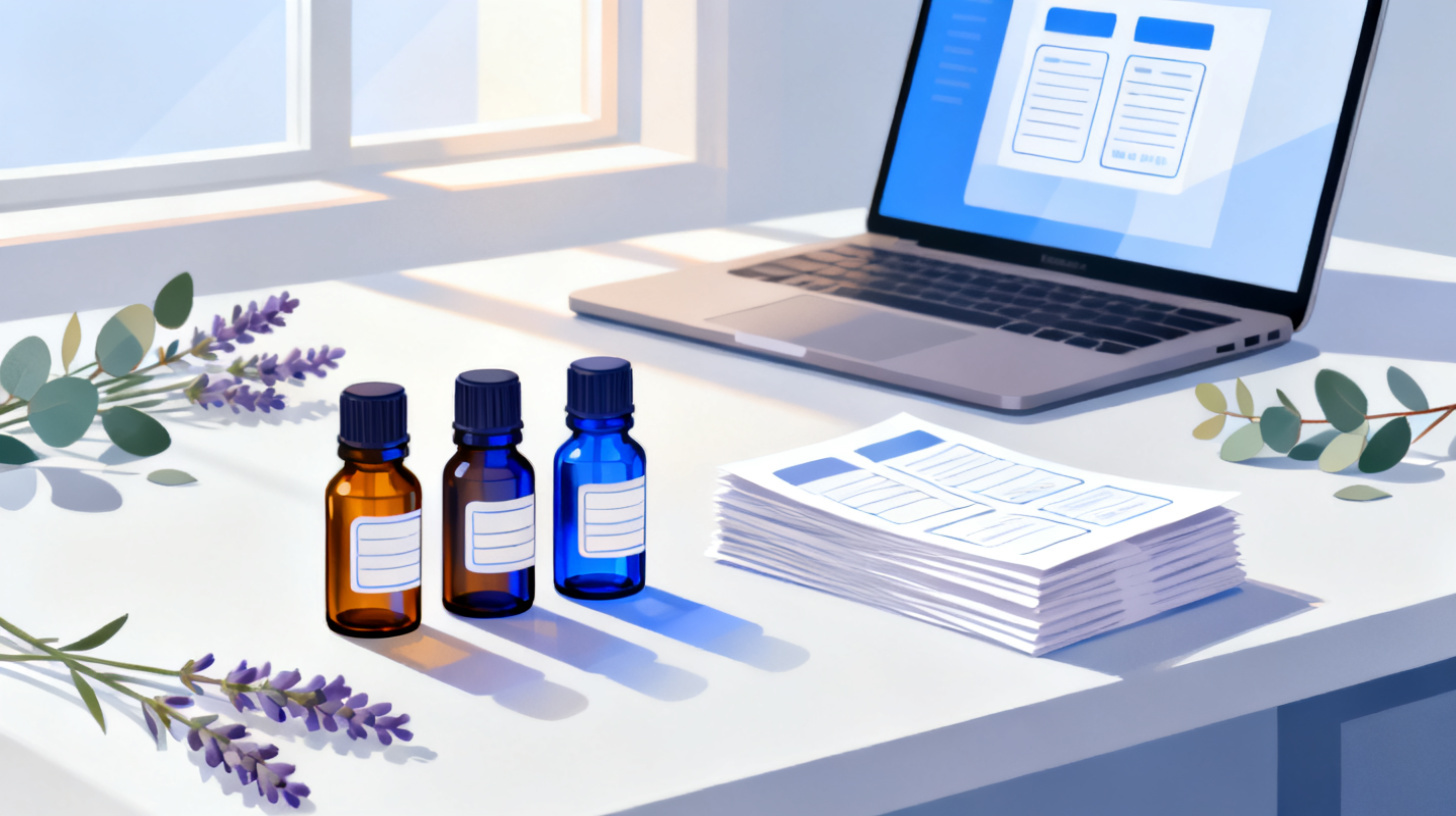
You've blended the perfect lavender-eucalyptus mix. The glass bottles are lined up on your counter. Now comes the part that trips up most small-batch essential oil sellers: the label.
Getting your essential oil labels right isn't just about looking professional. If you plan to sell your products, even at a local farmers market or through an online shop, your labels need to meet specific regulatory guidelines. The good news? You don't need expensive design software or a commercial print shop. With Google Docs, a solid template, and a clear understanding of what belongs on your label, you can create compliant, beautiful labels from your home printer.
In this guide, we'll walk through exactly what needs to go on an essential oil label, how to design it in Google Docs using the right template, and how to print it so everything looks crisp and aligned on your bottles. If you're ready to turn your hobby into a legitimate product line, check out the FoxyLabels Pricing Plans to get started with professional label templates that make this whole process smoother.
What Every Compliant Essential Oil Label Needs
Before you open Google Docs or pick out a font, you need to understand what actually goes on an essential oil label. Regulatory requirements can vary depending on how you market your product, but there are common elements that apply broadly to essential oils sold in the United States.
The FDA classifies products based on their intended use. If your essential oil is marketed purely as an aromatic product ("enjoy the calming scent of lavender"), it falls under cosmetic regulations. If you make any therapeutic claims ("relieves headaches" or "reduces anxiety"), the FDA may classify it as a drug, which carries much stricter labeling and approval requirements. For most small-batch sellers, the smartest approach is to market essential oils as cosmetic or aromatic products and avoid drug claims entirely.
Required Label Elements
Here's what a compliant essential oil label should include:
Product identity statement. This is the name of the product as it appears on the front panel. Something like "Pure Lavender Essential Oil" or "Eucalyptus Aromatherapy Oil" works well. It should clearly tell the buyer what's inside the bottle.
Net contents. You must state the quantity of oil in the bottle. For essential oils, this is typically measured in fluid ounces or milliliters (e.g., "0.5 fl oz / 15 mL"). Place this on the front label panel, generally in the lower 30% of the label area.
Ingredient list. List every ingredient in descending order of predominance. For a single-note essential oil, this might simply be "Lavandula angustifolia (Lavender) Oil." For blends, list every oil and any carrier oils used. Using the botanical (Latin) name alongside the common name is considered best practice.
Name and address of the manufacturer or distributor. This is a legal requirement. You need to include your business name and physical address (a P.O. Box is acceptable in most cases). This goes on what the FDA calls the "information panel," which is the panel immediately to the right of the front display panel.
Warning statements. Essential oils are potent. At minimum, include "For external use only," "Keep out of reach of children," and "Avoid contact with eyes." If your product contains a known allergen or sensitizer, note that as well. If the product is intended for use on skin, you should also recommend a patch test.
Directions for use. Even a brief instruction like "Add 3-5 drops to a diffuser" or "Dilute with a carrier oil before applying to skin" satisfies this requirement and protects you legally.
Lot number or batch code. While not always legally mandated for cosmetics, including a batch code is strongly recommended. It allows you to trace any product issues back to a specific production run.
Common Mistakes to Avoid
Many first-time sellers stumble on a few predictable pitfalls. Making therapeutic claims is the biggest one. Phrases like "cures," "treats," "heals," or even "boosts immunity" can trigger FDA drug classification. Stick to sensory language: "enjoy," "aromatic," "refreshing scent."
Another common mistake is forgetting the net contents or placing the ingredient list on a separate insert instead of the label itself. If the information fits on the label (or a combination of front and back labels), it should be there. Font size matters too. The FDA has minimum type size requirements based on the area of your principal display panel. For most small essential oil bottles (labels under 5 square inches), the minimum type size is 1/16 of an inch.
Getting these details right from the start saves you the headache of reprinting hundreds of labels down the road.
Designing Your Essential Oil Label in Google Docs
Once you know what needs to go on the label, the next step is actually designing it. Google Docs might not seem like a design tool, but paired with the right template, it's surprisingly capable for label creation.
Choosing the Right Template Size
Essential oil bottles come in standard sizes, and the labels need to match. Here are the most common bottle sizes and the label dimensions that typically work:
Bottle Size | Common Label Dimensions | Notes |
5 mL | 1.5" x 1" | Very small, fits rollerball bottles |
10 mL | 1.75" x 1.25" | Standard rollerball size |
15 mL | 2" x 1" or 2" x 1.5" | Most popular essential oil size |
30 mL (1 oz) | 2.25" x 1.75" | Larger dropper bottles |
4 oz | 3.5" x 2" | Used for carrier oil blends |
The challenge is finding label sheets that match these dimensions. This is where browsing the FoxyLabels Template Catalog becomes incredibly helpful. You can filter by label size and find templates that are compatible with popular label sheet brands like Avery, OnlineLabels, or SheetLabels. Once you find the right match, the template loads directly into Google Docs with the correct margins and spacing already set.
Setting Up Your Design
With your template open in Google Docs, here's how to build out your label design:
Step 1: Establish your layout zones. Even on a small label, think of it as having three zones. The top zone is for your brand name and logo. The middle zone holds the product name and a short descriptor. The bottom zone contains the net contents and any small icons or certifications. For rectangular wrap-around labels, you can use the left side as the "front" and the right side as the "back" information panel.
Step 2: Add your text elements. Start with the product identity statement in a clear, readable font. Sans-serif fonts like Roboto, Open Sans, or Lato work well at small sizes. Keep your brand name prominent but don't let it overpower the product name. Below the product name, add the net contents. On the back or secondary panel, add your ingredient list, directions, warnings, and business information.
Step 3: Work with images and branding. Google Docs lets you insert images, which means you can add your logo, botanical illustrations, or simple design elements. Keep image files small and high-resolution. A 300 DPI PNG with a transparent background works best for logos. Avoid cluttering the label with too many visual elements. On a 2-inch label, white space is your best friend.
Step 4: Check your font sizes. Zoom in to 200% or higher in Google Docs to verify readability. The ingredient list and warnings will be your smallest text, but they still need to be legible. A good rule of thumb: if you can't comfortably read it on screen at 150% zoom, it's too small for print.
If you're working with round labels for certain bottle types, you might find it helpful to read about how to print round circle labels in Google Docs easily, which covers the specific alignment tricks for circular layouts.
Adding a Professional Touch
Small details elevate a label from homemade to professional. Consider adding:
A subtle border or frame around the label edge
Consistent color palette (two to three colors maximum)
Icons for "cruelty-free," "100% pure," or "vegan" if applicable
A QR code linking to your website or product usage guide
Google Docs supports tables, shapes, and text boxes, all of which help you position elements precisely. Use a single-cell table with invisible borders to create a contained design area on each label position.
Printing, Cutting, and Applying Your Labels
Designing the label is only half the job. Getting a clean, professional print and applying it smoothly to a curved glass bottle requires a bit of technique.
Choosing the Right Label Material
The paper (or film) you print on matters more than most people realize, especially for essential oils. These products are oily by nature, and spills happen. Here's a quick breakdown of your material options:
Matte white paper labels. Affordable and easy to print on any inkjet or laser printer. They look clean but aren't water or oil resistant. Best for products that will be used quickly and stored carefully.
Glossy white paper labels. Slightly more resistant to moisture and fingerprints. They give a polished, retail-ready look. Work well with inkjet printers that support glossy media.
Waterproof synthetic labels (BOPP or vinyl). The gold standard for essential oil labels. These are resistant to oil, water, and smudging. They require either a laser printer or a specialized inkjet, and they cost more per sheet, but the durability is worth it if you're selling products.
Clear labels. Great for a "no-label" look where the oil color shows through. These work best with simple, bold designs because fine details can be hard to read against a transparent background.
For most home-based essential oil businesses, waterproof matte labels offer the best balance of cost, printability, and durability.
Print Settings That Matter
Before you hit print, adjust these settings in your printer dialog:
Paper size: Make sure it matches your label sheet (usually US Letter 8.5" x 11").
Margins: Set to the template's specifications. FoxyLabels templates are pre-configured, so margins align automatically.
Quality: Select "Best" or "High" quality. Draft mode saves ink but produces fuzzy text, which is unacceptable for compliance text that needs to be legible.
Scaling: Set to 100% or "Actual Size." Never use "Fit to Page," as it will shrink or stretch your labels and ruin the alignment.
Paper type: If your printer lets you select media type, choose the option closest to your label material (glossy photo paper for glossy labels, plain for matte).
Always print a test page on regular paper first. Hold it up against your label sheet to verify alignment. This one step saves countless wasted label sheets.
Applying Labels to Bottles
Applying labels to small, curved essential oil bottles can be tricky. Here's a technique that works consistently:
Clean the bottle with rubbing alcohol to remove any oil residue or fingerprints. Labels adhere poorly to oily surfaces.
Peel the label from the sheet slowly, touching only the edges to keep the adhesive clean.
Align one edge of the label against the bottle, then slowly roll the bottle along the label, pressing firmly as you go.
For wrap-around labels, use a credit card or squeegee to smooth out air bubbles as you wrap.
Let the label set for at least 24 hours before handling the bottles extensively. This gives the adhesive time to fully bond.
If you're also labeling larger jars for balms or salves alongside your essential oils, the guide on how to print jar and bottle labels at home using Google Docs covers additional techniques for different container shapes.
Putting It All Together for Your Product Line
Creating one compliant label is a great start. Building a consistent, professional label system across your entire product line is what separates a hobby from a business.
Building a Label System
Once you've designed your first label, save it as a master template in Google Docs. Structure it so you can duplicate the document and swap out just the variable elements: product name, ingredients, net contents, and batch code. Keep everything else consistent, including your brand name placement, font choices, color scheme, and warning text.
This approach gives you two major advantages. First, it drastically speeds up label creation for new products. Second, it ensures brand consistency, which builds trust with customers. When someone picks up your peppermint oil and it has the same professional look as your tea tree oil, they perceive quality and reliability.
Consider creating a simple spreadsheet that tracks each product's label details:
Product | Botanical Name | Net Contents | Batch Prefix | Label Size |
Lavender Oil | Lavandula angustifolia | 15 mL | LAV- | 2" x 1.5" |
Peppermint Oil | Mentha piperita | 15 mL | PEP- | 2" x 1.5" |
Calm Blend | Multiple (see formula) | 10 mL | CLM- | 1.75" x 1.25" |
This tracking sheet becomes your production bible. When it's time to print a new batch, you pull up the master template, reference the spreadsheet, and generate accurate labels in minutes.
Quality Control Checklist
Before printing a full batch, run through this checklist:
Product name is spelled correctly and matches your listing
Botanical names are accurate and properly italicized
Net contents are stated in both metric and imperial units
Ingredient list is in descending order of predominance
Business name and address are current
Warning statements are present and legible
Directions for use are included
Batch code is unique to this production run
Font sizes meet minimum requirements
No therapeutic or drug claims are present anywhere on the label
Test print aligns correctly with label sheet
Printing this checklist and taping it near your workspace turns compliance from a headache into a habit.
Scaling Up Without Losing Quality
As your product line grows, the home-printing approach scales surprisingly well. Many successful small-batch essential oil brands produce hundreds of units monthly using nothing more than a quality inkjet printer, waterproof label sheets, and well-organized Google Docs templates.
The key is maintaining your template library. Every new product gets its own document, branched from the master. Every label sheet size you use has a corresponding template with correct spacing. If you need help finding the right template dimensions for a new bottle size or label sheet brand, the FoxyLabels Support team can point you in the right direction.
Whether you're making five bottles for a craft fair or fifty for an online store, the process stays the same: design once, verify compliance, test print, produce. That consistency is what protects your brand and keeps your customers safe.
Creating compliant essential oil labels at home is absolutely achievable. You don't need a graphic designer, a commercial printer, or expensive software. What you need is a clear understanding of labeling requirements, the right template for your bottle size, and a systematic approach to design and printing.
Start by browsing the FoxyLabels Pricing Plans to find a plan that fits your needs, grab a template that matches your label sheets, and begin building your product line with confidence. Your customers deserve a label that's as pure and honest as the oils inside the bottle.
Install Foxy Labels
Get started with Foxy Labels and create perfectly aligned labels in minutes.
Get Started