How to Create FDA Compliant Soap Labels Using Google Sheets
Create professional, FDA-compliant soap labels at home using Google Sheets and mail merge. This guide covers labeling requirements, spreadsheet setup, and printing tips for handmade soap makers.
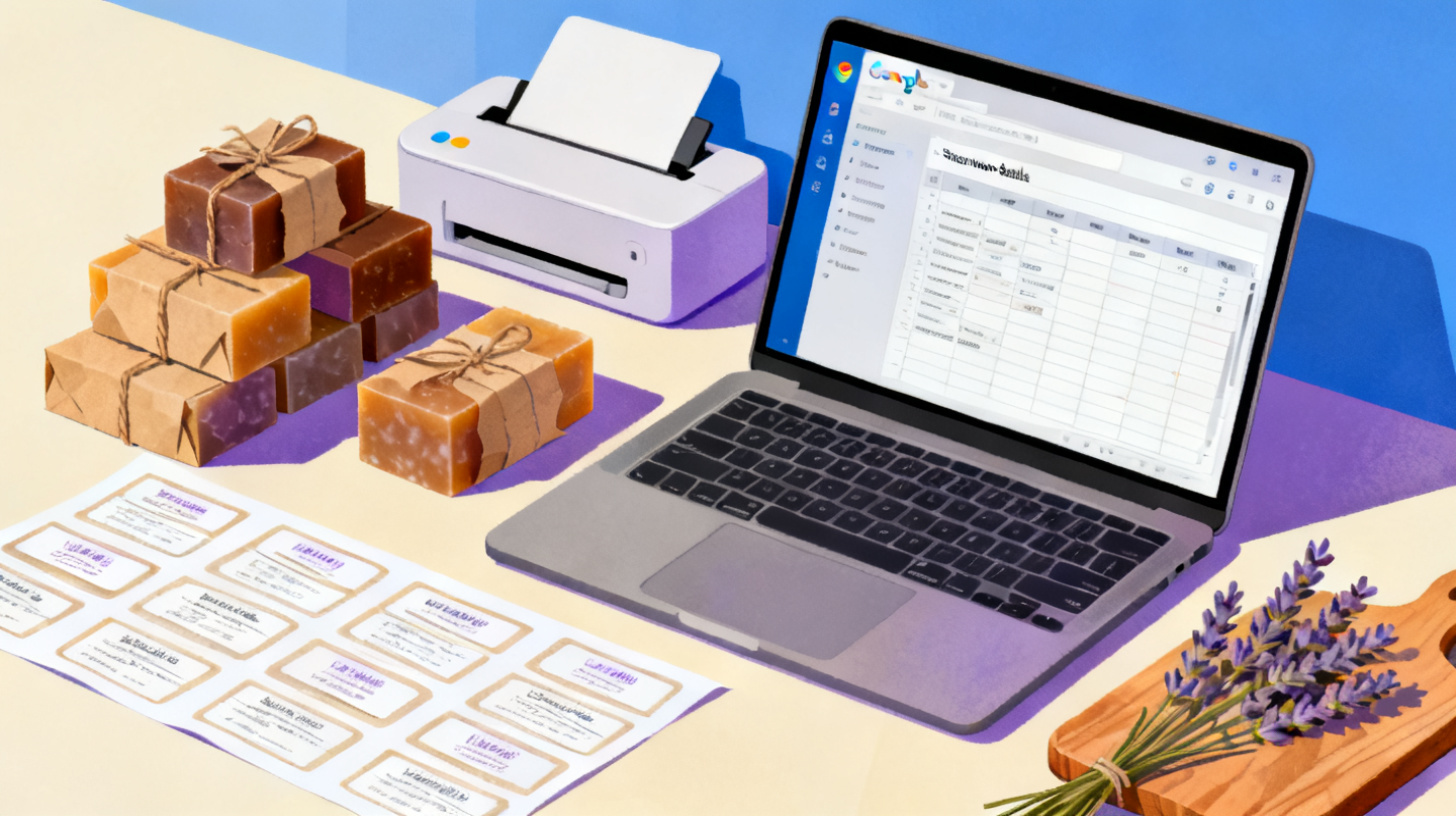
You've spent months perfecting your handmade soap recipe. The lather is luxurious, the scent is heavenly, and your friends keep begging you to sell it. But before you can place a single bar on a shelf or ship one to a customer, there's a hurdle that trips up nearly every soap maker: the label.
Soap labeling isn't just about looking pretty. The FDA and the Fair Packaging and Labeling Act (FPLA) have specific requirements about what must appear on your product. Miss a required element, and you risk fines, product seizures, or being forced to pull inventory off shelves. The good news? You don't need expensive design software or a professional label printer to get this right. With a well-organized Google Sheets spreadsheet, a mail merge tool, and an understanding of what the FDA actually requires, you can produce compliant, professional soap labels at home.
This guide walks you through every step, from understanding the regulatory requirements to printing your first batch of labels on standard Avery sheets.
What the FDA Actually Requires on Your Soap Labels
Before you design anything, you need to know what belongs on the label. The requirements depend on whether your product qualifies as "soap" under the FDA's definition or whether it crosses into "cosmetic" or "drug" territory. Let's break this down clearly.
The FDA Definition of Soap
The FDA has a surprisingly narrow definition of soap. To qualify, your product must meet two criteria: (1) the bulk of the nonvolatile matter consists of an alkali salt of fatty acids (in other words, the cleaning action comes from actual soap made through saponification), and (2) the product is labeled and marketed only as soap, with no cosmetic or drug claims. If you label your bar as "moisturizing" or claim it treats acne, it stops being "soap" in the FDA's eyes and becomes a cosmetic or drug, which triggers an entirely different set of labeling regulations.
For true soap, the FDA itself doesn't regulate the product. However, the Fair Packaging and Labeling Act, enforced by the Federal Trade Commission (FTC), still applies. This means your label must include several mandatory elements.
Mandatory Label Elements
Every soap label that goes to market needs these components:
Identity statement: What the product is, displayed on the front panel. "Handmade Lavender Soap" or "Cold Process Bar Soap" works fine.
Net weight: The weight of the soap in both ounces and grams (e.g., "Net Wt. 4 oz / 113g"). This must appear on the front panel, in the bottom 30% of your principal display area.
Business name and address: Your company name and the street address, city, state, and zip code where the soap is manufactured or distributed. A P.O. box alone typically won't satisfy the requirement.
Ingredient list (if cosmetic claims are made): If your soap makes any cosmetic claims like moisturizing or softening, you'll need a full ingredient list in descending order of predominance, using INCI (International Nomenclature of Cosmetic Ingredients) names.
Even for true soap without cosmetic claims, including an ingredient list is smart business practice. Customers with allergies expect it, and retailers often require it.
Common Labeling Mistakes That Get Soap Makers in Trouble
Three mistakes pop up again and again. First, using marketing language that accidentally turns your soap into a cosmetic or drug. Words like "antibacterial," "heals," or "anti-aging" trigger drug classification. Second, listing the net weight incorrectly, either rounding improperly, placing it in the wrong location on the label, or omitting the metric equivalent. Third, using common names instead of INCI names in the ingredient list. "Coconut oil" should be listed as "Cocos Nucifera (Coconut) Oil" if you're following INCI standards.
Once you understand these requirements, you can build your spreadsheet with confidence, knowing every required data point has a column.
Setting Up Your Google Sheets Spreadsheet for Soap Labels
The power of using Google Sheets for soap labeling is that you can manage your entire product catalog in one place. When you change a business address, update a formula, or add a new scent, every label updates automatically through mail merge. Let's build the spreadsheet from scratch.
Designing Your Column Structure
Open a new Google Sheets document and create these columns across the top row:
Column | Header Name | Example Data |
A | Product Name | Lavender Dream Bar Soap |
B | Net Weight Oz | 4.5 oz |
C | Net Weight Grams | 128g |
D | Business Name | Wildflower Soap Co. |
E | Street Address | 742 Evergreen Terrace |
F | City State Zip | Portland, OR 97201 |
G | Ingredients | Saponified Oils of Olea Europaea (Olive), Cocos Nucifera (Coconut), Butyrospermum Parkii (Shea Butter), Lavandula Angustifolia (Lavender) Essential Oil |
H | Batch Code | WF-LAV-0042 |
I | Tagline | Gentle Cleansing for Every Day |
Notice that the net weight is split into two columns. This gives you flexibility in placing ounces and grams in different locations on the label if your design requires it. The batch code column isn't required by law, but it's invaluable for traceability if you ever need to issue a recall or track down a quality issue.
Tips for Clean Data Entry
Your mail merge output is only as good as your input data. A few rules will save you headaches later:
Keep ingredient lists consistent. Decide whether you'll use parenthetical common names (e.g., "Cocos Nucifera (Coconut) Oil") and stick with that format across all products.
Use the same weight format everywhere. If one row says "4.5 oz" and another says "4.5 ounces," your labels will look inconsistent.
Avoid extra spaces. Trailing spaces in cells can create odd gaps on printed labels. Use Google Sheets' TRIM function if needed:
=TRIM(A2).Validate net weights. Weigh multiple bars from each batch and use the average. Overstating weight is a compliance violation, while understating it costs you margin.
Once your spreadsheet is populated, you're ready to connect it to a label template.
Choosing the Right Label Size
Soap labels come in many shapes, but a few standards work well for most bar sizes. For a standard 4 oz bar, a 2" x 3" or 2.5" x 3" rectangle label fits nicely on the front panel. For wrap-around labels, a 8.5" x 2" strip works well. Match your label size to a compatible Avery or similar template number, which you'll need for the mail merge step. Common choices include Avery 5163 (2" x 4") for larger bars and Avery 5160 (1" x 2.625") for smaller accent labels.
Mail Merging Your Soap Labels from Google Sheets
With your data organized and your label size selected, the next step is connecting everything through a mail merge. This is where your spreadsheet transforms from a static table into a label-printing machine. If you've done mail merge with Avery templates before, this process will feel familiar, but there are soap-specific considerations worth covering.
Step 1: Select Your Label Template
Start by picking a label template that matches your chosen Avery sheet (or compatible brand). FoxyLabels offers a wide catalog of templates that work directly with Google Docs and Google Sheets, covering most standard label sizes. Choose the template number that matches your label sheet, and you'll get a document pre-formatted with the correct margins, gutters, and cell sizes.
This matters more than you might think. If your template margins are off by even 1/16 of an inch, text will creep over the edge of your labels, and you'll waste an entire sheet of expensive label paper.
Step 2: Design Your Label Layout
Inside your label template, design the layout for a single label cell. Here's a practical layout for an FDA-compliant soap label:
The bracketed items represent your merge fields, which will be replaced with data from your Google Sheets columns. A few design considerations:
Font size for net weight must be legible. The FPLA specifies minimum type sizes based on the area of your principal display panel. For most soap labels, a minimum of 1/16 inch (about 6pt font) is required.
Ingredient list font can be small, but still readable. Go no smaller than 6pt. If your ingredient list is long, abbreviating INCI names is not an option, so consider a slightly larger label.
Leave breathing room. Don't cram text to the edges. A 2mm inner margin keeps text from being cut off during printing.
Step 3: Run the Mail Merge
With your template designed and your spreadsheet ready, connect the two using FoxyLabels' Google Sheets label maker. The add-on pulls each row from your spreadsheet and populates a label on the sheet. If you have 12 soap varieties and your sheet holds 10 labels, you'll get properly paginated output across multiple pages.
Before printing the final batch, always do a test run:
Print one page on plain paper first
Hold the plain paper printout against your label sheet with a light behind it to verify alignment
Check that no text overflows the label boundaries
Verify all merge fields populated correctly (no blank fields or broken formatting)
Confirm net weight placement is in the bottom 30% of the front panel
Read every ingredient name for typos
This five-minute test can save you from wasting an entire pack of label sheets.
Step 4: Print and Apply
For printing, use a laser printer if possible. Laser-printed labels resist moisture and smudging far better than inkjet prints, which is important since soap is often stored in humid bathrooms. If you only have an inkjet printer, apply a clear waterproof label overlay or use waterproof inkjet label sheets.
Print settings matter too. Set your printer to "Actual Size" (not "Fit to Page"), select the correct paper size, and if your printer has a straight-through paper path, use it to prevent label sheets from curling.
Scaling Up and Maintaining Compliance Long Term
Printing your first sheet of labels is satisfying, but the real value of this system shows up when you scale. Here's how to keep everything running smoothly as your soap business grows.
Managing Multiple Product Lines
As you add scents, sizes, and seasonal varieties, your Google Sheets spreadsheet becomes your single source of truth. Add a "Status" column to track which products are active, discontinued, or seasonal. Use Google Sheets' filter views to show only the products you need to print on a given day. If you produce 30 varieties but only need to restock 8 of them, filter your sheet to those 8 rows before running the merge.
You can also use conditional formatting to flag potential compliance issues. For example, highlight any row where the Ingredients column is empty (a red flag if the product makes cosmetic claims) or where the net weight column contains unexpected characters.
Handling Address or Formula Changes
When you move your business or change a soap formula, update the relevant cells in Google Sheets, and every future label run automatically picks up the change. This is a massive advantage over pre-printed labels, where a business move means throwing away your entire label inventory.
For formula changes, keep a version history. Google Sheets tracks changes automatically (File > Version history), so you can always verify what ingredient list was used for a specific batch. Pair this with your batch code column, and you have a lightweight traceability system that costs nothing.
When to Consider Professional Printing
Home printing works beautifully for small batches, farmers market quantities, and online shops doing a few hundred units per month. But there's a crossover point. When you're consistently printing more than 500 labels per week, the cost per label with a professional printer often drops below what you'd spend on label sheets and ink cartridges. At that point, your Google Sheets spreadsheet still serves as your master data source. Simply export the data and send it to your printer.
Staying Current with Regulations
Regulations can change. The FTC periodically updates labeling guidance, and if your soap ventures into cosmetic territory, the FDA's cosmetic labeling rules apply. Bookmark the FDA's cosmetic labeling guide and review it periodically. Build a habit of checking your labels against current requirements whenever you introduce a new product line.
Creating compliant, professional soap labels doesn't require a design degree or expensive software. A well-structured Google Sheets spreadsheet gives you centralized control over every data point the FDA and FTC require. A label template matched to your sheet size handles the formatting. And a mail merge workflow lets you print a dozen different label varieties in the time it used to take to design one.
Start with your spreadsheet. Get the data right. Then let the merge do the heavy lifting. Your soap deserves a label as good as what's inside the wrapper.
Install Foxy Labels
Get started with Foxy Labels and create perfectly aligned labels in minutes.
Get Started