How to Find and Print Label Templates in Google Docs
Google Docs doesn't include built-in label templates, but you can still find, customize, and print labels of any size. This guide covers template sourcing, mail merge setup, and print alignment tips.
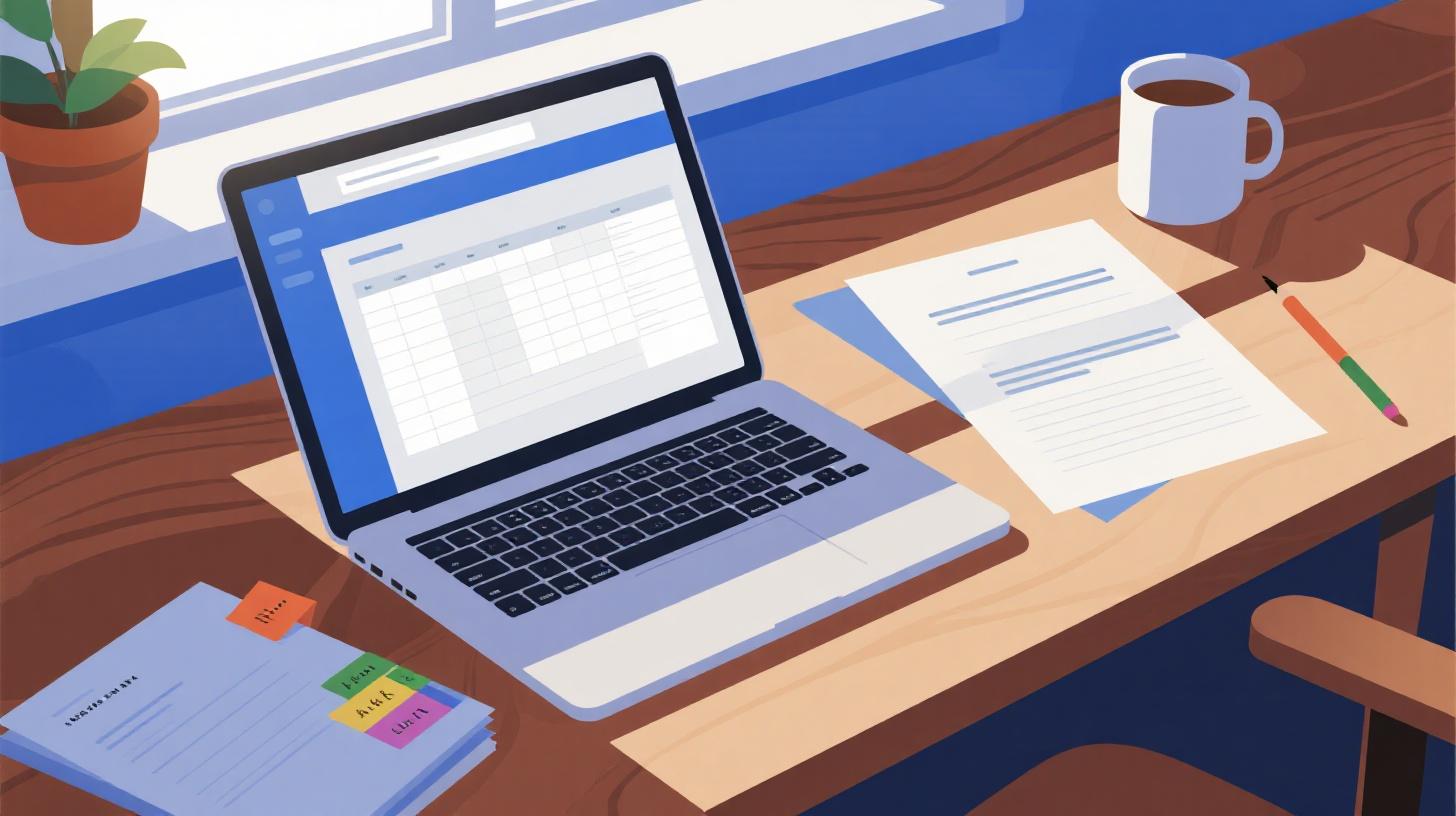
You've got a stack of blank label sheets, a list of addresses, and a deadline that's creeping closer. You open Google Docs, expecting to find a built-in label template, and... nothing. No label wizard. No template gallery full of Avery sizes. Just a blank page staring back at you.
If that scenario sounds familiar, you're not alone. Google Docs is an incredibly versatile tool, but label creation isn't something it handles natively. The good news? With the right approach, you can find, customize, and print labels of virtually any size directly from Google Docs. Whether you're printing address labels for wedding invitations, shipping labels for your small business, or product labels for handmade candles, this guide walks you through every step.
The trick is knowing where to find templates that actually match your label sheets and how to set them up for a clean print. Let's start by browsing the FoxyLabels Template Catalog, which offers hundreds of label templates organized by brand, size, and shape, and then dig into exactly how to use them.
Why Google Docs Doesn't Have Built-In Label Templates (And What to Do Instead)
If you've used Microsoft Word, you probably remember the "Labels" feature tucked inside the Mailings tab. It lets you pick a label brand, select a product number, and generate a ready-to-fill template. Google Docs simply doesn't have an equivalent feature. There's no hidden menu, no secret setting. It's a gap in the platform that catches a lot of people off guard.
But here's the thing: Google Docs is actually a solid label-making tool once you fill that gap. Its table functionality, precise margin controls, and cloud-based collaboration make it genuinely useful for label projects. You just need a template to get started.
Where Label Templates Come From
Label templates are essentially documents with precisely sized tables and margins that match the physical label sheets you buy at the store. Each cell in the table corresponds to one label on the sheet. The margins match the non-printable edges. The row heights and column widths match the peel-off labels themselves.
When these measurements are even slightly off, labels print misaligned. Text creeps onto the next label. Borders don't line up. It's the kind of problem that wastes both paper and patience.
That's why grabbing a pre-built template is almost always better than trying to build one from scratch. Someone has already done the math, tested the print alignment, and verified that the dimensions match popular label sheet brands like Avery, Herma, and OnlineLabels.
Three Ways to Get Label Templates for Google Docs
There are a few paths to finding the right template, and each has trade-offs:
Search by product number. If your label sheet has a product code (like Avery 5160 or Avery 8163), you can search for that specific template. For example, the Avery 5160 template for Google Docs is one of the most commonly used address label formats, with 30 labels per sheet arranged in a 3-column layout. Searching by product number is the fastest way to get an exact match.
Browse a template catalog. If you don't know your product number, or you're working with generic label sheets, a catalog lets you filter by dimensions, label shape, and page size. The FoxyLabels Template Catalog covers hundreds of configurations, so you can match your sheets even without a brand name.
Use a Google Docs add-on. Add-ons like Foxy Labels integrate directly into Google Docs, letting you select a template, fill in your content, and generate a print-ready document without leaving the app. This is especially helpful for mail merge scenarios where you're pulling names and addresses from a Google Sheet.
For most people, option two or three is the sweet spot. You get accurate templates without manually measuring your label sheets with a ruler.
A Note on "Free" Templates You Find Online
A quick web search will turn up dozens of sites offering free label templates. Some are legitimate. Others are outdated, incorrectly sized, or designed for Word and don't translate cleanly into Google Docs. The most common issue is margin discrepancy. Word and Google Docs handle page margins differently, so a template that prints perfectly in Word might be off by a few millimeters in Docs. Always test-print on plain paper first and hold it up against your label sheet to check alignment before committing to a full print run on your actual labels.
Setting Up and Customizing Your Label Template in Google Docs
You've found a template that matches your label sheets. Now what? Let's walk through the process of getting that template into Google Docs, filling it with your content, and making it look exactly the way you want.
Step 1: Open Your Template
If you downloaded a template file (PDF, DOCX, or ODT), upload it to Google Drive and open it with Google Docs. Google Docs will convert the file, preserving the table structure and dimensions. If you're using an add-on, the template loads directly into a new or existing document.
Once the template is open, you'll see a table where each cell represents one label. Don't resize the table or adjust the margins. These are calibrated to match your label sheet, and even a small change can throw off the print alignment.
Step 2: Add Your Content
For simple projects, just click into each cell and type. You can add text, adjust font sizes, and even insert small images like logos. A few formatting tips that make a big difference:
Font size matters more than you think. Address labels typically work best at 10-12pt. Go smaller for labels with dense information. Go larger for name badges or file folder labels.
Cell padding controls breathing room. Right-click the table, choose "Table properties," and adjust cell padding to add space between your text and the label edges. Even 0.05 inches of padding prevents text from printing too close to the label border.
Vertical alignment keeps text centered. In Table properties, set vertical alignment to "Middle" so your content sits in the center of each label rather than hugging the top.
For projects involving lots of labels with different content (like a mailing list), manually typing each cell is tedious. That's where mail merge comes in.
Step 3: Use Mail Merge for Bulk Labels
Mail merge lets you pull data from a Google Sheet and automatically populate each label cell with unique information. This is the go-to method for address labels, name tags, product labels, and anything else where each label has different text.
Here's the general flow:
Prepare a Google Sheet with one column per data field (Name, Street Address, City, State, ZIP).
Open your label template in Google Docs.
Use a label add-on to connect the spreadsheet, map your columns to label fields, and generate the filled document.
The detailed walkthrough for this process is covered in the guide on making and printing labels in Google Docs, which includes screenshots and tips for handling common formatting hiccups.
Mail merge is where Google Docs genuinely shines compared to desktop software. Because everything lives in the cloud, you can collaborate on the spreadsheet with your team, and changes sync automatically. No emailing files back and forth.
Step 4: Fine-Tune the Design
Once your content is in place, take a few minutes to polish the design:
Add a logo or icon by inserting an image into a cell. Resize it to fit within the label boundaries. For product labels, a small brand logo in the corner adds a professional touch.
Use bold or color for hierarchy. On a shipping label, bold the recipient's name so it stands out from the address lines.
Adjust line spacing under Format > Line & paragraph spacing. Tighter spacing (like 1.0 or 1.15) gives you more room on small labels.
Remove table borders before printing. Select the entire table, click the border color icon, and set it to white or 0pt. Label sheets don't have visible borders, so your printed labels shouldn't either.
Printing Labels Without Wasting Sheets
Printing is where most label projects go sideways. You've spent time setting up the template, filling in data, and tweaking the design. Then the first print comes out misaligned, and suddenly you've wasted a sheet of expensive labels. Here's how to avoid that.
Step 1: Always Test on Plain Paper First
This is the single most important printing tip, and it's free. Print your label document on a regular sheet of paper. Then hold that printout up against your label sheet (with a light behind them if the paper is thin enough). Check whether the printed text aligns with the label boundaries.
If the alignment is off, the issue is almost always one of three things:
Margins are wrong. Go to File > Page setup in Google Docs and verify that the margins match the template specifications. Some printers also have their own margin settings that can override the document.
Print scaling is on. In your print dialog, make sure scaling is set to 100% or "Actual size." If the printer is set to "Fit to page" or "Shrink to fit," it will resize your carefully calibrated template.
The printer is adding its own margins. Some printers can't print to the very edge of the paper. If your label template uses narrow margins, check your printer's specifications to make sure it can handle them.
Step 2: Configure Your Print Settings
When you're ready to print on actual label sheets, use these settings:
Paper size set to match your labels (usually Letter or A4)
Scaling set to 100% / Actual Size
"Fit to page" turned OFF
Correct paper tray selected (if your printer has multiple trays)
Print quality set to normal or high (draft mode can produce faint text)
In Google Docs, press Ctrl+P (or Cmd+P on Mac) to open the print dialog. Click "More settings" to access scaling and paper size options. If you're printing through Chrome, look for the "Scale" dropdown and set it to "Default" or manually enter 100.
Step 3: Feed Label Sheets Correctly
Label sheets can jam if fed incorrectly. Most inkjet printers pull paper from a bottom tray, label side down. Most laser printers pull from a tray with the label side up. Check your printer's manual if you're unsure. Feeding the sheet the wrong way can cause labels to peel inside the printer, which is a messy and potentially expensive fix.
Also, only use label sheets rated for your printer type. Inkjet label sheets have a coating optimized for liquid ink. Laser label sheets use adhesives that can withstand the heat of a laser printer's fuser. Using the wrong type can result in smeared ink or labels that peel and stick to internal printer components.
Step 4: Handle Partial Sheets
If you only need 10 labels but your sheet holds 30, you'll have leftover blank labels after the first print. Can you run that same sheet through the printer again later? Technically, yes, but proceed with caution. Label sheets that have already been through a printer (especially a laser printer) may have slightly weakened adhesive. The remaining labels could peel or jam on the second pass. For mission-critical projects, it's safer to use a fresh sheet.
For businesses printing product labels, it's worth noting that the Federal Trade Commission's Fair Packaging and Labeling Act sets requirements for consumer product labels. If your labels include weight, ingredient, or manufacturer information, make sure your label design meets these federal guidelines before printing a large batch.
Choosing the Right Label Size for Your Project
Not all labels are created equal, and picking the wrong size is a surprisingly common mistake. The right label depends on what you're labeling, how much text you need to fit, and where the label will be applied.
Address and Mailing Labels
The standard address label is 1" x 2-5/8" (the Avery 5160 size), which fits a typical 3-line address comfortably. These come 30 to a sheet and work for everyday mailing, holiday cards, and return address labels. If you need a larger format for shipping (with room for barcodes or tracking numbers), step up to a 2" x 4" label like the Avery 5163, which gives you 10 labels per sheet.
Product and Packaging Labels
Product labels vary wildly depending on the container. For small jars (like candles or spice containers), round labels in 1.5" or 2" diameter are popular. For bottles, a wraparound rectangle works better. If you're printing round labels, check out this guide on printing round labels for candles and jars using Google Docs for tips on alignment and design.
Organization and Filing Labels
File folder labels, binder spine labels, and storage bin labels tend to be narrow and long. A 2/3" x 3-7/16" file folder label fits standard hanging folders. For binder spines, you'll want a label that matches the binder width (1", 1.5", 2", or 3").
Name Badges and Event Labels
Name badge labels are usually 2-1/3" x 3-3/8" and come 8 to a sheet. They give you enough room for a name, title, and company, plus a small logo if you want one.
No matter which size you need, the process is the same: find the matching template, fill it with your content, test-print on plain paper, and then print on your label sheets. The FoxyLabels Template Catalog lets you filter by all these dimensions, so you can find the exact match for whatever sheets you have on hand.
Labels are one of those things that should be simple but often aren't. The gap between "I have label sheets" and "I have perfectly printed labels" is filled with margin calculations, printer settings, and template hunting. But once you have a reliable template and a tested print workflow, the process becomes repeatable and fast.
If you're ready to start, browse the full template catalog to find your label size, or jump straight into the step-by-step label creation guide to build your first sheet. For high-volume projects, check the pricing plans to see which tier fits your needs, including a free option for smaller jobs. Your next label project doesn't have to be a headache.
Install Foxy Labels
Get started with Foxy Labels and create perfectly aligned labels in minutes.
Get Started