How to Fix Misaligned Labels When Printing from Google Docs
Labels printing off-center from Google Docs? This step-by-step troubleshooting guide covers every fix for misaligned labels, from margin settings to printer calibration and template accuracy.
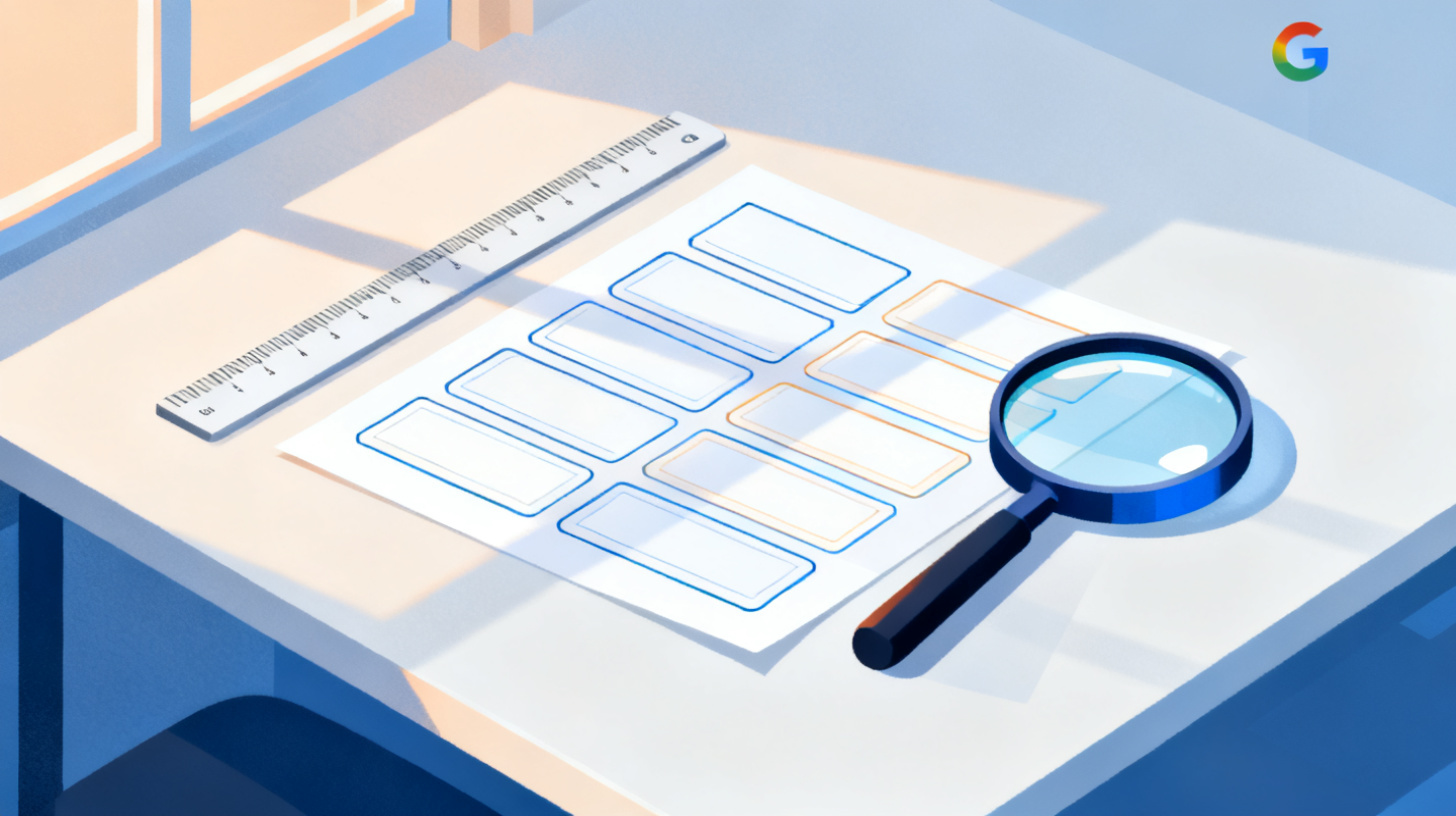
You've spent the last hour designing labels in Google Docs. The text looks perfect on screen. You hit print, grab the sheet from the tray, and... the text is shifted a quarter inch to the left. Every single label is off. Some text bleeds into the next cell. Your entire sheet of expensive label paper is ruined.
If this sounds painfully familiar, you're not alone. Label misalignment is one of the most common frustrations people face when printing from Google Docs. The good news? Almost every alignment issue traces back to a handful of fixable causes. Whether your Avery 5160 labels aren't lining up or your address labels keep shifting down the page, this guide walks you through every troubleshooting step you need. And if you want to skip the guesswork entirely, you can browse label templates that are already measured to precise specifications for dozens of popular label brands.
Let's dig into what's actually going wrong and how to fix it.
Why Labels Print Misaligned and How to Identify the Root Cause
Before you start tweaking settings, it helps to understand why labels shift during printing. The root cause usually falls into one of four categories: margin and page setup errors, printer-specific quirks, template measurement problems, or browser scaling issues. Identifying which one is affecting your print job saves you from chasing fixes that won't work.
Margin and Page Setup Errors
Google Docs uses default margins of one inch on all sides. Most label sheets, however, require different margins. Avery 5160 labels, for example, need a top margin of 0.5 inches and side margins of approximately 0.1875 inches. If your document still uses the default one-inch margins, your entire label grid will be pushed inward and downward.
To check your margins in Google Docs, go to File > Page setup. Compare the values you see against the specifications listed on your label packaging or the manufacturer's website. Even a difference of 0.1 inches compounds across 30 labels on a single sheet, which means labels near the bottom of the page can be off by a quarter inch or more.
Another subtle issue: Google Docs sometimes adds extra spacing above or below paragraphs. Select all the text in your label table, go to Format > Line & paragraph spacing, and set both "before" and "after" spacing to zero. This prevents invisible padding from nudging your content out of position.
Printer-Specific Quirks
Your printer itself can introduce alignment problems, even when your document is perfectly set up. Most inkjet and laser printers have a non-printable zone along the edges. This means the printer physically cannot place ink in the outermost few millimeters of the page. When Google Docs sends a print job that includes content in those zones, the printer shifts everything inward to compensate.
Additionally, some printers apply their own scaling. If your printer driver is set to "Fit to Page" or "Shrink to Fit," it will subtly resize your entire document. A 1% reduction might sound trivial, but on a sheet with three columns and ten rows of labels, that 1% adds up to noticeable misalignment by the bottom of the page.
To rule out printer issues, try this quick test: print your label document onto a plain sheet of paper first. Then hold that printed sheet behind your actual label sheet and hold both up to a light source. If the printed text lines up with the label boundaries when viewed through the paper, your document is fine and the issue is likely a feed or scaling problem in your printer settings.
Template Measurement Problems
This is the most common culprit. Many free label templates floating around the internet use approximate measurements. They might look close enough on screen, but labels are unforgiving. If a template uses a cell width of 2.6 inches when the actual label is 2.625 inches, every column will drift further right across the page.
Professionally built templates use exact manufacturer specifications down to the hundredth of an inch. This is where using a verified template library makes a real difference. FoxyLabels templates are built to match precise label dimensions for Avery, SheetLabels, OnlineLabels, and other major brands, so you don't have to measure anything yourself.
Browser and Print Dialog Scaling
Google Docs runs in a web browser, and your browser's print dialog adds another layer where things can go wrong. Chrome, Firefox, and Safari each handle print rendering slightly differently. Chrome's print dialog, for instance, has a "Scale" setting that defaults to 100%, but users sometimes accidentally change this. Even a setting of 99% will cause visible drift on label sheets.
Always verify that your browser print scale is set to exactly 100% and that "Fit to printable area" or similar options are turned off.
Step-by-Step Fixes for the Most Common Alignment Issues
Now that you know the categories of problems, here's a systematic approach to fixing them. Work through these steps in order. Each one eliminates a potential cause, so by the time you reach the end, your labels should print perfectly.
Step 1: Verify Your Page Setup Matches the Label Sheet
Open your Google Doc and go to File > Page setup. Set the page size to Letter (8.5" x 11") unless you're using a different standard. Then set your margins to match the label manufacturer's specifications exactly.
For Avery 5160 (one of the most popular label sizes), the correct settings are:
Setting | Value |
Top margin | 0.5" |
Bottom margin | 0.5" |
Left margin | 0.1875" |
Right margin | 0.1875" |
Page orientation | Portrait |
If you're using a different label product, check the packaging or look up the template specifications on the manufacturer's site. The key measurements you need are: top margin, side margins, label width, label height, and the gap between labels (both horizontal and vertical).
Step 2: Check Your Table Dimensions
Labels in Google Docs are typically built using tables. Right-click on your table, select Table properties, and verify that the column widths and row heights match your label dimensions exactly. Don't rely on dragging column borders with your mouse. Manual dragging is imprecise and almost always introduces small errors.
Also confirm that cell padding is set to zero or a very small value (like 0.05"). Default cell padding in Google Docs can push your text away from where you expect it to appear.
While you're in table properties, make sure "Allow row to break across pages" is unchecked if available, and that your table borders are set to 0pt width. Visible borders won't print on labels correctly and can sometimes affect how the document renders.
Step 3: Configure Your Print Settings Correctly
When you press Ctrl+P (or Cmd+P on Mac), pay close attention to these settings in the print dialog:
Scale: Must be 100%. Not "Fit to page," not "Default." Exactly 100%.
Paper size: Must match your actual paper. Select "Letter" for standard US label sheets.
Margins: In the browser print dialog, set to "None" or "Minimum." Your document already has the correct margins built in. Letting the browser add its own margins will double up and push everything off center.
Headers and footers: Uncheck any option to print headers, footers, or URLs. These take up space at the top and bottom of the page.
In Chrome specifically, click "More settings" in the print dialog to access the scale and margin options. They're hidden by default, which is why many people miss them.
Step 4: Run a Test Print on Plain Paper
Before using an actual label sheet, print onto regular paper. Then place your printed sheet on top of (or behind) a blank label sheet. Hold them up to a window or a lamp. Check whether your printed text falls within the label boundaries.
If the alignment is close but slightly off in one direction, you may need to adjust your document margins by small increments (try 0.05" at a time). Some printers consistently shift output by a tiny amount, and this "offset calibration" compensates for it.
If the alignment is way off, go back to Steps 1 and 2. The issue is likely in your document setup, not your printer.
Step 5: Check for Printer Driver Updates
Outdated printer drivers occasionally introduce scaling or positioning bugs. Visit your printer manufacturer's website and download the latest driver for your specific model. This is especially important if you've recently updated your operating system, as OS updates sometimes break older printer drivers.
For ongoing alignment help and walkthroughs, the FoxyLabels tutorials page has visual guides covering common printer configurations and Google Docs setup.
Preventing Alignment Problems Before They Start
Fixing misaligned labels is satisfying, but preventing the problem in the first place is even better. Here are the habits and tools that eliminate alignment headaches permanently.
Use a Verified, Precisely Measured Template
The single most effective thing you can do is start with a template that was built using the exact measurements from the label manufacturer. Hand-built templates in Google Docs are error-prone because it's too easy to round measurements or accidentally shift a table border.
Professionally built templates account for details most people overlook: the gap between label columns, the vertical pitch between rows, and the unprintable zones of common printers. When you browse label templates on FoxyLabels, each template specifies exactly which label products it supports, so you can match your label SKU to a template with confidence.
Create a Printer Profile for Label Printing
If you print labels regularly, save a dedicated printer profile (or at minimum, write down your settings). Document:
Paper tray selection (manual feed is often more reliable for label sheets)
Print quality setting (standard or normal, not draft)
Scaling (always 100%)
Paper type (if your printer has a "labels" option, use it)
Any margin offset you've calibrated
Having this checklist means you won't have to rediscover the right settings every time you print. It also helps if someone else in your household or office needs to print labels using the same printer.
Feed Label Sheets Correctly
How you load the label sheet matters more than most people realize. Label sheets should be fed print-side up or print-side down depending on your printer model (check your printer's manual). Loading the sheet upside down means your content prints on the backing paper instead of the labels.
Also, feed one sheet at a time if possible. Label sheets are thicker and stickier than regular paper, and feeding multiple sheets can cause jams or misfeeds that shift the page mid-print. Most printers have a manual feed slot or a rear tray that handles thicker media better than the main paper cassette.
Avoid Copy-Pasting Templates Between Documents
Copying a label table from one Google Doc to another can subtly change formatting. Paragraph spacing, cell dimensions, and even font rendering can shift during a paste operation. If you need a fresh copy of your template, download or duplicate the original rather than copying and pasting content between documents.
For stubborn alignment issues that resist all of these fixes, the FoxyLabels support team can help diagnose what's going wrong with your specific setup.
Advanced Troubleshooting for Stubborn Alignment Issues
Sometimes you do everything right and the labels still don't line up. Here are the less obvious causes and their solutions.
Your Browser Zoom Is Not at 100%
This one catches people all the time. If your browser is zoomed in or out (even slightly), Google Docs may render the page differently. Press Ctrl+0 (or Cmd+0 on Mac) to reset your browser zoom to 100% before printing. This is separate from the print dialog's scale setting. Both need to be at 100%.
You can check your current zoom level by looking at the address bar area in Chrome. If you see a magnifying glass icon, your zoom has been changed from the default.
Your Label Sheet Has Non-Standard Dimensions
Not all label sheets follow standard templates. Some off-brand labels claim to be "compatible with Avery 5160" but have slightly different measurements. If you've verified every setting and the alignment is still off, measure your actual labels with a ruler. Compare those measurements to the template you're using. Even a 1/16" difference will cause problems.
If the measurements don't match, you'll need to adjust your template or find one that matches your actual labels. This is another situation where a template library with broad brand compatibility saves time. You can look for your exact label product number rather than relying on generic "compatible" templates.
Google Docs Is Adding a Page Break Mid-Table
If your label table is too tall for the page (accounting for margins), Google Docs will break the table across two pages. This break can shift row positions. To check, scroll through your document and see if the table splits. If it does, you likely have margins that are too large for the number of label rows you need.
The fix is to reduce your margins to match the label specifications exactly, or to reduce the row height slightly if there's any excess space in each label cell.
PDF Export as a Workaround
If direct printing from Google Docs consistently produces misaligned results, try exporting to PDF first. Go to File > Download > PDF document. Then open the PDF in a dedicated PDF reader (like Adobe Acrobat Reader) and print from there. PDF readers give you more precise control over print scaling and margins, and they render more consistently than browser-based printing.
When printing from a PDF reader, set the page scaling to "Actual size" or 100%. Do not select "Fit" or "Shrink oversized pages."
Quick reference: The most common causes of misaligned labels, in order of frequency, are: wrong print scale (not 100%), incorrect page margins, browser print dialog adding extra margins, and imprecise template measurements. Fix these four things and you'll solve the vast majority of alignment problems.
Label printing shouldn't involve guesswork or wasted sheets. The right template, the right settings, and a single test print on plain paper will get you perfectly aligned labels every time. If you want to skip the manual setup entirely, browse FoxyLabels' template library to find templates built to exact specifications for your label brand. And for a deeper look at the full label creation workflow, check out our guide on printing waterproof labels at home with Google Docs for tips that apply to all label types. For access to the full range of premium templates and features, take a look at FoxyLabels pricing plans to find the right fit for your needs.
Stop wasting label sheets. Start printing with confidence.
Install Foxy Labels
Get started with Foxy Labels and create perfectly aligned labels in minutes.
Get Started