How to Print Amazon FBA FNSKU Labels from Google Sheets
Learn how to print professional FNSKU labels for Amazon FBA directly from Google Sheets. Step-by-step guide covering templates, barcodes, print settings, and scaling your workflow.
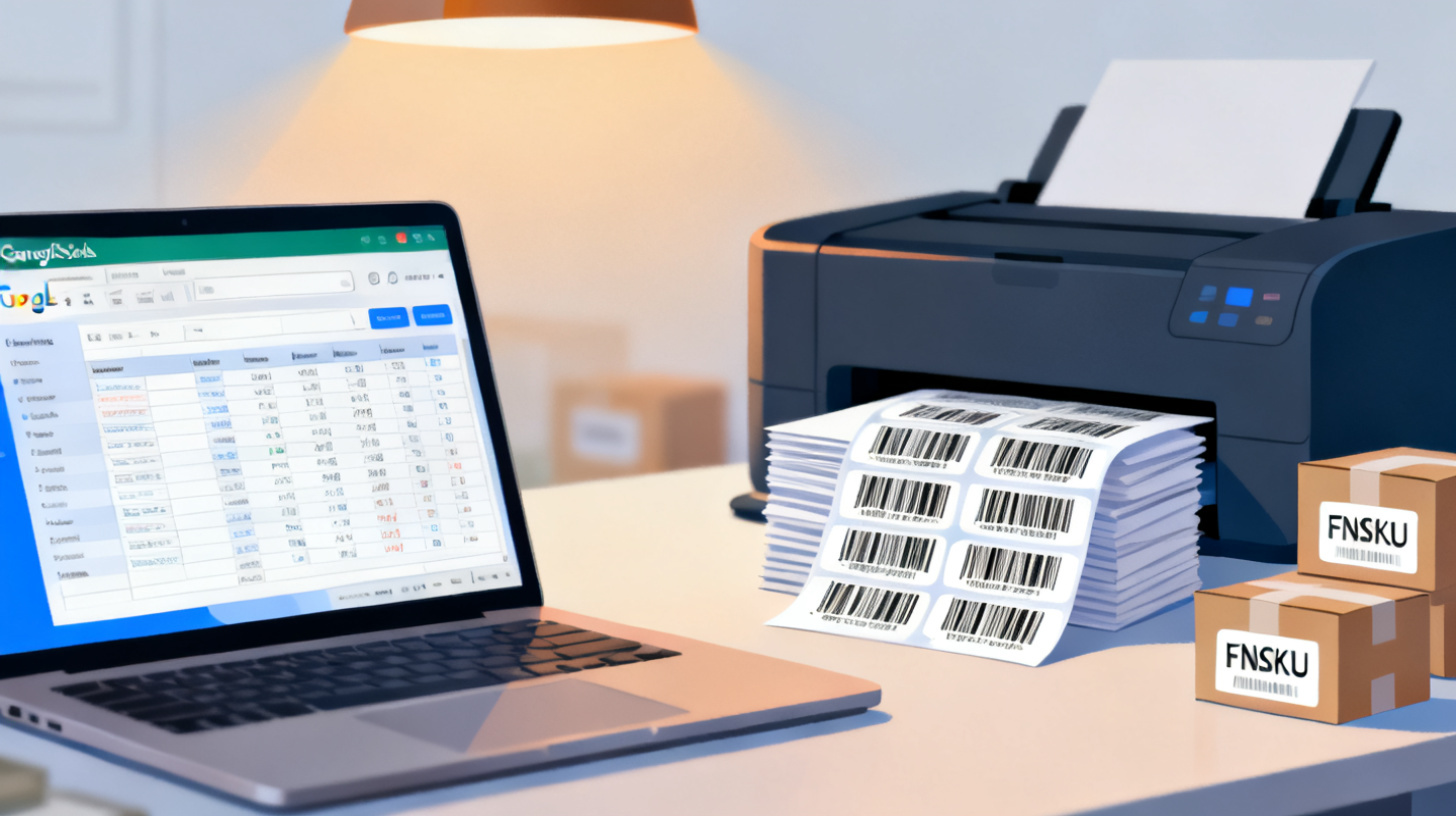
Every Amazon FBA seller knows the feeling. You've sourced your products, negotiated with suppliers, and finally have inventory ready to ship. Then you hit the labeling step and everything grinds to a halt. Printing FNSKU labels shouldn't be the bottleneck in your fulfillment workflow, but for many sellers, it absolutely is.
FNSKU barcodes are the unique identifiers Amazon uses to track your specific inventory inside their fulfillment centers. Without them (or with poorly printed ones), your shipments get delayed, your products get commingled with other sellers' stock, and your account health can take a hit. The good news? You can manage your entire FNSKU labeling process directly from Google Sheets, turning a tedious chore into a streamlined, repeatable system.
Whether you're shipping 50 units or 5,000, this guide walks you through everything you need to print professional FNSKU labels at home or in your warehouse. If you want to jump straight into label printing, FoxyLabels offers plans that let you generate labels directly from your spreadsheet data with just a few clicks.
Understanding FNSKU Labels and Why Amazon Requires Them
Before diving into the printing process, let's make sure you understand what FNSKU labels actually are and why Amazon is so particular about them. FNSKU stands for Fulfillment Network Stock Keeping Unit. It's a barcode that Amazon assigns to each product listing tied to your seller account. Unlike a UPC or EAN, which identifies a product generically, an FNSKU ties that specific product to you as the seller.
This distinction matters more than most new sellers realize. When Amazon receives your inventory at a fulfillment center, they scan the FNSKU to know exactly whose product it is, what listing it belongs to, and how to fulfill orders against it. If your products arrive without proper FNSKU labels, or with labels that scanners can't read, Amazon may refuse the shipment, charge you relabeling fees, or worse, commingle your inventory with another seller's stock of the same product.
According to Amazon's official FBA product barcode requirements, every unit you send to a fulfillment center needs either a manufacturer barcode or an Amazon barcode (FNSKU). Most experienced sellers choose FNSKU labeling because it prevents commingling and gives you full control over your inventory tracking.
What Makes a Properly Printed FNSKU Label
A scannable FNSKU label needs to meet several specifications. The barcode itself must be printed clearly with high contrast, typically black bars on a white background. The label should include the FNSKU barcode, the product title (or a shortened version), and the condition of the item. Smudged, wrinkled, or low-resolution labels will cause scanning failures at Amazon's warehouses.
Label size matters too. Amazon recommends labels that are at least 1" x 2" but no larger than 2" x 3". The most popular choice among FBA sellers is the Avery 5160 format (1" x 2-5/8"), which gives you 30 labels per sheet and fits perfectly within Amazon's size guidelines. These sheets work with standard inkjet and laser printers, making them accessible for home-based sellers and warehouse teams alike.
The key takeaway here is that FNSKU labeling isn't optional for serious FBA sellers, and the quality of your labels directly impacts how smoothly your inventory moves through Amazon's system. Getting this right from the start saves you money, time, and headaches down the road.
Common FNSKU Labeling Mistakes to Avoid
Sellers frequently make a handful of avoidable errors when printing FNSKU labels. Printing at low resolution is one of the biggest culprits. If your printer is set to draft mode or economy settings, the barcode lines may not have enough contrast for Amazon's scanners. Always print at the highest quality setting your printer supports.
Another common mistake is covering the original manufacturer barcode. When you apply your FNSKU label, it needs to completely cover any existing UPC or EAN barcode on the product packaging. If both barcodes are visible, Amazon's scanners might read the wrong one, leading to inventory tracking errors.
Finally, label alignment issues plague sellers who try to print without a proper template. If your labels are even slightly off from the label sheet's grid, you'll end up with cropped barcodes, wasted sheets, and a lot of frustration. This is exactly where a spreadsheet-based workflow shines, because you can set up your data once and let a template handle the formatting.
Setting Up Your FNSKU Data in Google Sheets
Google Sheets is the ideal hub for managing your FNSKU label data because it's collaborative, cloud-based, and integrates beautifully with label printing tools. Your team can update inventory data in real time, and you can generate labels directly from the same spreadsheet you use to track shipments.
Start by creating a dedicated Google Sheet for your FBA labeling workflow. Your spreadsheet should include columns for all the information that appears on each FNSKU label. At minimum, you'll need these columns:
FNSKU Code (the alphanumeric code from Seller Central, e.g., X001ABC123)
Product Title (a shortened version that fits on the label)
Condition (New, Used, Refurbished, etc.)
SKU (your internal reference, helpful for sorting)
Quantity (how many labels you need for each product)
You can download your FNSKU codes from Amazon Seller Central by navigating to your inventory management page and exporting your product list. The export file will include the FNSKU for each item. Copy these values into your Google Sheet, and you have the foundation for your label printing system.
Organizing Your Spreadsheet for Batch Printing
When you're shipping multiple products in a single FBA shipment, organization becomes critical. Group your products by shipment ID so you can print labels in batches that match your packing workflow. Add a column for the shipment destination (the specific Amazon fulfillment center) so you can cross-reference your labels with your shipping plan.
Here's an example of how a well-structured FNSKU spreadsheet might look:
FNSKU | Product Title | Condition | SKU | Qty | Shipment ID |
X001ABC123 | Silicone Spatula Set | New | SPAT-001 | 24 | FBA16XYZ789 |
X001DEF456 | Bamboo Cutting Board | New | BAMB-003 | 48 | FBA16XYZ789 |
X001GHI789 | Stainless Steel Whisk | New | WHSK-007 | 36 | FBA16XYZ789 |
The quantity column is particularly important. When you connect this spreadsheet to a label generation tool, each row can automatically produce the exact number of labels you need for that product. No more manually counting and printing extras "just in case."
For sellers who handle large catalogs, consider adding data validation rules to your Google Sheet. You can set the Condition column to only accept valid Amazon condition types, and you can format the FNSKU column to flag entries that don't match Amazon's expected pattern. These small touches prevent data entry errors that could result in mislabeled products.
If you've worked with Avery label sheets before, you might find our guide on how to print Avery 5160 labels from Google Sheets helpful for understanding the basics of connecting spreadsheet data to label templates.
Printing FNSKU Labels Step by Step Using Google Sheets
With your data organized, it's time to actually print those labels. This section walks you through the complete process, from selecting the right template to hitting print and getting labels that scan perfectly every time.
Step 1: Choose the Right Label Template
The label template you use determines how your data gets arranged on the physical label sheet. For FNSKU labels, the Avery 5160 (or equivalent 30-per-sheet) format is the industry standard among FBA sellers. It produces labels that are 1" x 2-5/8", which fits Amazon's recommended size range comfortably.
Browse the FoxyLabels template catalog to find templates compatible with Avery 5160 and dozens of other label sheet formats. If you're using a different brand like Herma, Uline, or OnlineLabels, you'll find matching templates there too. The key is to match your template to the exact label sheet you're putting in your printer. Even a slight mismatch between template and paper will throw off alignment across the entire sheet.
Step 2: Generate Barcode Images for Your FNSKUs
FNSKU barcodes use the Code 128 symbology. You need to convert your alphanumeric FNSKU codes into scannable barcode images. There are a few ways to handle this within a Google Sheets workflow.
One approach is to use a barcode font installed in your Google Sheet. By applying a Code 128 font to the cells containing your FNSKU codes, the text transforms visually into a barcode. However, this method has limitations with formatting and print quality.
A more reliable approach is to use an add-on or integration that generates barcode images from your cell data and places them directly onto your label layout. This ensures the barcodes are properly formatted with the required quiet zones (the blank space around the barcode that scanners need to read it accurately).
Regardless of which method you choose, always do a test print on plain paper first. Hold the printed page up against your label sheet to verify alignment. Then scan the test barcodes with a barcode scanner app on your phone to confirm they're readable before committing to label stock.
Step 3: Configure Your Print Settings
Print settings are where many sellers lose time to trial and error. Here's a checklist of settings to verify before every print run:
Paper size set to Letter (8.5" x 11") or A4, matching your label sheets
Margins set to match your template specifications (usually minimal or none)
Print quality set to "Best" or "High" for crisp barcode lines
Scaling set to 100% (never "Fit to Page" as this distorts barcode sizing)
Color mode set to Black and White (saves ink and improves contrast)
Laser printers generally produce sharper barcodes than inkjet printers because toner doesn't bleed the way ink can on certain label stocks. If you're printing at volume, a basic laser printer is a worthwhile investment that pays for itself quickly in label quality and speed.
Step 4: Print a Test Run and Verify
Before printing a full batch, print a single sheet and verify everything. Check that each label aligns properly within the die-cut boundaries of your label sheet. Scan every barcode on the test sheet with a scanner or smartphone app. Verify that the product title and condition text are legible and not truncated.
If you notice alignment drift (where labels get progressively more off-center as you move down or across the sheet), the issue is almost always a scaling or margin problem. Go back to your print settings and ensure nothing is being automatically adjusted by your printer driver.
For teams that need extra guidance on the Google Sheets to label printing workflow, the FoxyLabels tutorials section offers step-by-step walkthroughs covering everything from initial setup to advanced batch printing techniques.
Scaling Your FNSKU Labeling Workflow for Growing Operations
Once you've nailed the basics of printing FNSKU labels from Google Sheets, the next challenge is scaling the process as your FBA business grows. What works for 50 units per shipment starts to break down at 500 or 5,000 units. The good news is that a spreadsheet-based workflow actually scales remarkably well with the right approach.
The first thing to consider is team collaboration. Google Sheets lets multiple people work on the same document simultaneously. Your sourcing team can add new products and their FNSKUs to the sheet while your warehouse team prints labels from the same data. Everyone stays in sync without emailing files back and forth or worrying about version conflicts.
Create a standardized process document that outlines how your team should enter data, which columns are required, and what formatting rules to follow. Consistency in your spreadsheet means consistency in your labels. One team member entering product titles in ALL CAPS while another uses Title Case creates a sloppy, unprofessional look on your labels. Decide on a standard and stick with it.
Automating Repetitive Labeling Tasks
For products you restock regularly, you shouldn't have to re-enter data every time you create a new shipment. Build a master product sheet that contains all your active FNSKUs, product titles, and conditions. When it's time to create labels for a new shipment, simply copy the relevant rows into your labeling sheet and update the quantities.
You can take this further with Google Sheets formulas. Use VLOOKUP or INDEX/MATCH to pull product information automatically based on an FNSKU code. This way, your warehouse team only needs to enter the FNSKU and quantity, and the rest of the label data populates automatically.
Here's a simple formula example:
This pulls the product title from your master sheet based on the FNSKU in cell A2. Small automations like this eliminate data entry errors and speed up the labeling process significantly.
Tracking and Quality Control
As your volume grows, add a quality control layer to your workflow. Include columns in your spreadsheet for tracking label printing status:
FNSKU | Product Title | Qty | Labels Printed | Verified | Notes |
X001ABC123 | Silicone Spatula Set | 24 | Yes | Yes | Batch 1 |
X001DEF456 | Bamboo Cutting Board | 48 | Yes | No | Reprint needed |
This tracking approach gives you visibility into where each shipment stands in the labeling process. For marketing teams managing product launches across multiple ASINs, this kind of organized approach prevents the chaos that typically accompanies high-volume FBA shipments.
Consider running a monthly audit of your FNSKU data. Products get delisted, listings get merged, and FNSKUs occasionally change. An outdated FNSKU on a label will cause receiving problems at Amazon's warehouse. Keep your master sheet current and your labels will always be accurate.
The combination of Google Sheets flexibility and a purpose-built label printing tool gives you a workflow that handles everything from small test batches to full container loads. Ready to streamline your FNSKU labeling process? Check out FoxyLabels pricing plans to find the right fit for your FBA operation and start printing labels directly from your spreadsheet data today.
Install Foxy Labels
Get started with Foxy Labels and create perfectly aligned labels in minutes.
Get Started