How to Print Dymo Labels Directly from Google Sheets
Print professional Dymo labels straight from Google Sheets. This step-by-step guide covers data setup, label design, printer configuration, and troubleshooting tips for perfect output every time.
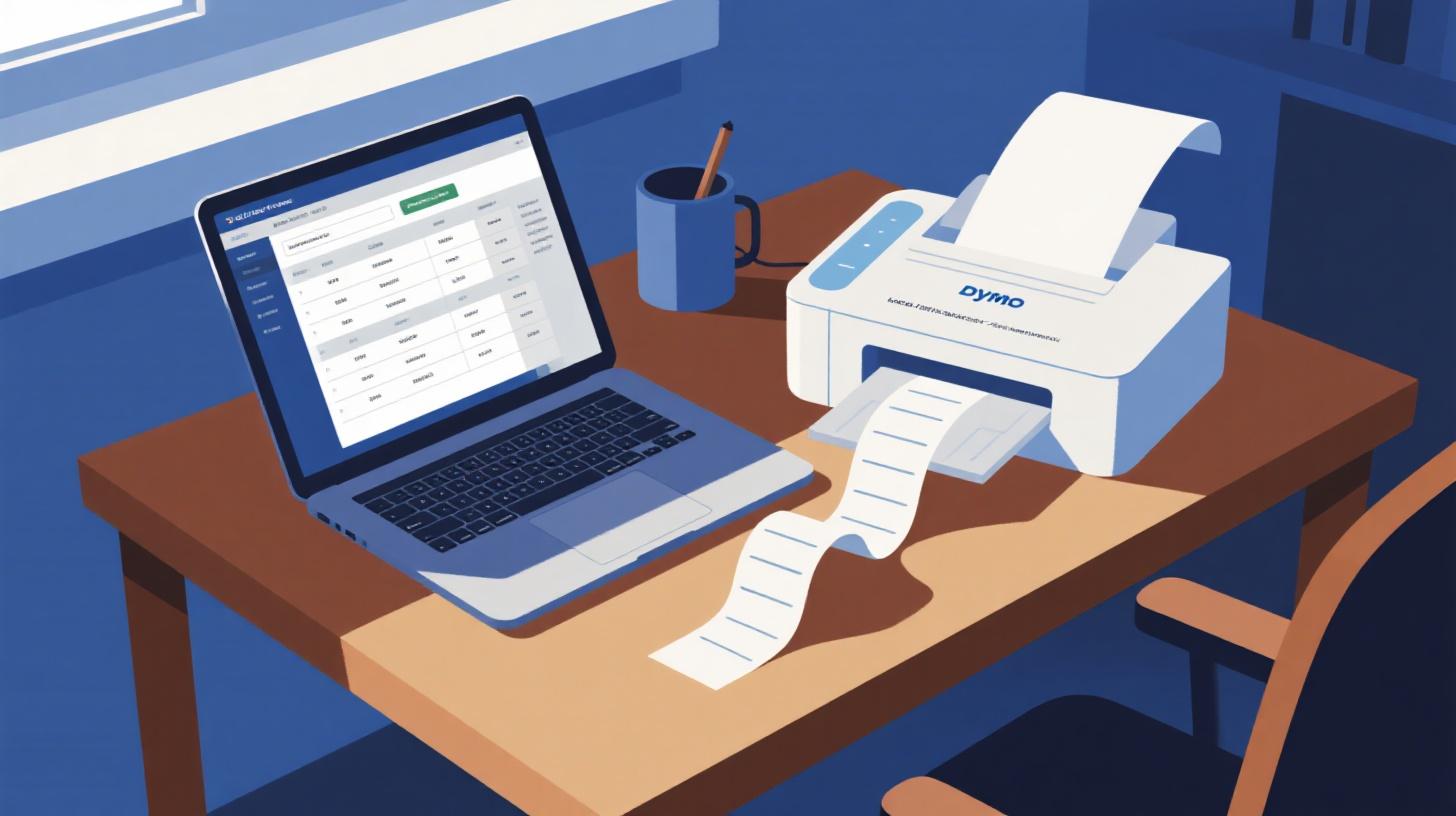
You've got a Dymo LabelWriter sitting on your desk, a spreadsheet full of addresses or product names in Google Sheets, and one burning question: how do you connect the two without losing your mind? Printing labels from a spreadsheet should be simple, but anyone who's tried it knows the frustration of misaligned text, wrong label sizes, and confusing printer settings.
The good news? It doesn't have to be complicated. Whether you're printing address labels for a mailing campaign, barcode labels for inventory, or name tags for an event, you can go from spreadsheet data to perfectly printed Dymo labels in just a few steps. This guide walks you through the entire process, from setting up your data and choosing the right label template to configuring your Dymo printer for flawless output. If you want the full overview of how to print labels from Google Sheets, that resource covers the broader workflow. Here, we're diving deep into the Dymo-specific details that make all the difference.
Setting Up Your Google Sheets Data for Dymo Labels
Before you touch your printer or open any label-making tool, the single most important step is getting your spreadsheet data organized correctly. A messy spreadsheet leads to messy labels, and there's no software in the world that can fix sloppy data entry. Let's get your data Dymo-ready.
Structuring Your Columns
Every column in your spreadsheet should represent one piece of information you want on your label. For address labels (one of the most common use cases for Dymo LabelWriter printers), your columns might look like this:
Column A | Column B | Column C | Column D | Column E | Column F |
First Name | Last Name | Street Address | City | State | ZIP Code |
Sarah | Johnson | 742 Evergreen Terrace | Springfield | IL | 62704 |
Marcus | Chen | 1200 Oak Boulevard | Portland | OR | 97201 |
A few rules to follow:
One header row at the top. Your first row should contain descriptive column names like "First Name," "Last Name," "Address," and so on. Label-making tools use these headers to map data onto your label template.
One record per row. Each row after the header represents one label. If you have 200 contacts, you should have 201 rows (1 header + 200 data rows).
No merged cells. Merged cells break nearly every data import and mail merge process. Keep every cell independent.
Consistent formatting. If your ZIP codes start with a zero (like 02134 for Boston), format that column as plain text so Google Sheets doesn't strip the leading zero. This is a common gotcha that results in wrong ZIP codes on printed labels.
Cleaning Your Data
Dirty data is the number one reason label prints go wrong. Before printing, scan your spreadsheet for these issues:
Extra spaces. A trailing space in a name field can cause alignment issues. Use Google Sheets' built-in
=TRIM()function to strip unnecessary whitespace.Missing fields. If a row is missing a city or state, your label will have an awkward blank line. Either fill in the missing data or remove the row entirely.
Duplicate entries. Nobody wants to receive two identical mailers. Use the "Remove duplicates" option under Data to clean up repeated rows.
Special characters. Apartment numbers, suite identifiers, and international characters can sometimes cause display issues. Double-check that symbols like #, ñ, or ü appear correctly.
Choosing the Right Label Size
Dymo LabelWriter printers use continuous rolls of thermal labels, not sheets. The most popular sizes include:
Dymo 30252 (1-1/8" x 3-1/2"): Standard address labels, perfect for mailing.
Dymo 30256 (2-5/16" x 4"): Large shipping labels with room for return addresses and barcodes.
Dymo 30330 (3/4" x 2"): Small return address labels.
Dymo 30334 (2-1/4" x 1-1/4"): Multi-purpose labels, great for file folders or product tags.
Knowing your exact label size before you start designing is non-negotiable. The dimensions of your label determine how much text fits, how large your font can be, and whether you can include extras like logos or QR codes. You can browse the Foxy Labels template catalog to find templates that match your specific Dymo label roll, ensuring your design fits perfectly from the start.
Once your data is clean, structured, and you know which label roll you're working with, you're ready to move on to the design and merge step.
Designing and Merging Labels with a Google Sheets Add-on
Here's where the magic happens. Google Sheets alone doesn't have a built-in label printing feature, so you'll need a tool that can take your spreadsheet data and arrange it into a printable label layout. This is often called a "mail merge for labels," and the fastest way to do it is with a Google Sheets add-on.
Step 1: Install the Foxy Labels Add-on
Head to the Google Workspace Marketplace and install Foxy Labels. It's a label maker add-on that works directly inside Google Sheets, so you don't need to download any separate desktop software. Once installed, you'll find it under the Extensions menu in your spreadsheet.
Why use an add-on instead of trying to manually format labels in Google Docs or a word processor? Three reasons:
Automatic data mapping. The add-on reads your column headers and lets you place merge fields (like
{{First Name}}and{{City}}) exactly where you want them on the label.Pre-built templates. Instead of guessing dimensions and margins, you pick from thousands of label templates that match real-world label products, including Dymo sizes.
Batch processing. It generates labels for every row in your spreadsheet at once. Whether you have 10 labels or 10,000, the process is the same.
Step 2: Select Your Dymo Label Template
After launching the add-on, you'll be prompted to choose a label template. Search for your Dymo label number (for example, "30252" or "30256"). The template automatically sets the correct label width, height, and margins so your content lines up with the physical label roll in your printer.
If you're unsure which template to pick, check the label roll packaging or the product listing. The Dymo catalog number is always printed on the box and on the roll's core.
Step 3: Design Your Label Layout
Now comes the creative part. With your template selected, you'll see a label layout editor where you can:
Add merge fields. Click to insert fields like
{{First Name}},{{Last Name}},{{Street Address}},{{City}},{{State}}, and{{ZIP Code}}. These placeholders get replaced with actual data from each row when you generate the labels.Adjust fonts and sizes. Dymo labels are small, so readability matters. A clean sans-serif font at 10-12pt works well for address labels. For name tags, you might go larger.
Add static text. Need a return address on every label? Type it directly into the design. It stays the same across all labels.
Include images or logos. If you're printing product labels or branded shipping labels, you can add graphics to your design. Check out the guide on how to add images to labels using Foxy Labels for detailed instructions on incorporating logos without sacrificing text space.
Here's a sample layout for a Dymo 30252 address label:
Keep it clean and simple. Resist the urge to cram too much onto a small label. White space around the edges makes the label look professional and ensures the Dymo printer's thermal head doesn't clip any text near the border.
Step 4: Generate and Preview
Once your layout is set, run the merge. The add-on generates a document with one label per row in your spreadsheet, formatted to your chosen template dimensions. Before printing, scroll through the preview to spot-check a handful of labels. Look for:
Text that overflows the label boundary
Missing data fields (blank spots where a name or address should be)
Font sizes that look too large or too small
Fix any issues back in your spreadsheet or in the label design, then regenerate. This preview step saves you from wasting an entire roll of expensive Dymo labels.
Configuring Your Dymo Printer for Perfect Output
You've got a beautifully formatted document full of labels. Now you need to get your Dymo LabelWriter to print them correctly. This is where most people hit unexpected roadblocks, because thermal label printers behave differently than standard inkjet or laser printers.
Installing Dymo Software and Drivers
Before your computer can communicate with your Dymo LabelWriter, you need the correct drivers installed. Visit Dymo's official website and download the latest version of DYMO Connect (for newer models) or DYMO Label Software (for older models like the LabelWriter 450). Install the software, connect your printer via USB, and make sure it appears in your computer's list of available printers.
On a Mac, you may also need to add the printer manually through System Preferences > Printers & Scanners. On Windows, the Dymo installer usually handles this automatically.
Setting the Correct Paper Size
This is the critical step that trips up almost everyone. When you go to print your label document, you need to select the Dymo LabelWriter as your printer and then set the paper size to match your exact label roll. If you're using Dymo 30252 labels, the paper size should be set to 1-1/8" x 3-1/2" (or the equivalent in millimeters: 28.6mm x 88.9mm).
Here's what to look for in the print dialog:
Printer selected: DYMO LabelWriter (your specific model)
Paper size: Matches your label roll (e.g., 30252 Address)
Orientation: Landscape or Portrait, depending on how your label content is oriented
Margins: Set to minimum or "None" (the label template already accounts for safe margins)
Scale: Set to 100% or "Actual Size" (never "Fit to Page," which distorts the layout)
If you don't see your Dymo label sizes in the paper size dropdown, the Dymo drivers likely aren't installed correctly. Reinstall the Dymo software, restart your computer, and check again.
Printing a Test Label
Before printing your full batch, always print a single test label. Here's a quick method:
In your label document, select just the first page or first label.
Print only that selection.
Examine the output carefully. Is the text centered? Is it cut off at any edge? Is the font legible?
If the text is shifted or clipped, go back and adjust your margins or paper size settings. Thermal printers can be finicky about alignment, and a test run saves you from wasting 50+ labels figuring out what went wrong.
Troubleshooting Common Dymo Issues
Even with perfect setup, things occasionally go sideways. Here are the most common Dymo printing problems and their fixes:
Blank labels feeding through. The sensor can't detect where each label starts. Clean the sensor with a dry cloth, or try removing and reinserting the label roll.
Text is too small or too large. Your print scaling is probably wrong. Make sure scaling is set to 100%, not "Fit to Page" or "Shrink to Fit."
Labels are printing offset. The paper size in your print settings doesn't match the actual label size. Double-check that you selected the correct Dymo label number.
Printer not recognized. Try a different USB port, reinstall drivers, or restart both the printer and your computer. Dymo printers don't typically support wireless printing unless you have a Dymo LabelWriter Wireless model.
Faded print. Thermal printers don't use ink. They use heat to darken the label coating. If print is fading, the thermal head may need cleaning with an approved cleaning card, or the label roll may be low quality or expired.
Getting More from Your Dymo and Google Sheets Workflow
Once you've successfully printed your first batch of labels, you'll start seeing opportunities to use this workflow everywhere. Let's look at some practical ways to expand what you're doing and make the process even smoother over time.
Batch Printing for Different Use Cases
The beauty of keeping your data in Google Sheets is that the same spreadsheet structure works for completely different label jobs. Swap out your template and tweak your column layout, and you can print:
Product labels with item name, SKU, and barcode for retail or warehouse inventory
Name badges for conferences, workshops, or office visitors
File folder labels to organize physical documents and records
Return address labels pulled from a single-row spreadsheet with your business info
Shipping labels for small business orders, where each row is a customer's shipping address
If you're running a small business and regularly ship packages, you might also find the guide on how to print shipping labels from Google Sheets helpful for optimizing that specific workflow.
Keeping Your Data Fresh
One of Google Sheets' biggest advantages is real-time collaboration. Multiple team members can update the same contact list, inventory sheet, or event registration form simultaneously. When it's time to print, you're always working with the latest data. No exporting CSVs, no emailing updated files back and forth.
A practical tip: use Google Forms to collect data that feeds directly into a Google Sheet. For example, if you're organizing a conference, attendees can register through a form, and their details automatically populate the spreadsheet. When registration closes, you open the sheet, run the label merge, and print name badges in one smooth flow.
Saving Templates for Repeat Jobs
If you print the same type of label regularly (say, monthly mailings or weekly inventory labels), save your label design as a template. Most add-ons let you store your layout so you don't have to rebuild it each time. Just update your spreadsheet data, open the saved template, and print. This turns a 20-minute task into a 2-minute task.
When to Consider Sheet Labels Instead
Dymo LabelWriters are fantastic for on-demand printing, small batches, and variable label sizes. But if you're printing hundreds or thousands of identical labels at once, sheet labels on a standard laser printer can be more cost-effective. Dymo label rolls cost more per label than sheet label stock. For high-volume jobs like mass mailings, you might explore sheet label options like Avery 5160 templates. There's a helpful walkthrough for printing Avery 5160 labels from Google Sheets if you want to compare the two approaches.
That said, for flexibility, speed, and convenience, it's hard to beat a Dymo sitting right next to your keyboard.
Printing Dymo labels from Google Sheets is one of those workflows that feels complicated the first time but becomes second nature fast. Clean data, the right template, a properly configured printer, and you're printing professional labels in minutes. Ready to get started? Grab the Foxy Labels add-on, pull up your spreadsheet, and print your first batch of labels today.
Install Foxy Labels
Get started with Foxy Labels and create perfectly aligned labels in minutes.
Get Started