How to Print Labels for Etsy Products and Shipping Easily
Print professional product and shipping labels for your Etsy shop using Google Sheets and free templates. This guide covers data setup, template selection, mail merge, and scaling tips.
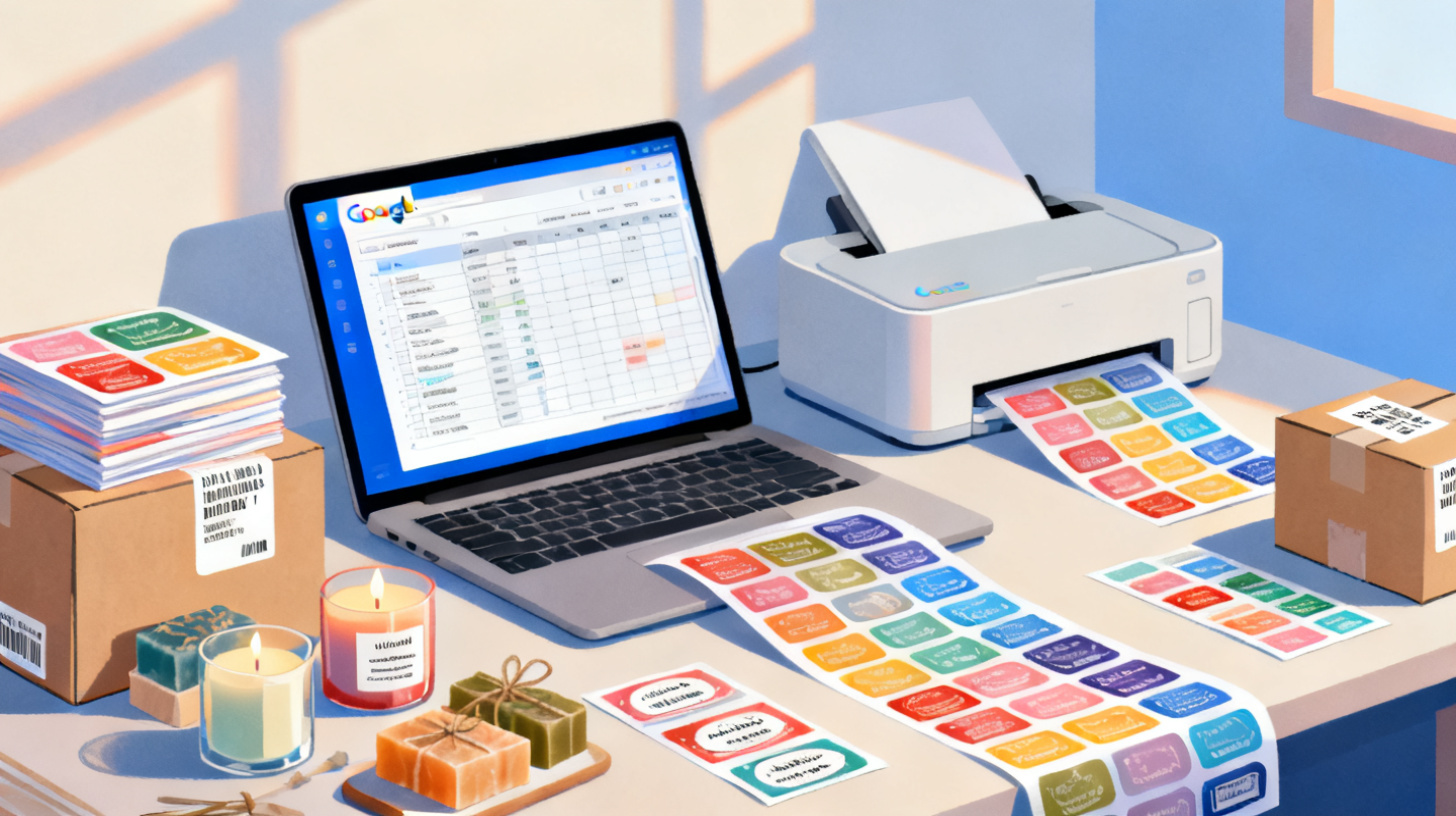
Running an Etsy shop means wearing a dozen hats at once. You're the designer, the marketer, the customer support rep, and the person hunched over a kitchen table at midnight stuffing envelopes. One task that trips up even experienced sellers? Printing professional labels for products and shipping without overspending on software or losing hours to manual formatting.
The good news is that you can handle the entire labeling workflow using tools you probably already have: Google Sheets for your order data and a solid label template to format everything for print. Whether you're sticking branded labels on candle jars or printing shipping labels for a holiday rush, this guide walks you through the full process from spreadsheet to printer. And if you want to skip the template headaches altogether, FoxyLabels offers free label templates that work directly with Google Docs and Sheets, so you can get printing in minutes.
Let's break down exactly how to set this up, step by step.
Setting Up Your Google Sheets Data for Etsy Labels
Before you touch a label template, you need clean, organized data. Think of your Google Sheet as the engine behind your labels. If the data is messy, everything downstream falls apart. This section covers how to structure your spreadsheet for both product labels and shipping labels so the merge process goes smoothly.
Organizing Product Label Data
Product labels typically include things like your brand name, product name, weight or volume, ingredients, care instructions, or a barcode. The key is to put each piece of information in its own column.
Here's a simple structure for product labels:
Brand Name | Product Name | Size/Weight | SKU | Barcode | Tagline |
Honey & Hive | Lavender Candle | 8 oz | HH-LAV-08 | 123456789 | Hand-poured with love |
Honey & Hive | Vanilla Bean Candle | 8 oz | HH-VAN-08 | 123456790 | Hand-poured with love |
Honey & Hive | Eucalyptus Candle | 4 oz | HH-EUC-04 | 123456791 | Hand-poured with love |
A few rules to follow:
One row per label. If you need five copies of the same label, either duplicate that row five times or use a mail merge tool that supports quantity fields.
No merged cells. Merged cells break almost every label generation tool. Keep your data flat and simple.
Consistent formatting. If one row says "8 oz" and another says "8oz" or "eight ounces," your labels will look inconsistent. Pick a format and stick with it.
Header row matters. Your first row should contain clear column headers like "Product Name" or "SKU" because these headers become the merge fields in your template.
Organizing Shipping Label Data
Shipping labels need recipient details. If you're exporting orders from Etsy, you'll get a CSV file that you can open directly in Google Sheets. The columns you'll typically work with include:
Order Number | Recipient Name | Street Address | City | State | ZIP | Country |
10045 | Sarah Mitchell | 742 Evergreen Terrace | Springfield | IL | 62704 | US |
10046 | James Chowdhury | 88 Pine Street, Apt 3B | Portland | OR | 97201 | US |
When you download your Etsy orders as a CSV, open it in Google Sheets and do a quick audit. Check for missing ZIP codes, truncated apartment numbers, or international addresses that might need reformatting. A shipping label with a wrong ZIP code means a returned package and a frustrated customer.
Cleaning Your Data Efficiently
Google Sheets has built-in functions that make cleanup fast:
Use
=TRIM(A2)to remove extra spaces before or after text.Use
=PROPER(A2)to fix capitalization (turning "SARAH MITCHELL" into "Sarah Mitchell").Use
=SUBSTITUTE(A2, " ", " ")to eliminate double spaces within addresses.
Spending ten minutes cleaning your data saves you from reprinting an entire sheet of labels because one address wrapped incorrectly. Once your spreadsheet is organized, you're ready to connect it to a label template.
Choosing and Customizing the Right Label Template
This is where most Etsy sellers get stuck. You've bought a pack of label sheets from the office supply store, but now you need a digital template that matches the exact dimensions and layout of those sheets. The wrong template means misaligned text, wasted label sheets, and a lot of frustration.
Matching Templates to Your Label Sheets
Label sheets come in dozens of sizes. Shipping labels are commonly 2" x 4" (with 10 labels per sheet) or full-sheet 8.5" x 11" labels for larger packages. Product labels might be 1" x 2.625" (30 per sheet) for small items, or round 2" labels for jar lids.
The most popular label sheet brands (like Avery) use standardized template numbers. For example, Avery 5160 is the classic 1" x 2.625" address label, while Avery 5163 is the 2" x 4" shipping label. Many store-brand label sheets are compatible with these same template numbers.
The FoxyLabels template catalog lets you search and filter by size, brand compatibility, and labels per sheet. So if you have a pack of labels that says "compatible with Avery 5160," you can find the matching template in seconds, open it in Google Docs, and start customizing.
Customizing Templates for Product Labels
Product labels are your brand's handshake with the customer. They should look polished, not like something thrown together in a word processor. Here are practical tips for making your product labels stand out:
Typography choices: Stick to two fonts maximum. Use one for your brand name (something distinctive but readable) and one for everything else (a clean sans-serif works well). Google Docs gives you access to hundreds of free fonts through the "More fonts" option.
Layout balance: Don't cram every detail onto the label. A 1" x 2.625" label has limited space. Prioritize the product name and one key detail (like scent or flavor). Put supplementary information like ingredients or batch numbers on a secondary label or the bottom of the product.
Brand consistency: Use your brand colors consistently. If your Etsy shop has a specific color palette, match it on your labels. This creates a professional, cohesive unboxing experience that encourages repeat purchases and positive reviews.
If you sell products that fall under specific regulatory categories (cosmetics, food, candles), it's worth checking the SBA's guide on licenses and permits to make sure your labels include any required information for your product type and region.
Customizing Templates for Shipping Labels
Shipping labels are less about aesthetics and more about clarity. The postal carrier needs to read the address quickly and accurately. Keep these guidelines in mind:
Use a minimum 10pt font size for addresses.
Bold the recipient's name and city/state line.
Include your return address in a smaller font in the upper left corner.
Leave margins around the edges of each label so text doesn't get clipped during printing.
For sellers processing more than a handful of orders per week, the FoxyLabels tutorials walk you through the full workflow of connecting your Google Sheet data to a label template, including how to use mail merge to auto-populate addresses across an entire sheet of labels.
Printing Labels with Mail Merge from Google Sheets
Here's where the magic happens. Instead of manually typing each label, you'll use a mail merge process that pulls data from your Google Sheet and drops it into the correct spots on your label template. One click, and an entire sheet of labels is ready to print.
Step 1: Prepare Your Google Sheet
Make sure your spreadsheet follows the structure outlined earlier. Double-check that:
Every column has a clear header in Row 1
No blank rows exist in the middle of your data
Addresses are properly formatted
Product names and details are spelled correctly
The number of rows matches the number of labels you need
Step 2: Open Your Label Template
Open your chosen label template in Google Docs. If you're using a template from FoxyLabels, the layout already matches standard label sheet dimensions, so the cells are perfectly sized and positioned. No fiddling with margins or table widths.
Step 3: Connect Your Data and Run the Merge
Using the FoxyLabels add-on for Google Workspace, you connect your Google Sheet as the data source. The add-on reads your column headers and lets you place merge fields (like {{Recipient Name}} or {{Product Name}}) into the label template. When you run the merge, it generates a print-ready document with every label filled in.
Here's a quick example. Say you have 60 orders to ship. Your Google Sheet has 60 rows of address data. Your template uses Avery 5163 labels (10 per page). The merge creates a 6-page document with all 60 labels perfectly formatted and ready to print. No copying, no pasting, no manual errors.
For high-volume sellers processing hundreds of orders, the FoxyLabels pricing page breaks down subscription tiers that unlock batch printing and advanced merge features designed for exactly this kind of workflow.
Step 4: Print Setup and Best Practices
Before hitting "Print," run through this checklist:
Print a test page on regular paper first. Hold it up against your label sheet to verify alignment.
Set page scaling to "Actual size" or 100%. Never use "Fit to page" because it shrinks everything and throws off alignment.
Select the correct paper size (usually Letter 8.5" x 11" for US label sheets).
Turn off headers and footers in your print settings so they don't overlap your labels.
If your printer has a straight-through paper path, use it. Label sheets are thicker than regular paper and can jam on tight rollers.
After your test page looks good, load your label sheets and print the full batch. Most inkjet and laser printers handle standard label sheets without issues. Just make sure to use labels rated for your printer type (laser labels in a laser printer, inkjet labels in an inkjet).
Pro tip: If you print labels regularly, buy a dedicated label printer like a Dymo for small product labels or keep a separate paper tray loaded with label sheets. This eliminates the constant swapping between regular paper and labels. For Dymo users specifically, there's a detailed guide on how to print Dymo labels directly from Google Sheets that covers the setup process.
Scaling Your Etsy Label Workflow for Growth
Printing ten labels a week is manageable with almost any method. But what happens when your Etsy shop takes off and you're processing 50, 100, or 500 orders a week? Your labeling workflow either becomes a bottleneck or a competitive advantage. Let's talk about scaling.
Building Reusable Systems
The biggest time-saver is creating a repeatable system you can run on autopilot. Here's what that looks like in practice:
Template library: Save your customized label templates in a dedicated Google Drive folder. Have one for shipping labels, one for product labels, one for return address labels, and one for promotional stickers. When it's time to print, you grab the right template instead of building from scratch.
Master spreadsheet: Maintain a single Google Sheet for each label type. For shipping labels, this might be a rolling sheet where you paste new Etsy order exports each week. For product labels, it's your full product catalog with all the details you need on each label.
Batch processing schedule: Instead of printing labels one order at a time, batch your printing. Many successful Etsy sellers process orders once or twice a day at set times. This approach reduces printer setup time, minimizes label sheet waste, and lets you get into a packing rhythm.
Common Mistakes to Avoid
After helping thousands of sellers print labels, certain patterns keep showing up:
Forgetting to update the data source. If you edit your Google Sheet after connecting it to the merge tool, make sure the tool refreshes the data before you generate labels. Stale data means wrong labels.
Ignoring print margins. Every printer has a small non-printable area around the edges. If your labels sit right at the edge of the sheet, the outermost text might get cut off. Always check your printer's minimum margins.
Using low-resolution images on product labels. If your product labels include a logo, make sure the image file is at least 300 DPI. A blurry logo on an otherwise clean label makes the whole thing look cheap.
Not testing after changing label stock. Switched from Avery to a store brand? Print a test page. Even "compatible" labels can have slightly different spacing.
When to Level Up Your Tools
There's a natural progression for Etsy sellers:
Low volume (1-20 orders/week): Google Sheets plus a free label template handles everything you need. Manual effort is minimal.
Medium volume (20-100 orders/week): Mail merge becomes necessary. Batch printing saves significant time. This is where the FoxyLabels add-on pays for itself many times over.
High volume (100+ orders/week): You'll want automated imports from Etsy into your Google Sheet, batch merge capabilities, and possibly a dedicated label printer running alongside your regular printer.
At every stage, the core workflow stays the same: clean data in Google Sheets, a properly sized template, and a reliable merge process. The tools just get more powerful as your needs grow.
Your Etsy labels are more than functional necessities. They're the first physical touchpoint your customer has with your brand. A crisp, well-designed product label tells the buyer they made the right choice. A cleanly printed shipping label gets the package to their door without delays. And a smooth, repeatable printing workflow gives you back hours every week to focus on what you actually love: creating the products that keep customers coming back.
Ready to streamline your label printing? Start by browsing FoxyLabels' free templates to find the exact match for your label sheets, connect your Google Sheet, and print your first batch. Your future self (the one who isn't hand-writing addresses at 2 AM) will thank you.
Install Foxy Labels
Get started with Foxy Labels and create perfectly aligned labels in minutes.
Get Started