How to Print Labels from Google Sheets to a Thermal Printer
Connect your Google Sheets data to a Dymo, Rollo, or Brother QL thermal printer. This step-by-step guide covers spreadsheet setup, template matching, printer configuration, and troubleshooting.
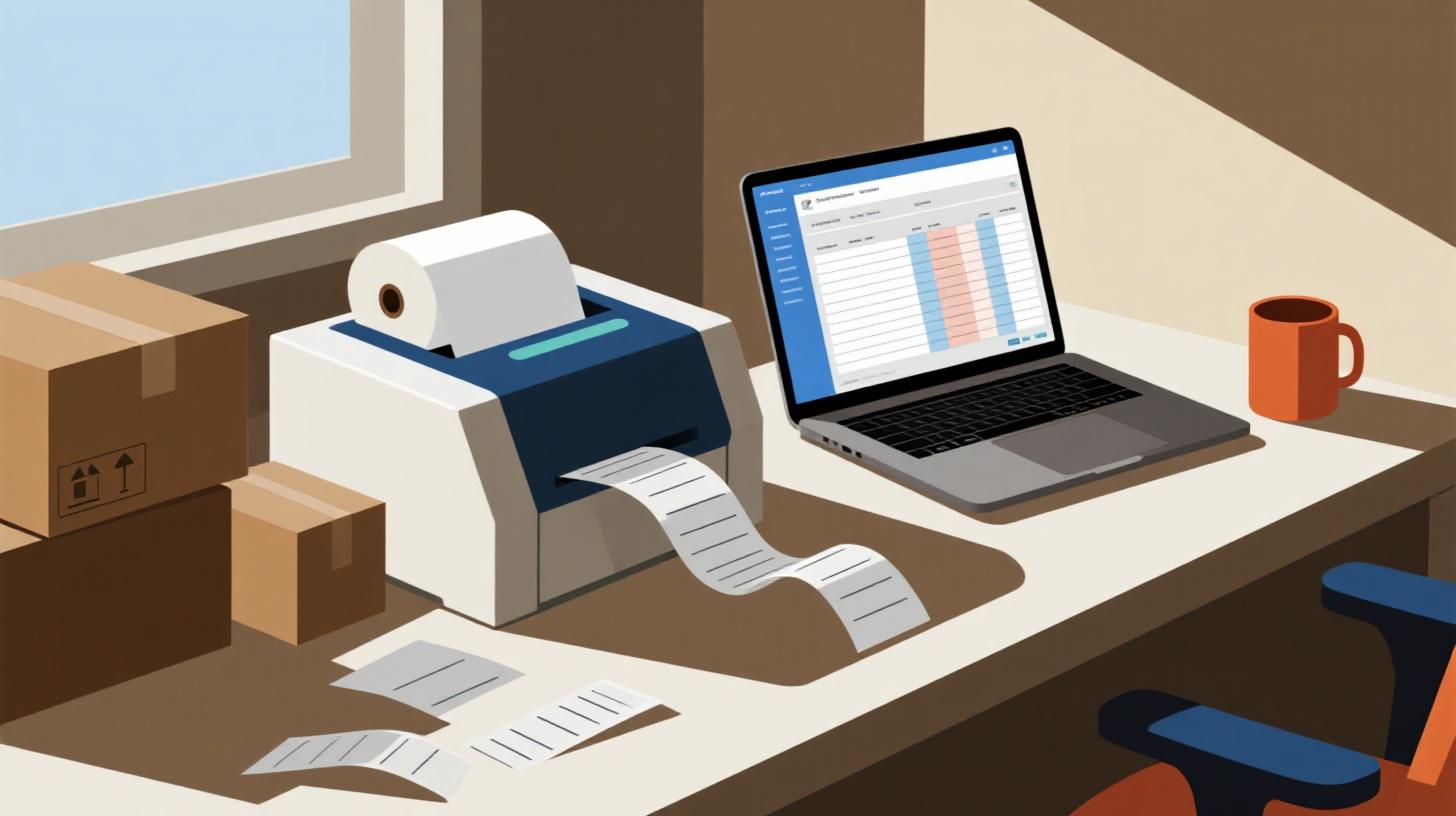
You've got a spreadsheet full of addresses, product names, or barcodes. You've got a Dymo, Rollo, or Brother QL thermal printer sitting on your desk. Now you just need to connect the two without losing your mind.
Printing labels from Google Sheets to a thermal printer sounds straightforward, but anyone who's tried it knows the frustration. Misaligned text, wrong label sizes, confusing driver settings, and the classic moment where your printer spits out a blank label. The good news? Once you understand the workflow, thermal label printing from a spreadsheet becomes one of the fastest ways to handle labeling for shipping, products, organization, or anything else that needs a clean, professional sticker.
This guide walks you through every step, from preparing your spreadsheet data to configuring your specific thermal printer for perfect output every time. Whether you're running a small business, managing inventory, or organizing your home office, you'll have labels rolling off your printer in minutes. The fastest path from data to labels is using Foxy Labels with Google Docs, which connects directly to your Google Sheets data and formats everything for your specific label size.
Let's get into it.
Setting Up Your Google Sheets Data for Label Printing
Before you even think about your printer, the quality of your labels starts with how you structure your spreadsheet. A messy spreadsheet means messy labels, and thermal printers are especially unforgiving because of their narrow print widths and fixed label sizes.
Organize Your Columns Correctly
Every column in your Google Sheet should represent one piece of information you want on your label. For address labels, that typically means separate columns for name, street address, city, state, and zip code. For product labels, you might have columns for product name, SKU, price, and barcode number.
Here's what a clean address label spreadsheet looks like:
First Name | Last Name | Street Address | City | State | Zip |
Maria | Santos | 142 Oak Lane | Portland | OR | 97201 |
James | Chen | 8800 Riverside Dr | Austin | TX | 78701 |
Priya | Patel | 55 Market Street | Denver | CO | 80202 |
A few rules that save headaches:
One data point per column. Don't combine city, state, and zip into a single cell. Keeping them separate gives you flexibility when formatting your label layout.
Use a header row. Your first row should contain column names like "First Name" or "Street Address." These headers are what mail merge tools use to map data onto your label template.
Remove blank rows. Thermal printers will try to print blank labels for empty rows, wasting label stock and throwing off your roll alignment.
Keep formatting consistent. If some zip codes have leading zeros (like 01234), format that column as plain text so Google Sheets doesn't strip them.
Clean Up Common Data Issues
Thermal labels have limited space, so data problems that are invisible on a full sheet of paper become glaring on a 2" x 1" label. Run through these checks before printing:
Trim extra spaces. Use the
=TRIM()function to remove leading or trailing spaces from cells. These invisible characters can cause text to wrap unexpectedly on small labels.Standardize abbreviations. Decide whether you're using "Street" or "St," "Avenue" or "Ave." Consistency looks professional and helps everything fit.
Check character length. For small labels (like Dymo 30252 address labels at 1.125" x 3.5"), long company names or addresses may get cut off. Preview before committing to a full print run.
Validate zip codes and phone numbers. A quick scan for cells with fewer or more digits than expected catches typos before they're permanently printed.
If you're printing shipping labels specifically, you might want to check out this guide on how to print shipping labels from Google Sheets for small business, which covers carrier-specific formatting tips.
Once your data is clean and structured, you're ready to connect it to a label template that matches your thermal printer's label size.
Choosing the Right Label Template for Your Thermal Printer
Here's where most people hit their first real obstacle. Thermal printers don't use standard letter-size paper. They use rolls of pre-cut labels in very specific dimensions, and your document template needs to match those dimensions exactly. Even a fraction of an inch off, and your text will drift, clip, or print on the gaps between labels.
Know Your Label Dimensions
Every thermal label roll has specific measurements printed on the box or in the product listing. The three most common thermal printer brands each have popular label sizes:
Dymo LabelWriter:
30252 Address Labels: 1.125" x 3.5"
30256 Shipping Labels: 2.3125" x 4"
30332 Square Labels: 1" x 1"
30334 Medium Multipurpose: 1.25" x 2.25"
Rollo Printer:
4" x 6" shipping labels (most common)
4" x 2" product labels
Custom sizes via continuous roll
Brother QL Series:
DK-1201 Address Labels: 1.14" x 3.5"
DK-1202 Shipping Labels: 2.4" x 3.9"
DK-2205 Continuous Roll: 2.4" wide (variable length)
The critical step is matching your document's page size and margins to these exact dimensions. If you set up a document at 4" x 6" but your labels are actually 2.3" x 4", every single label will print incorrectly.
Find or Create a Matching Template
Rather than manually configuring custom page sizes (which is tedious and error-prone), use a pre-built template that already matches your label dimensions. The Foxy Labels template catalog has over 5,000 templates organized by size and brand compatibility, so you can search for your exact label model number and get a template that's already set up with the correct dimensions, margins, and cell spacing.
Once you've found a template that matches your label stock, here's the process to connect it with your spreadsheet data:
Open Google Docs and install the Foxy Labels add-on if you haven't already.
Select your template based on your thermal label dimensions.
Connect your Google Sheet as the data source. The add-on reads your column headers and lets you place each field (name, address, etc.) exactly where you want it on the label.
Preview the merge. Before printing, generate a preview document showing how your actual data looks on the labels. This is where you catch font size issues, text overflow, and alignment problems.
Generate the final document with all your labels populated and ready to print.
This approach works regardless of which thermal printer you own because the template handles the sizing, and your printer just receives a document that already matches its label dimensions.
Font and Sizing Considerations for Thermal Output
Thermal printers work by applying heat to special paper, which means the output characteristics are different from inkjet or laser printing:
Use sans-serif fonts. Fonts like Arial, Helvetica, or Open Sans produce cleaner results on thermal printers. Serif fonts with thin strokes can look fuzzy at small sizes.
Minimum font size of 8pt for readability on most thermal labels. For very small labels (1" x 1"), you may need to go as low as 6pt, but test first.
Bold text prints thicker than on inkjet printers. If your text looks too heavy, try using regular weight instead of bold.
Black only. Thermal printers don't use ink or toner, so any colors in your design will be converted to grayscale. Design in black and white from the start.
Configuring Your Thermal Printer for Google Sheets Labels
With your label document generated, the final piece is making sure your thermal printer actually receives and processes it correctly. Each printer brand has its own quirks, so let's walk through the key settings for Dymo, Rollo, and Brother QL.
Dymo LabelWriter Setup
Dymo printers require the Dymo Connect software installed on your computer. Once installed, the printer appears as a standard printer option when you go to print from Google Docs or a PDF.
Key print settings for Dymo:
Paper size: Select the specific Dymo label model (like "30252 Address") from the paper size dropdown. Dymo Connect adds these custom sizes automatically.
Orientation: Match the orientation of your template. Address labels are typically landscape on Dymo printers.
Margins: Set to minimum or "None." Your template already accounts for the printable area.
Scale: Set to 100% or "Actual Size." Never use "Fit to Page" as this will shrink your content.
A common Dymo issue is the printer feeding two labels at once or printing with an offset. This usually means the label sensor needs recalibration. Open Dymo Connect, go to printer settings, and run the "Align Labels" function.
Rollo Printer Setup
Rollo printers are popular for 4" x 6" shipping labels because they work without ink and handle high volumes reliably. Rollo uses standard printer drivers, which makes them relatively straightforward.
Key print settings for Rollo:
Paper size: Set to 4" x 6" (or your actual label size). If this isn't available, add it as a custom paper size through your operating system's printer preferences.
Print quality: "Standard" works for most text labels. Use "High" only for images or barcodes that need crisp edges.
Orientation: Match your template. Shipping labels are typically portrait.
Margins: Set all margins to 0. The Rollo prints edge to edge.
Rollo tip: if your labels are printing with a slight offset to one side, adjust the label guide on the printer to hold the roll more snugly. Even a millimeter of slack in the roll causes drift over multiple labels.
Brother QL Setup
Brother QL printers use DK-series label rolls and require the Brother P-touch Editor software or standard printer drivers. For Google Sheets workflows, the standard driver approach works best.
Key print settings for Brother QL:
Paper size: Select the DK label number (like "DK-1201") from the media dropdown. Brother's driver adds these automatically.
Print quality: "Standard" for text, "High Resolution" for barcodes and QR codes.
Cut option: For individual labels, select "Cut at end." For continuous roll printing, select "Cut each label" so the printer's built-in cutter separates each one.
Margins: Set to narrow or printer default. Brother QL printers have a small non-printable margin at the leading edge.
For all three printers, always print a single test label first. Open the generated document, go to print, set the page range to just page 1, and verify alignment before running the full batch.
Troubleshooting Common Thermal Printing Problems
Even with everything set up correctly, thermal printers can be finicky. Here are the issues that come up most often when printing labels from Google Sheets, along with fixes that actually work.
Text Is Cut Off or Overflowing
This happens when your data is longer than the label can hold. There are two fixes:
Reduce font size in your template. Drop from 12pt to 10pt and see if everything fits.
Truncate data in your spreadsheet. Use
=LEFT(A2, 30)to limit a cell to 30 characters, for example. This is especially useful for product names or long company names.
Prevention is better than cure here. Before generating labels, sort your spreadsheet by text length (longest first) and verify that your longest entries will fit on the label.
Labels Are Printing Blank
Blank labels from a thermal printer almost always mean one of three things:
The label roll is loaded upside down. Thermal paper only has a coating on one side. Flip the roll and try again.
The print head is dirty. Use an isopropyl alcohol wipe on the thermal print head. Dust and adhesive residue build up over time and block heat transfer.
The document page size doesn't match the label size. The printer is "printing" but the content is landing outside the label's physical area.
Labels Are Misaligned or Drifting
Drift happens when each successive label is slightly more off-center than the last. This is a sensor issue. Most thermal printers have a gap sensor or black mark sensor that detects where one label ends and the next begins.
For Dymo: Recalibrate using Dymo Connect's alignment tool.
For Rollo: Ensure the label guides are snug against the roll and power cycle the printer.
For Brother QL: Check that you've selected the correct DK media type in the driver. Using the wrong media setting confuses the feed mechanism.
Barcodes or QR Codes Won't Scan
If you're printing barcodes or QR codes on thermal labels and they won't scan, the issue is usually print resolution or sizing. Thermal printers typically print at 203 DPI or 300 DPI. Make sure your barcode image is generated at a resolution that matches your printer's output. Also, increase the quiet zone (white space) around the barcode. Scanners need that margin to identify where the code starts and ends.
For QR code labels specifically, check out this guide on printing QR code labels from Google Sheets for detailed sizing recommendations.
If you're a small business owner printing product labels for items you sell, the SBA's licensing and permits guide is worth reviewing to make sure your labeling meets any applicable regulatory requirements for your industry.
Getting labels from a Google Sheet onto thermal label stock doesn't require specialized software or expensive subscriptions. With clean data, the right template dimensions, and correct printer settings, you can print professional labels in batches of ten or ten thousand. Start by structuring your spreadsheet properly, grab a template that matches your label roll from the Foxy Labels template catalog, and use the Google Docs label guide to connect everything together. If you find yourself printing labels regularly and want access to the full template library plus advanced merge features, take a look at Foxy Labels pricing to find a plan that fits your workflow.
Print a test label, verify alignment, and then let the batch run. Your thermal printer will do the rest.
Install Foxy Labels
Get started with Foxy Labels and create perfectly aligned labels in minutes.
Get Started