How to Print Labels on Mac Without Microsoft Word
You don't need Microsoft Word to print labels on your Mac. This guide walks through two complete workflows using Apple Pages and Google Docs with free templates.
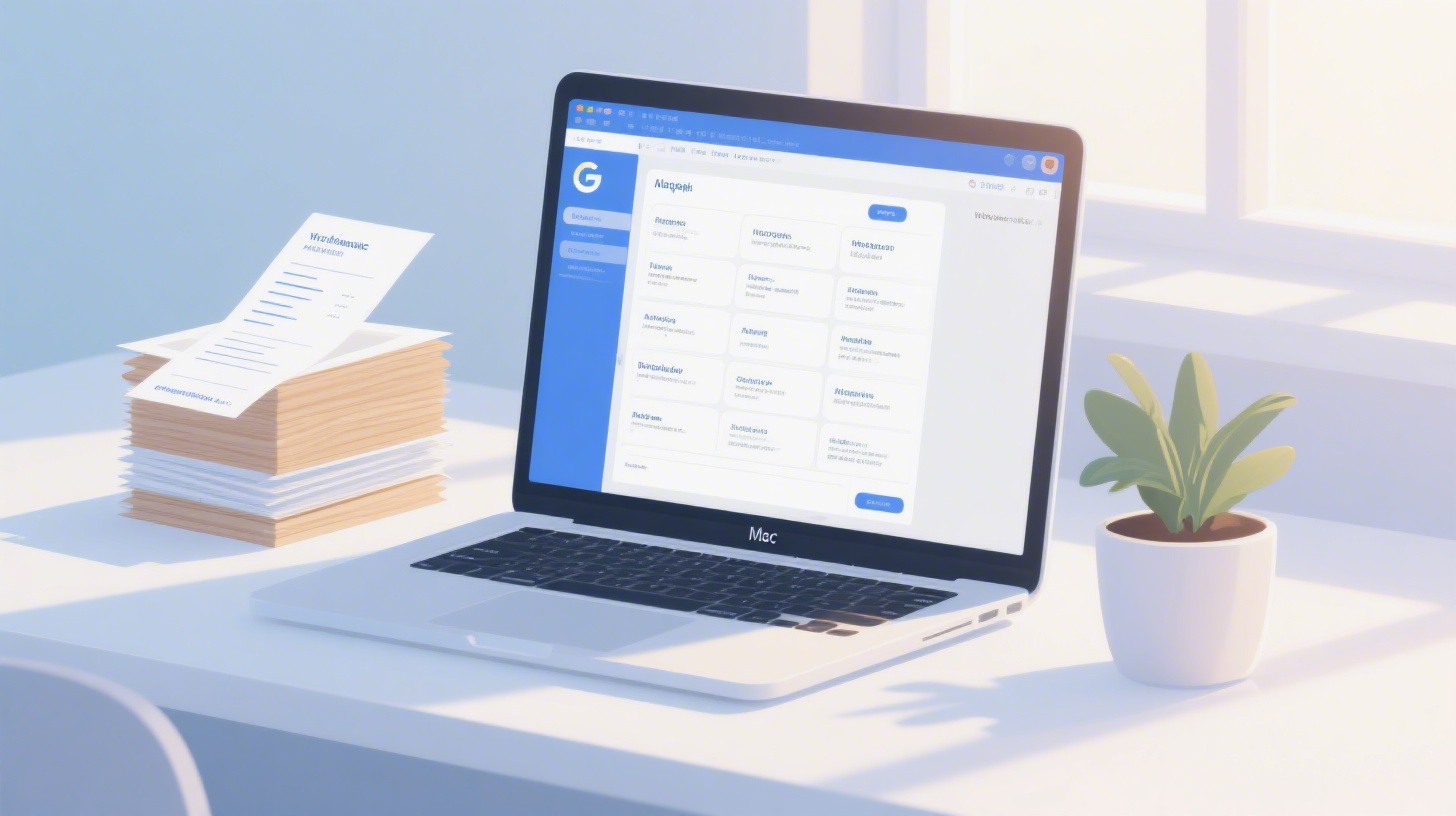
You just got a Mac, you need to print a sheet of address labels, and the first search result tells you to open Microsoft Word. But you don't have Word. You don't want Word. And honestly, you shouldn't need it.
The good news? You absolutely don't. Whether you're printing shipping labels for your small business, return address labels for holiday cards, or name tags for a community event, your Mac already comes with everything you need. Apple Pages is free and pre-installed. Google Docs runs in any browser. Both handle label printing beautifully once you know where to find the right templates.
The trick isn't the software. It's the template. Most label manufacturers design their templates for Microsoft Word first, leaving Mac users scrambling. That's where the FoxyLabels Template Catalog fills the gap. It offers free, downloadable label templates in Pages, Google Docs, PDF, and ODT formats, all sized to match popular Avery and compatible label sheets.
This guide walks you through two complete workflows: printing labels using Apple Pages and printing labels using Google Docs. No subscriptions, no complicated software installs, and definitely no Microsoft Word. Let's get your labels printed.
Printing Labels with Apple Pages on Your Mac
Apple Pages is the most natural starting point for Mac users. It's free, it's already on your machine, and it handles label templates with precision. The challenge has always been finding a properly formatted .pages template, since Avery and most other label brands only distribute Word files. That gap is closing fast, and you can now download Pages-compatible templates from the FoxyLabels Template Catalog for dozens of popular label sizes.
Here's the full process from start to finish.
Step 1: Identify Your Label Product Number
Flip over your label packaging and find the product number. It's usually printed in large text on the front and repeated on the back with dimensions. Common numbers include Avery 5160 (standard address labels, 30 per sheet), Avery 5163 (shipping labels, 10 per sheet), and Avery 8163 (the inkjet version of 5163). This number tells you exactly how the labels are laid out on the sheet, including margins, gutters, and cell sizes.
If you've lost the packaging, measure one label with a ruler. Width and height in inches will narrow it down quickly. You can also check the catalog and browse by dimensions.
Step 2: Download the Pages Template
Visit the template catalog and search for your product number. On the template detail page, you'll see download options for multiple formats. Click the Pages (.pages) download. The file will land in your Downloads folder and should open directly in Apple Pages with a double-click.
When the template opens, you'll see a grid of text boxes, each one representing a single label on the sheet. The page dimensions, margins, and box positions are all pre-configured to align with the die-cut labels on your physical sheet.
Step 3: Edit Your Labels
Click inside any text box and start typing. For address labels, a typical layout looks like this:
Pages gives you full control over font, size, color, and alignment. For a clean, professional look, try these settings:
Font: Helvetica Neue or San Francisco (both ship with macOS)
Size: 10pt for address labels on 30-per-sheet layouts, 12pt for larger shipping labels
Alignment: Center or left-aligned, depending on your preference
Line spacing: 1.0 to 1.2 to keep text from bumping against label edges
If every label needs the same content (like return address labels), you can edit one box, select all the text, copy it, then click into the next box and paste. For a sheet of 30 identical labels, this takes about two minutes.
For unique labels with different addresses, you'll type each one individually. If you have a large list, the Google Sheets mail merge approach (covered later) is faster. But for a single sheet of 10 or 30 labels, manual entry in Pages works perfectly.
You can also add images. Drag a small logo or icon into a text box and resize it. Pages handles inline images well, though you'll want to keep graphics small so they don't push your text outside the label boundaries.
Step 4: Print with Correct Settings
This is where most people hit trouble, so pay close attention. Go to File > Print (or press Command+P). Before you hit that blue Print button, check these settings:
Paper Size: Make sure it says "US Letter" (8.5 x 11 inches). If it says something else, click the paper size dropdown and change it.
Scale: Must be set to 100%. Any other value will shift your labels out of alignment.
Margins: The template already accounts for margins, so don't add extra ones in the print dialog.
Two-sided printing: Turn this off. Label sheets should only be fed through the printer once.
Do a test print on plain paper first. Hold your printed sheet behind the label sheet and check the alignment against a window or light. If everything lines up, load your label sheet into the printer (labels facing up for most printers, but check your printer's manual) and print the final version.
The Apple Pages User Guide is a good reference if you need help with text formatting or page setup details beyond what's covered here.
Printing Labels with Google Docs in Any Browser
Don't want to use a desktop app at all? Google Docs works great for label printing and runs entirely in your web browser. This approach is especially useful if you share a computer, use a Chromebook alongside your Mac, or want to collaborate on a label layout with someone else.
The workflow is similar to Pages, with a few browser-specific considerations.
Step 1: Open a Google Docs Label Template
From the FoxyLabels Template Catalog, find your label product number and download the Google Docs version. This will typically open a copy directly in your Google Drive, or you can upload the downloaded file to Drive and open it with Google Docs.
The template appears as a table within a document. Each cell in the table represents one label. The cell dimensions, page margins, and spacing are calibrated to match the physical label sheet.
Step 2: Enter Your Label Content
Click inside any cell and type your content. Google Docs gives you a toolbar with font controls, sizing, alignment, and color options. The same formatting tips from the Pages section apply here:
Keep fonts clean and legible (Arial, Roboto, or Open Sans work well)
Use 10-12pt depending on label size
Avoid bold on every line; use it sparingly for names or key details
Leave a small margin of breathing room inside each cell
One advantage of Google Docs is real-time collaboration. If you're preparing labels for a team event, you can share the document and have multiple people enter their own addresses simultaneously. That's something Pages can't match.
For copying identical content across all cells, type your text in one cell, select it, copy with Command+C, click the next cell, and paste with Command+V. Google Docs handles table cell pasting cleanly.
Step 3: Configure Print Settings Carefully
Go to File > Print in Google Docs. This opens your browser's print dialog, which behaves slightly differently from a native app. Here's what to verify:
Destination: Select your physical printer, not "Save as PDF" (unless you want a PDF to print later)
Paper size: US Letter (8.5 x 11 in)
Margins: Set to "None" or "Minimum." The template already includes correct margins in the document itself. Adding browser margins on top creates a double-margin problem that shifts everything down and to the right.
Scale: 100% or "Actual size." Never use "Fit to page."
Headers and footers: Uncheck this. Browsers love to add the page URL and date to printed pages, which will land right on top of your labels.
The margins setting trips up more people than anything else. If your labels print slightly off, this is almost always the culprit. Setting margins to "None" in the browser print dialog tells the browser to trust the document's own layout, which is exactly what you want.
Again, do a test print on plain paper first. Compare it to your label sheet to verify alignment before committing your label stock.
Step 3a: When to Use Mail Merge Instead
If you're printing more than one sheet of unique labels (like a mailing list of 50 or 100 addresses), typing each one manually becomes painful. That's where a mail merge workflow comes in. You put your addresses in a Google Sheets spreadsheet, connect it to your label template, and the tool fills every label automatically.
FoxyLabels offers a Google Sheets add-on that does exactly this. You can explore how that works on the FoxyLabels Pricing page, or read through the detailed walkthrough on how to mail merge labels from Google Sheets to Avery templates. For small batches, manual entry works fine. For anything over one sheet of labels, mail merge saves hours.
Troubleshooting Label Alignment and Common Printing Issues
Even with the right template and correct settings, label printing can go sideways (sometimes literally). Here are the most common issues Mac users run into, along with specific fixes.
Labels Print Off-Center or Shifted
This is the number one complaint, and it usually comes down to one of three causes:
Scaling isn't at 100%. Both Pages and browser print dialogs sometimes default to "Fit to Page" or a percentage other than 100. Always verify this setting before printing.
Extra margins are being added. In Google Docs specifically, the browser print dialog may add its own margins on top of the document margins. Set browser margins to "None."
The wrong paper size is selected. If your printer thinks it's printing on A4 instead of US Letter, every label will shift. A4 is slightly narrower and taller than Letter, which throws off the entire grid.
A test print on plain paper catches all three issues. Hold the plain paper test behind your label sheet against a light source. You'll see immediately if things are aligned.
Text Gets Cut Off at Label Edges
This happens when your content is too long for the label cell. Solutions include:
Reduce font size by 1-2 points
Abbreviate state names (California becomes CA)
Remove unnecessary lines (do you really need "United States" on a domestic label?)
Switch to a condensed font variant like Arial Narrow
In Pages, you can also shrink text to fit by selecting the text box and adjusting the "Text Inset" under Format > Text. A 2-3pt inset on all sides creates a safe zone that prevents clipping.
Printer Feeds Multiple Sheets or Jams
Label sheets are thicker and stickier than regular paper. Before loading, fan the sheets to separate them. Load only 5-10 sheets at a time. If your printer has a straight-through paper path (often a rear tray or manual feed slot), use it. The less your label sheet has to bend through rollers, the less likely it is to jam or peel.
For more alignment troubleshooting, the FoxyLabels Tutorials section covers step-by-step fixes for specific label sizes and printer models.
Choosing Between Pages and Google Docs for Labels
Both tools get the job done, but they shine in different scenarios. Here's a practical comparison to help you pick.
Feature | Apple Pages | Google Docs |
Requires internet | No | Yes |
Real-time collaboration | Limited (via iCloud) | Excellent |
Font selection | macOS system fonts | Google Fonts library |
Image handling | Drag and drop, precise placement | Inline only, less flexible |
Mail merge support | Manual only | Available via Google Sheets add-on |
Print dialog | Native macOS (reliable) | Browser-based (needs margin attention) |
Template format | .pages file | Google Docs table |
Cost | Free with macOS | Free with Google account |
Choose Pages when:
You're printing from one computer and don't need collaboration
You want pixel-perfect control over text box positioning
You're adding logos or graphics to your labels
You prefer working offline
Choose Google Docs when:
You need multiple people to enter data into the same label sheet
You're working across devices (Mac at home, Chromebook at work)
You plan to use mail merge for large address lists
You want the simplest possible setup with zero downloads
For most Mac users printing a quick sheet of return address labels or shipping labels, Pages is the fastest path. Open the template, type your content, print. For teams, events, or recurring mailing lists, Google Docs paired with Google Sheets gives you more flexibility and power.
No matter which tool you choose, the starting point is the same: a properly formatted template that matches your label product number. Browse the FoxyLabels Template Catalog to find your template in Pages, Google Docs, PDF, or ODT format, then follow the steps in this guide to print your labels without ever touching Microsoft Word. Your Mac has everything you need.
Install Foxy Labels
Get started with Foxy Labels and create perfectly aligned labels in minutes.
Get Started