How to Print Name Badge Labels from Google Sheets for Any Event
Turn your Google Sheets guest list into professional name badge labels for any event. Learn the complete workflow from data setup to printing with mail merge templates.
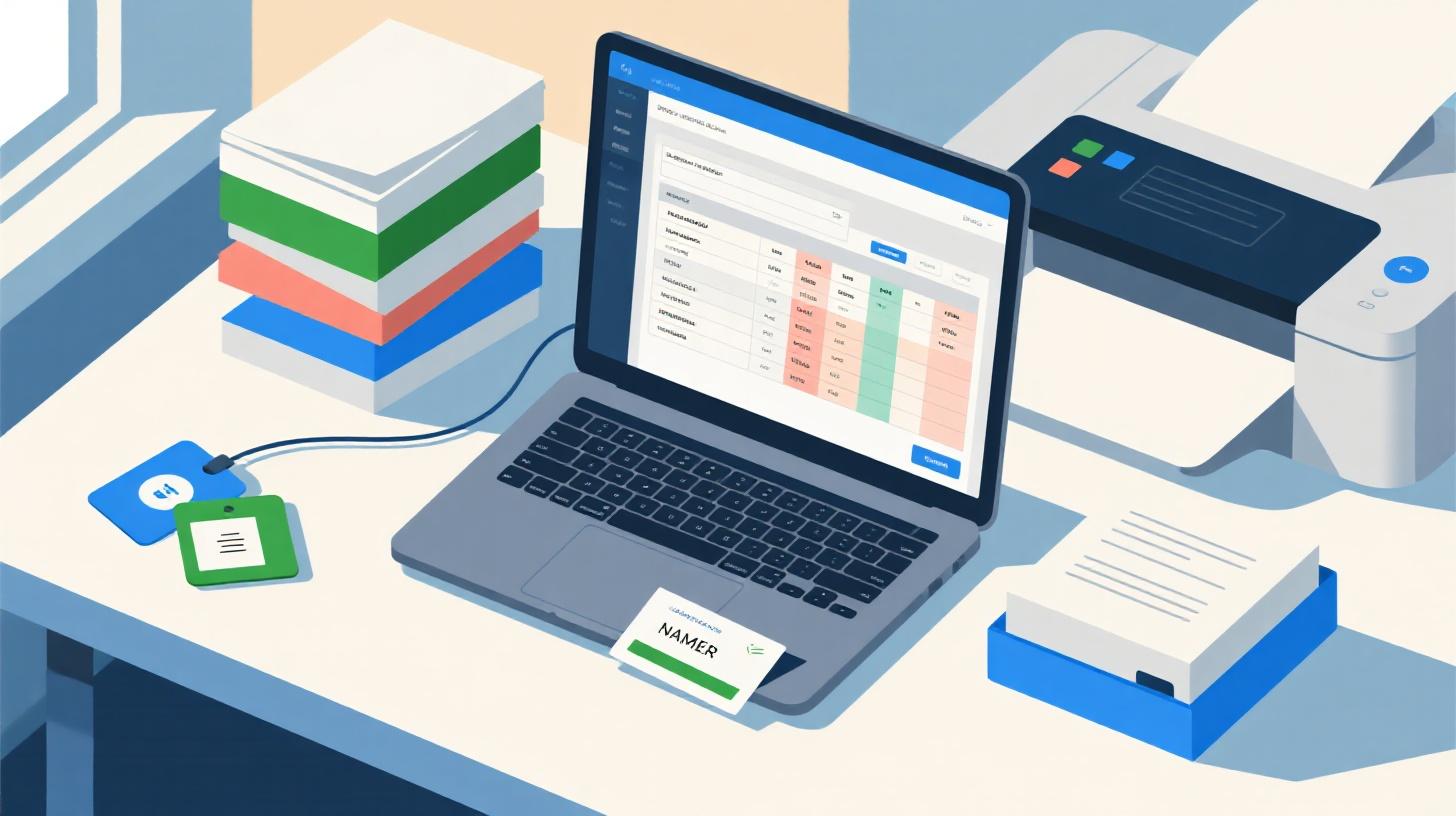
You've got a spreadsheet full of attendee names, a stack of blank label sheets, and an event that's coming up fast. The last thing you want is to type each name badge by hand or wrestle with clunky design software. The good news? Google Sheets already holds everything you need to create polished, professional name badges in minutes, not hours.
Whether you're organizing a corporate conference, a community workshop, a school open house, or a weekend networking mixer, printing name badge labels directly from a spreadsheet is the fastest path from guest list to finished product. In this guide, you'll walk through setting up your data, choosing the right label template, merging names onto badges, and printing crisp results every time. Tools like Foxy Labels make the entire workflow seamless by connecting Google Sheets data to label templates inside Google Docs, so you can skip the export-import shuffle entirely.
Let's get your badges ready.
Setting Up Your Google Sheets Data for Name Badges
Before you touch a single label, the quality of your spreadsheet determines how smooth everything else will be. A well-organized sheet means zero last-minute edits, no misspelled names slipping through, and a merge process that just works.
Structuring Your Columns
Open a new Google Sheet (or the one you already have) and give each piece of badge information its own column header in Row 1. At a minimum, most name badges need:
First Name
Last Name
Title or Role (Speaker, Volunteer, Attendee, VIP)
Organization or Company
You might also add columns for pronouns, table assignments, or a QR code URL if your event uses digital check-in. The key rule is one data point per column. Resist the urge to combine first and last names into a single "Name" column. Keeping them separate gives you flexibility later, like printing "JANE" in large font and "Smith" smaller underneath.
Here's a quick example:
First Name | Last Name | Role | Company |
Priya | Sharma | Speaker | Greenline Media |
Carlos | Rivera | Attendee | Bolt Analytics |
Amina | Osei | Volunteer | Community Hub |
David | Chen | VIP | Northstar Labs |
Cleaning and Validating Your Data
Dirty data prints dirty badges. Run through these quick checks before you merge anything:
Trim whitespace. Stray spaces before or after names cause alignment issues. Use
=TRIM(A2)across a helper column, then paste values back.Fix capitalization. If names came from a web form, they might be all lowercase or all caps.
=PROPER(A2)converts "JANE DOE" to "Jane Doe" instantly.Remove duplicates. Go to Data > Data cleanup > Remove duplicates. One person showing up with two badges is wasteful and confusing.
Spot-check special characters. Names with accents, hyphens, or apostrophes (O'Brien, García, Anne-Marie) should display correctly. Google Sheets handles Unicode well, but double-check your font choice later.
For larger events with hundreds of attendees, consider adding a "Badge Printed" checkbox column. As you print batches, mark rows complete so late registrations don't get mixed in with already-printed names.
Sorting and Filtering for Batch Printing
Not every attendee needs the same badge style. Speakers might get a different color border. VIPs might have a larger font. Volunteers might have a lanyard badge instead of a stick-on.
Sort or filter your sheet by the "Role" column so you can print each group in its own batch. Google Sheets' built-in filter views let you create saved filters, like "Show only Speakers," without altering the underlying data. This way, when you connect the sheet to your label template, only the filtered rows feed into the merge.
Spending ten minutes on data prep saves an hour of reprinting. Treat your spreadsheet like the source of truth for your entire badge operation.
Choosing the Right Label Template and Format
Your data is clean. Now you need a physical label format that matches the badge style you want and the label sheets you can actually buy.
Matching Label Sheets to Your Event Style
Name badge labels come in several common sizes. The format you pick depends on the formality of your event and how attendees will wear the badge:
Label Type | Common Size | Best For |
Adhesive name badges | 2⅓" × 3⅜" (Avery 5395, 8395) | Casual meetups, open houses, workshops |
Insert card badges | 3" × 4" (Avery 5392, 74459) | Conferences, trade shows, multi-day events |
Fold-over tent cards | 2" × 3½" | Table seating, roundtables |
Smaller adhesive labels | 2" × 4" (Avery 5163) | Staff-only badges, back-of-house |
If your event involves any networking or movement between rooms, adhesive stick-on badges are the simplest. For multi-day conferences where attendees reuse their badge, insert cards that slide into plastic holders are the better investment.
Buy your label sheets before designing the template. The product number on the packaging (like Avery 5395 or equivalent store brands) tells you the exact dimensions and grid layout, which you'll need for the next step.
Finding or Creating a Name Badge Template
Once you know your label sheet dimensions, you need a document template that mirrors the grid exactly. Each "cell" in the template corresponds to one label on the physical sheet, so margins and gutters have to match or your text will drift off-center.
You have a few options:
Use a template library. Foxy Labels offers a catalog of templates compatible with popular brands like Avery, OnlineLabels, and SheetLabels. Search by product number, and the template loads directly into Google Docs with the correct page layout, margins, and cell sizes already configured.
Create a custom template. If your label sheet is an uncommon size, you can build a table in Google Docs with columns and rows that match the label grid. You'll need to manually set page margins, cell padding, and row height. This works but takes trial and error.
Adapt a Word or PDF template. Some label manufacturers offer Word-format templates. You can upload these to Google Drive, open them in Google Docs, and adjust as needed. Formatting sometimes shifts during conversion, so always print a test page.
For most people, option one is the fastest. Selecting a pre-built template that matches your label SKU eliminates measurement guesswork and gets you to the merge step in seconds.
Customizing Badge Appearance
A name badge does more than display a name. Good badge design helps people connect faster. Here are a few design principles:
Make the first name the largest element. At networking events, people scan for first names. Use 24-36pt bold font for the first name and 14-18pt for everything else.
Use color to signal roles. A colored bar or text color for "Speaker" vs. "Attendee" helps staff identify who belongs backstage.
Keep it readable at arm's length. If you can't read the badge from three feet away, the font is too small.
Leave breathing room. Don't cram every detail onto the badge. Name, role, and company are usually enough.
Apply formatting in your Google Docs template before running the merge. Set font sizes, alignment, and spacing once, and every merged badge inherits the same look.
Merging Data and Printing Your Name Badges
This is where the magic happens. You'll connect your Google Sheets data to your label template and let a mail merge fill every badge automatically.
Running a Mail Merge with Foxy Labels
The merge process connects each row in your spreadsheet to one label cell in your document. Here's how it works step by step:
Open your label template in Google Docs. If you selected a template through Foxy Labels, it's already formatted and ready.
Launch the Foxy Labels add-on. From the Extensions menu in Google Docs, open the label maker. It will prompt you to select your Google Sheets file as the data source.
Choose your spreadsheet and sheet tab. If your workbook has multiple tabs (one per role, for instance), pick the tab you want to merge first.
Insert merge fields. Place placeholders like
{{First Name}},{{Last Name}},{{Role}}, and{{Company}}inside the first label cell of your template. Format these placeholders exactly how you want the final badge to look: bold the first name placeholder, set font sizes, center the text.Generate labels. Click the generate button. The add-on reads every row from your sheet and populates each label cell in sequence, creating a ready-to-print document.
Review the output. Scroll through the generated document. Check that names aren't getting cut off, that special characters render correctly, and that the layout looks right.
The entire merge typically takes under a minute, even for sheets with several hundred rows. If you need to make a change, edit your spreadsheet, go back to the template, and regenerate. No need to start from scratch.
Printing Best Practices for Clean Results
A flawless digital document can still produce messy badges if your print settings are off. Follow this checklist before you hit "Print":
Use the correct paper size. Most label sheets are US Letter (8.5" × 11") or A4. Confirm your printer's paper size matches your document's page setup.
Turn off scaling. In your print dialog, set scaling to "Actual Size" or 100%. "Fit to Page" will shrink or stretch labels and misalign them from the die-cut grid.
Set margins to match. If your template uses specific margins (like 0.5" top), make sure the print dialog isn't adding extra margins on top of that.
Print a test page on plain paper. Before loading expensive label sheets, print on regular paper. Hold it up against a label sheet with a light behind it. If the text aligns with the label boundaries, you're good.
Feed label sheets correctly. Most inkjet and laser printers handle label sheets fine, but check your printer manual for the recommended tray. Some printers prefer labels fed from the manual/bypass tray to avoid jams.
Use the right print quality. "Normal" quality is sufficient for text-only badges. If your design includes colored backgrounds or logos, bump up to "High" quality.
For tips on connecting Google Sheets data to other types of label outputs, check out the guide on how to print labels from Google Sheets to a thermal printer, which covers hardware-specific settings in more detail.
Handling Late Additions and Reprints
Events rarely have a final guest list. Registrations trickle in, names get corrected, and walk-ins show up. Here's how to stay flexible:
Add new names to the bottom of your sheet. Don't insert rows in the middle, as it can confuse filtered views.
Use a "Batch" column. Mark each row with a batch number (1, 2, 3). Filter for only the latest batch when you regenerate labels, so you print only the new additions instead of reprinting everyone.
Keep a few blank badges. Print a small batch of blank label badges with just your event logo and a line for handwriting. Walk-ins can fill these in at the registration desk while you print their proper badge.
Scaling Up for Larger Events and Recurring Needs
Printing 30 badges for a team lunch is straightforward. Printing 500 for a conference or producing badges every month for recurring meetups introduces new challenges. Planning ahead keeps the process sustainable.
Managing Multiple Badge Styles in One Sheet
Larger events often need several badge variations: different colors for different tracks, different information for speakers vs. attendees, or bilingual badges. You can manage all of this from a single Google Sheet.
Add a "Badge Type" column and use it to filter before each merge run. For example:
First Name | Last Name | Role | Badge Type |
Priya | Sharma | Speaker | Speaker |
Carlos | Rivera | Attendee | General |
Amina | Osei | Volunteer | Staff |
Create separate templates for each badge type (one with a blue header for speakers, one with a green header for general attendees, one with a red header for staff). Filter the sheet by "Badge Type," run the merge for each template, and print on the corresponding label stock. This keeps your data centralized while giving you full design flexibility per group.
Building a Reusable Badge Workflow
If you run events regularly, build a workflow you can repeat:
Create a master template sheet. Set up your column headers, data validation rules, and formatting once. Duplicate it for each new event.
Save your label templates. Store your Google Docs badge templates in a shared Drive folder. Label them clearly: "Conference Badge - Avery 5395 - Speaker" so anyone on your team can find the right one.
Document your print settings. Write a short checklist (paper size, scaling, tray) and pin it near your printer. When someone else on your team handles badge printing, they won't need to guess.
Archive past events. Move completed sheets and generated documents into an archive folder. If an attendee contacts you months later needing a replacement badge, you can reprint from the archive without recreating anything.
This kind of repeatable system turns badge printing from a stressful last-minute scramble into a calm, 15-minute task.
Going Beyond Basic Name Badges
Once you're comfortable with the merge workflow, you can extend it to other event materials that pull from the same spreadsheet:
Table tent cards with attendee names for seated dinners
Certificate labels for workshop completions
Return address labels for mailing event follow-up materials
Raffle ticket stubs personalized with each attendee's name
The underlying process is identical: clean data in Google Sheets, a correctly sized template in Google Docs, and a merge tool to connect them. The only thing that changes is the label dimensions and the design.
For businesses that also handle product shipping, the same Foxy Labels workflow powers shipping label printing from Google Sheets, making it a versatile tool well beyond event day.
Name badge printing doesn't need to be complicated. With a clean Google Sheet, the right label template, and a quick merge, you can go from raw attendee data to professional badges in under 20 minutes. Start with your data, match it to your label stock, run the merge through Foxy Labels, and print with confidence. Your attendees will walk in, slap on a badge, and start connecting, which is the whole point of the event in the first place.
Install Foxy Labels
Get started with Foxy Labels and create perfectly aligned labels in minutes.
Get Started