How to Print QR Code Labels from Google Sheets for Free
Turn your Google Sheets data into scannable QR code labels using free tools. This step-by-step guide covers inventory tracking, product labels, and event check-ins with printable templates.
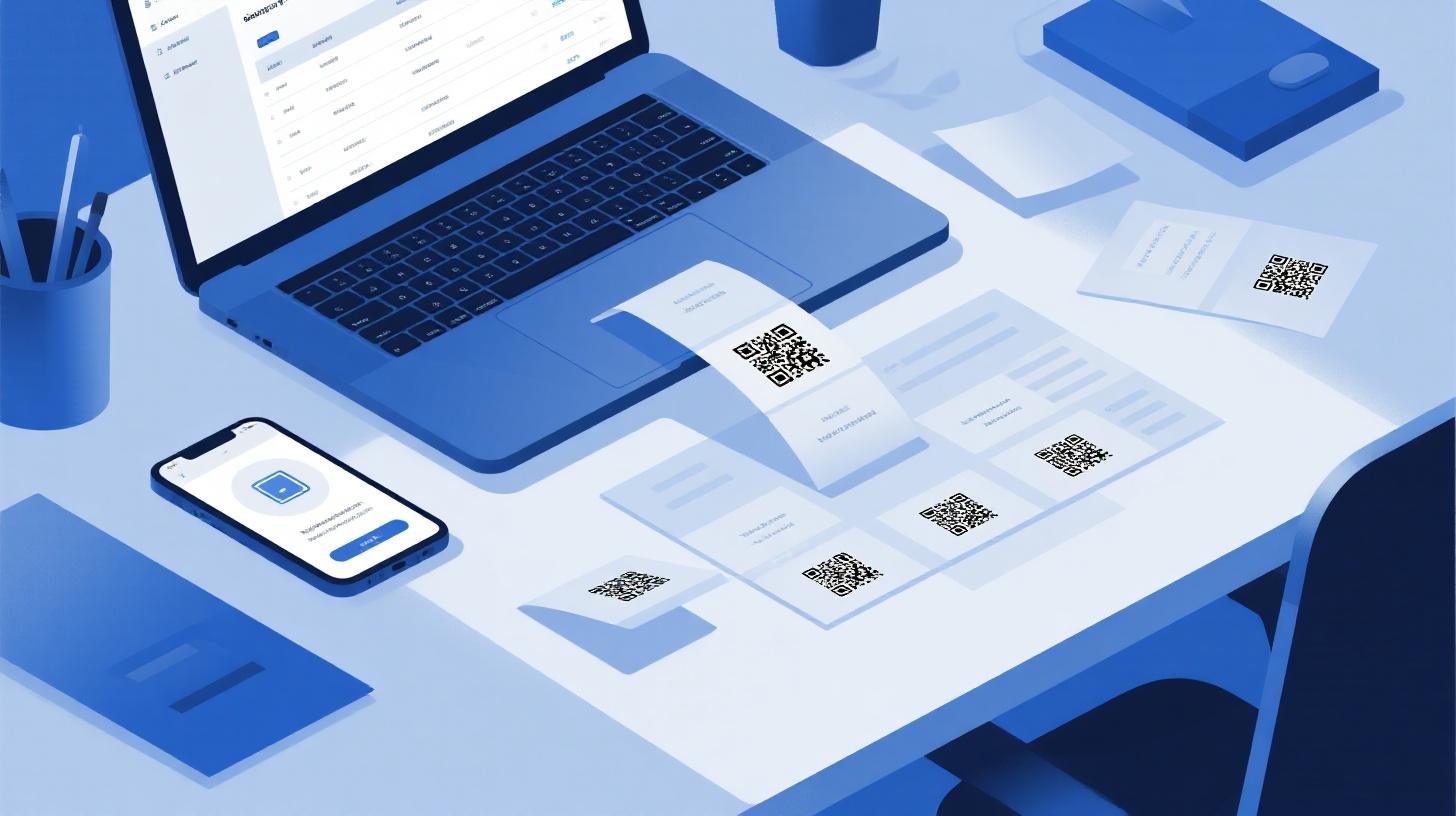
Picture this: you've got a spreadsheet full of product SKUs, event ticket numbers, or inventory items, and you need a physical QR code label for each one. You could manually generate codes one at a time, copy them into a document, and painstakingly align them on a sheet of labels. Or you could skip the headache entirely and turn your Google Sheets data into print-ready QR code labels in minutes.
Whether you're organizing a warehouse, labeling products for a pop-up shop, tracking equipment across classrooms, or managing event check-ins, QR code labels bridge the gap between your digital data and the physical world. Scanning a tiny square with a phone is faster, more accurate, and more reliable than typing in serial numbers or reading handwritten tags. And the best part? You don't need expensive software to make it happen.
This guide walks you through the entire process, from generating QR codes inside Google Sheets to printing them on standard label sheets using Google Docs. If you're new to making labels in Google Docs, the complete Foxy Labels tutorial is a great place to start before diving into QR-specific workflows. Let's get into it.
Generating QR Codes Directly Inside Google Sheets
Before you can print QR code labels, you need actual QR codes. The good news is that Google Sheets can generate them without any add-on, thanks to a simple image formula that calls the Google Charts API.
The QR Code Formula
In any cell, you can use this formula to create a QR code from text in another cell:
Here's what each piece does:
chs=200x200sets the image size to 200 by 200 pixels. You can adjust this, but 200px works well for most label sizes.cht=qrtells the API to generate a QR code.chl=is followed by the data you want encoded. TheENCODEURL()function makes sure special characters (like slashes in URLs or spaces in text) don't break the request.IMAGE()renders the result as a visible image inside the cell.
So if cell A2 contains https://mystore.com/product/12345, the formula creates a scannable QR code pointing to that URL. If A2 contains plain text like INV-00782, the QR code encodes that string instead.
What Data Should Your QR Codes Contain?
This depends entirely on your use case. Here are some common patterns:
Inventory management: Encode an asset ID or SKU number (e.g.,
ASSET-4821) so staff can scan items during audits instead of typing codes manually.Product labels: Encode a URL to a product page, nutritional info sheet, or instruction manual.
Event badges and tickets: Encode a ticket ID or attendee registration URL for fast check-in scanning.
Shipping and logistics: Encode tracking numbers or package IDs that link to your internal tracking system.
Classroom or library use: Encode a book ISBN, equipment ID, or a link to a digital resource.
The key principle is simple: whatever text or URL sits in your spreadsheet column becomes the content of the QR code. One row per item, one QR code per row.
Setting Up Your Spreadsheet
A well-organized spreadsheet makes the label printing step much smoother. Here's a recommended structure:
Column A: Item Name | Column B: ID/URL | Column C: QR Code |
Widget Pro 3000 | (formula here) | |
Gadget Mini | (formula here) | |
Sensor Pack v2 | ASSET-1147 | (formula here) |
In Column C, paste the IMAGE formula and drag it down for all your rows. Each cell will display a live QR code. You can also add columns for additional label text, like a human-readable name or location code, that you want printed alongside the QR image.
One practical tip: resize Column C to be roughly square (drag the column wider and the row taller) so your QR codes display without distortion. While the code will still scan if it looks slightly rectangular, a square display helps you verify the codes visually before printing.
With your QR codes generated and your data organized in columns, you're ready to move to the label design and printing stage.
Designing and Printing QR Code Labels with Google Docs
Generating QR codes in a spreadsheet is only half the job. The other half is getting them onto actual adhesive label sheets that you can peel and stick. This is where Google Docs and a label template come together.
Choosing the Right Label Template
Label sheets come in dozens of sizes, and picking the right one depends on how much information each label needs to hold. For QR-code-only labels (just the code, maybe a short ID underneath), smaller formats work great. For labels that include a QR code plus a product name, description, or address, you'll want something larger.
Here are some popular options:
Avery 5160 / 30-per-sheet (1" x 2.625"): Great for simple QR codes with a short text line. Compact and widely available.
Avery 5163 / 10-per-sheet (2" x 4"): More room for a QR code alongside product details, descriptions, or barcodes.
2" x 2" square labels: Perfect when you want a prominent, easy-to-scan QR code as the primary visual element.
Avery 5164 / 6-per-sheet (3.33" x 4"): Ideal for shipping labels that combine a QR code with address information.
You can browse the full range of compatible templates in the FoxyLabels template catalog to find the exact layout that matches your label sheets. The catalog covers Avery, Herma, and other major brands, so whatever sheets you've already purchased (or plan to buy) are likely supported.
Step-by-Step Label Creation
Once you've selected a template, the workflow combines Google Sheets (your data source) with Google Docs (your label layout). Here's how it works:
Step 1: Install and Open the Foxy Labels Add-on
From Google Docs, install the Foxy Labels add-on through the Google Workspace Marketplace. Once installed, open it from the Extensions menu. The add-on panel will appear on the right side of your document.
Step 2: Select Your Label Template
In the add-on panel, search for your label template by brand name and product number (e.g., "Avery 5160"). Selecting a template automatically formats your Google Doc with the correct margins, rows, columns, and cell sizes to match your physical label sheets.
Step 3: Connect Your Google Sheets Data
This is where the magic happens. Use the mail merge feature to pull data directly from your spreadsheet. You'll select your Google Sheets file, choose the relevant sheet tab, and then map columns to your label layout using merge fields like {{Item Name}}, {{ID}}, or {{QR Code}}.
For QR code images specifically, the process involves inserting the QR code image into the label cell. Since Google Docs handles images differently than spreadsheet cells, you have a couple of approaches:
Download and insert: Save your QR code images from Sheets (right-click the cell, copy image, or use a script to batch-export), then place them into your label template.
Use a QR code URL directly in Docs: Format your merge field so it references the Google Charts URL, allowing the label generator to render the QR image inline.
The mail merge approach is particularly powerful when you're printing dozens or hundreds of labels. Instead of copying and pasting each QR code individually, the merge pulls every row from your spreadsheet and populates a full sheet of labels automatically. For a detailed walkthrough of the mail merge process, check out this guide on how to mail merge labels from Google Sheets to Avery templates.
Step 4: Preview and Print
Before sending anything to your printer, always preview the document. Check that QR codes are displaying at a scannable size (generally at least 0.75" x 0.75" for reliable phone scanning), text isn't getting clipped, and alignment looks correct. Then print on plain paper first as a test. Hold it up against your label sheet to verify everything lines up. Once confirmed, load your label sheets and print the final version.
Real-World Applications and Pro Tips for QR Code Labels
Knowing how to print QR code labels is one thing. Knowing how to use them effectively is what separates a basic setup from a genuinely useful system. Let's look at specific scenarios and the practical details that make each one work smoothly.
Inventory and Asset Tracking
Small businesses, schools, and nonprofits often struggle with keeping track of physical assets. Laptops, projectors, tools, furniture: things move around and people forget to log changes. QR code labels fix this by making the logging step almost effortless.
Here's a practical setup:
Create a Google Sheet with columns for Asset ID, Description, Location, and Assigned To.
Generate a QR code for each row that encodes a URL pointing to a Google Form pre-filled with that asset's ID. The URL format looks like:
https://docs.google.com/forms/d/e/YOUR_FORM_ID/viewform?usp=pp_url&entry.123456=ASSET-4821Print labels and stick them on each asset.
When someone moves or checks out an item, they scan the QR code, which opens the form with the asset ID already filled in. They just add the new location or their name and submit.
This creates an automatic audit trail in your Google Sheets responses without any manual data entry. For organizations managing hundreds of items, this saves hours every month.
Product Labels for Small Businesses
If you sell handmade goods, food products, or merchandise at markets or online, QR code labels add a professional touch and practical value. A QR code on a candle jar can link to care instructions and safety warnings. A code on a honey label can point to your farm's story page. A code on packaged snacks can link to an allergen and ingredient list that's always up to date (since you can change the web page without reprinting labels).
The key insight here is that QR codes let you keep labels physically small while making unlimited information accessible. Instead of cramming tiny text onto a 2-inch label, you put the essentials in print and let the QR code handle everything else.
Event Management and Check-ins
For conferences, workshops, fundraisers, or school events, QR code labels on badges or tickets streamline the check-in process dramatically. Each attendee gets a unique QR code that encodes their registration ID. At the door, a volunteer scans the code with any smartphone, instantly verifying the attendee and marking them as arrived.
You can set this up entirely with free tools: Google Sheets for your attendee list, the QR formula for code generation, and Google Docs with Foxy Labels for printing. No event management platform subscription required.
Tips That Make a Real Difference
Test scan before mass printing. Generate one label, print it, and scan it with at least two different phones. QR codes that look fine on screen occasionally fail to scan when printed at small sizes or on glossy paper.
Add human-readable text. Always include a text version of the encoded data below or beside the QR code. If someone's phone camera isn't working, or the code gets scuffed, they can still read the ID manually.
Use URL shorteners for long links. QR codes encoding long URLs become more complex (more tiny squares), which makes them harder to scan at small sizes. Shortening the URL simplifies the QR pattern.
Consider error correction levels. The Google Charts API supports an
choeparameter for error correction. Higher error correction means the code still scans even if part of it is obscured, but it also makes the pattern denser. For labels that might get scratched or dirty, higher correction is worth the trade-off.Use consistent sizing. If you're labeling multiple types of items, standardize on one label size and QR code position. Consistency makes scanning faster because people know exactly where to point their phone.
Putting It All Together and Scaling Your Workflow
The beauty of the Google Sheets to Google Docs pipeline for QR code labels is that it scales effortlessly. Printing 10 labels feels the same as printing 500. Your data lives in a spreadsheet that's easy to update, your QR codes regenerate automatically when data changes, and your label layout stays consistent through the template.
Here's a quick checklist to recap the full workflow:
Organize your data in Google Sheets with one row per item
Add the QR code IMAGE formula in a dedicated column
Choose a label template that fits your QR code size needs
Use the Foxy Labels add-on in Google Docs to set up your layout
Merge data from Sheets into your label template
Test print on plain paper and scan-check your codes
Print on label sheets and apply
If you're working with a team, share the Google Sheet so multiple people can add items, and anyone with access to the Docs template can run a fresh batch of labels whenever needed. This is especially useful for ongoing inventory management, where new items arrive regularly and need labels immediately.
For those who want access to the full range of templates and advanced merge features, the FoxyLabels pricing page breaks down what's available in free versus premium tiers. Many users find that the free tier covers basic needs perfectly, while the premium options unlock more template variety and features for larger projects.
QR code labels don't require fancy equipment or expensive software. A Google account, a standard inkjet or laser printer, and a pack of label sheets from any office supply store are all you need. The combination of Google Sheets for data and QR generation with Google Docs for label layout gives you a flexible, repeatable system that works for inventory rooms, product lines, event venues, and everything in between. Start with a small batch, refine your layout, and before long you'll wonder how you ever managed without scannable labels on everything.
Install Foxy Labels
Get started with Foxy Labels and create perfectly aligned labels in minutes.
Get Started