How to Print Round Circle Labels in Google Docs Easily
Print professional round labels in Google Docs with Avery 22807, 5294, and 5293 templates. Learn template setup, print alignment tips, and creative project ideas for circle stickers.
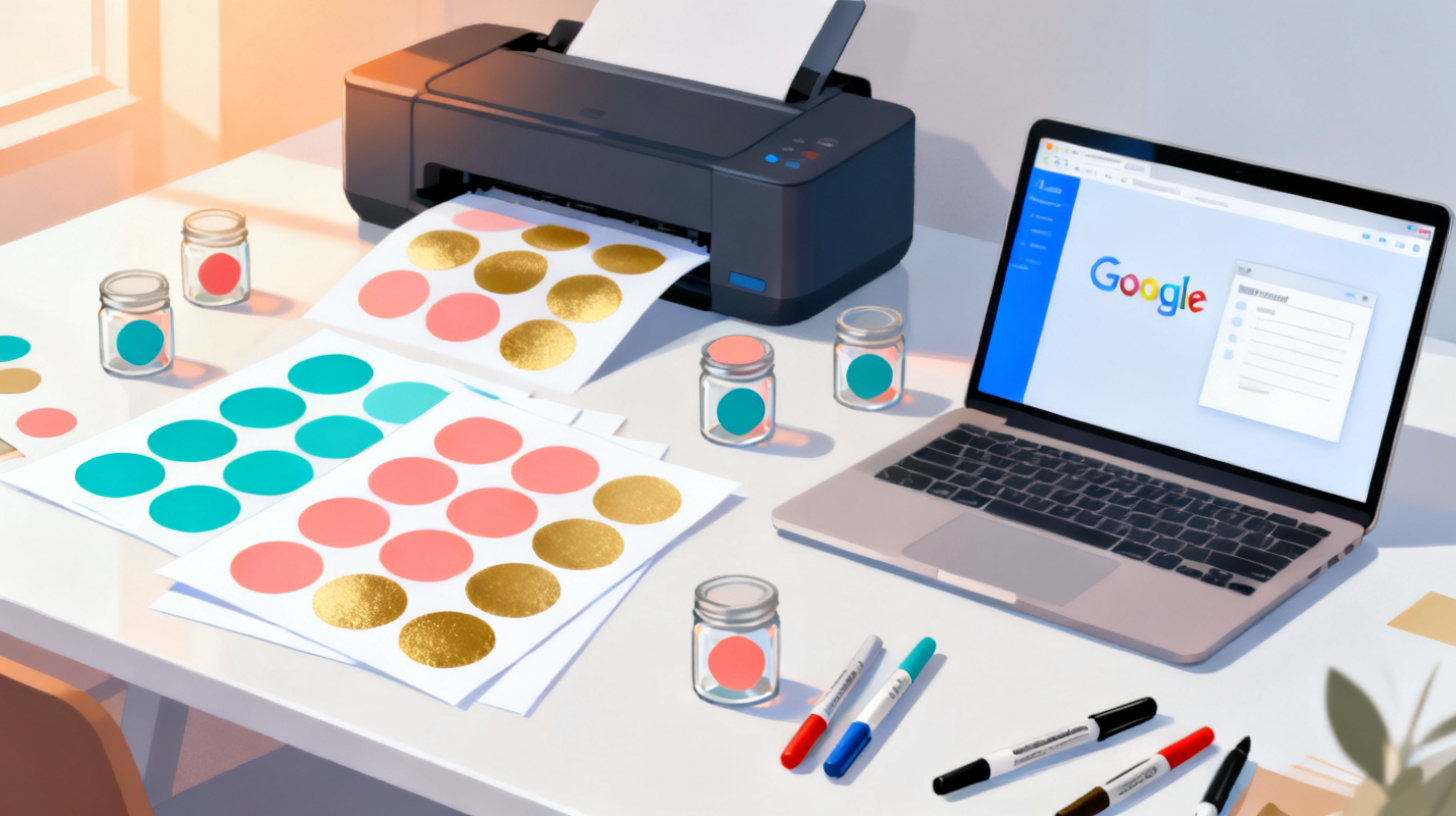
Printing round labels sounds simple until you actually try it. You open Google Docs, stare at a blank page, and realize there's no built-in template for circle stickers. Meanwhile, you've got a stack of Avery 22807, 5294, or 5293 sheets sitting on your desk, waiting to become product labels, jar toppers, or party stickers. The good news? You absolutely can print professional round labels using Google Docs, and it doesn't require any design degree or expensive software.
Whether you're labeling homemade candles, organizing classroom supplies, or branding your small business products, round labels add a polished, professional touch that rectangular labels just can't match. The trick is knowing which template to use, how to set it up correctly, and how to align everything so your prints land perfectly on each circle. In this guide, you'll learn exactly how to do all of that using three of the most popular Avery round label templates. You can browse the full collection of round and circle label formats in the FoxyLabels Template Catalog to find the exact sheet you're working with.
Let's walk through everything from choosing the right template to hitting print with confidence.
Understanding Avery 22807, 5294, and 5293 Round Label Sheets
Before you design anything, you need to understand what you're printing on. Avery's round label sheets come in several sizes, and picking the wrong template means misaligned prints, wasted sheets, and frustration. Here's a breakdown of the three most popular round label products and when to use each one.
Avery 22807: Glossy 2-Inch Round Labels
Avery 22807 sheets contain twenty 2-inch round labels arranged in a 4x5 grid. These glossy, full-color labels are designed for inkjet printers and work beautifully for product branding, gift tags, and promotional stickers. The glossy finish gives them a vibrant, professional look that catches the eye. Because the labels are 2 inches in diameter, they're large enough to include a logo, short text, or a small graphic without feeling cramped.
Common uses for Avery 22807 labels include product packaging for handmade goods, wedding favor stickers, essential oil bottle labels, and small business branding. The glossy surface means colors pop more than on matte labels, making them ideal for designs with photographs or colorful artwork.
Avery 5294: 2.5-Inch Round Labels
Avery 5294 sheets hold twelve 2.5-inch round labels in a 3x4 grid. These are slightly larger than the 22807, giving you more room for text and design elements. They work with both laser and inkjet printers, making them more versatile for home and office use. The matte white finish is perfect for clean, text-heavy designs.
People often reach for Avery 5294 labels when they need jar labels for homemade jams or sauces, classroom reward stickers, return address seals, or organizing labels for pantry containers. The extra half-inch of diameter compared to the 22807 makes a noticeable difference when you need to fit a few lines of text.
Avery 5293: 1.67-Inch Round Labels
Avery 5293 sheets pack twenty-four 1.67-inch round labels in a 4x6 grid. These smaller circles work well when you need more labels per sheet and your design is simple. They're compatible with laser and inkjet printers and have a matte white surface.
These smaller labels are popular for price tags, color-coded organization dots, small product seals, and planner stickers. Because you get 24 per sheet instead of 12 or 20, they're also more cost-effective for high-volume labeling projects.
The key takeaway here is that your template must match your exact Avery product number. An Avery 5294 template won't align on an Avery 22807 sheet because the label sizes and grid layouts are completely different. This is the single most common mistake people make when printing round labels, and it's entirely avoidable when you start with the correct template.
You can find downloadable templates for all three of these Avery products, plus dozens of other round label formats, on the FoxyLabels Label Templates page. Templates are available in Google Docs, PDF, DOCX, and other formats so you can work in whatever tool you prefer.
Setting Up Round Label Templates in Google Docs
Google Docs doesn't have a native label template feature, which is why so many people get stuck at this step. But with the right template file and a few setup tricks, Google Docs handles round labels surprisingly well. Here's the complete workflow from template to finished design.
Step 1: Get the Right Template File
The fastest path to perfectly aligned round labels is starting with a pre-built template that matches your Avery sheet. When you download a template designed specifically for Avery 22807, 5294, or 5293, all the circles are already positioned to match the label sheet's layout. The margins, spacing, and circle sizes are calibrated so that when you print, each design lands precisely on its corresponding label.
You can grab these templates from the FoxyLabels Template Catalog, where each template page shows you the label dimensions, number of labels per sheet, and compatible Avery product numbers. Once you find your match, open the template directly in Google Docs.
Step 2: Design Your Label Content
With the template open in Google Docs, you'll see placeholder circles arranged in the same grid pattern as your physical label sheet. Now comes the creative part. Here's how to add your content effectively:
For text-based labels, click inside a label placeholder and type your content. Keep your text centered and use a font size that leaves some padding around the edges. For 2-inch labels (22807), 10-12pt font works well for a few lines. For 2.5-inch labels (5294), you can comfortably go up to 14pt for headings. For the smaller 1.67-inch labels (5293), stick to 8-10pt to avoid text running off the edges.
For image-based labels, insert your logo or graphic into one of the label positions. Use Google Docs' image options to set the image size to match the label diameter, then position it within the circle boundary. A helpful trick is to make your image slightly smaller than the full label diameter (about 0.1 inches less) to account for any minor print alignment variations.
For combination designs, layer a small image (like a logo) with text below or above it. Use Google Docs' text wrapping options to control how your text flows around the image within each label circle.
Step 3: Duplicate Your Design Across All Labels
Once you've perfected one label, you need to replicate it across every position on the sheet. You can copy and paste your design into each placeholder manually, or use a tool like the FoxyLabels Google Docs add-on to populate all labels automatically. This is especially valuable when you're printing hundreds of identical stickers for a product launch or event.
If you're creating labels with variable data, like different names on each circle sticker for a wedding, you might want to explore how to mail merge labels from Google Sheets to Avery templates. Mail merge lets you pull data from a spreadsheet and automatically fill each label with unique information.
Step 4: Verify Your Page Setup
Before printing, double-check your Google Docs page setup. Go to File > Page setup and confirm that the page size is set to US Letter (8.5" x 11") and all margins match the template specifications. Most Avery round label templates use specific margin values, and changing them even slightly will throw off your alignment. This verification step takes ten seconds and can save you from wasting an entire pack of label sheets.
Printing Round Labels Without Alignment Headaches
Designing your labels is only half the battle. The print step is where things can go sideways, literally, if your settings aren't dialed in. Here's how to get clean, perfectly aligned prints every single time.
Printer Settings That Matter
When you hit Ctrl+P (or Cmd+P on Mac), resist the urge to just click Print. Instead, review these critical settings:
Paper size should be set to Letter (8.5 x 11 inches). Some printers default to A4, which is slightly different in dimensions and will shift your entire layout.
Scaling must be set to 100% or "Actual Size." This is the most common culprit behind misaligned labels. If your printer is set to "Fit to Page" or "Shrink to Fit," it will subtly resize your document, and those tiny percentage changes add up across a full sheet of labels. What looks like a 1% reduction translates to labels that are noticeably off-center by the bottom of the page.
Margins in the print dialog should match your document margins. Select "None" or "Default" depending on your printer, and make sure no additional margin adjustments are being applied by the print driver.
Print quality affects how your labels look but not their alignment. For glossy labels like Avery 22807, select the highest quality setting your printer offers. For matte labels like the 5294 and 5293, standard or high quality both produce good results.
The Test Print Trick
Here's a pro tip that saves label sheets and frustration: print your first copy on a plain sheet of paper. Then hold that printed sheet up against a blank label sheet with light behind them (a window works perfectly). You'll immediately see whether your printed circles align with the actual labels. If they're off, adjust your margins or scaling before using a real label sheet.
This technique costs you one sheet of regular paper instead of a label sheet that might run $1-2 per page. Over time, especially if you're producing labels regularly for a business, this simple habit pays for itself many times over.
Troubleshooting Common Issues
Even with the right template and correct settings, a few issues can crop up:
Labels shift toward one side: Your printer's physical alignment may be slightly off. Add a 0.05-inch margin adjustment on the opposite side to compensate.
Top labels align but bottom ones don't: This usually means your scaling isn't at exactly 100%. Check both the Google Docs print settings and your printer driver settings, as either can apply scaling independently.
Ink smears on glossy labels: Let glossy labels dry for 30-60 seconds before handling them. If smearing persists, check that you've selected the correct paper type (glossy photo paper) in your printer settings so the printer applies the right amount of ink.
Labels peel during printing: Make sure you're feeding label sheets through the manual feed tray if your printer has one. Running adhesive sheets through a duplex unit or a tight paper path can cause jams and peeling.
For more detailed walkthroughs on printer setup and label configuration, the FoxyLabels Tutorials section covers various printing scenarios with visual guides.
Real-World Projects and Creative Uses for Round Labels
Now that you know the technical side, let's talk about what you can actually create. Round labels are incredibly versatile, and people use them in ways you might not have considered.
Small Business Product Labeling
If you sell handmade products like candles, soaps, spices, or baked goods, round labels on jars and containers look significantly more professional than rectangular ones. A 2.5-inch Avery 5294 label fits perfectly on the lid of a standard mason jar, turning a homemade product into something that looks retail-ready. Design your label with your brand logo, product name, and a short ingredient list, then print a batch whenever you need them. This approach costs a fraction of what custom-printed labels from a professional printer would run, and you can update your design anytime without minimum order quantities.
Event and Party Organization
Wedding favors, birthday party treat bags, baby shower gifts: all of these benefit from personalized round stickers. Avery 22807 glossy labels are particularly popular for events because the glossy finish looks elegant and the 2-inch size is perfect for favor bags and small boxes. You can create different designs for different tables, match your event's color scheme exactly, and print only as many as you need.
Classroom and Education
Teachers use round labels constantly. Avery 5293 labels (the smaller 1.67-inch circles) work great as reward stickers, name tags for cubbies, and organizational dots for color-coding classroom materials. Because you get 24 per sheet, a single pack of label sheets can produce hundreds of stickers. Design a few different reward stickers ("Great Job!", "Star Reader", "Math Whiz"), print them in batches, and you've got a semester's worth of student motivation for a few dollars.
Home Organization
Pantry labels, spice jar tops, storage bin identifiers: round labels bring order to chaos. The clean, circular shape looks neat and intentional on round lids and containers. Use a consistent design template with just the item name in a clear font, print a sheet whenever you reorganize a space, and enjoy the satisfaction of a perfectly labeled home.
Whatever your project, starting with the right template eliminates the guesswork and lets you focus on the fun part: designing something that looks exactly how you want it. Visit the FoxyLabels Template Catalog to find templates for Avery 22807, 5294, 5293, and many other round label formats. If you're printing labels regularly for your business or organization, check out the FoxyLabels Pricing Plans to unlock full access to template generation, mail merge features, and batch printing tools.
Round labels don't have to be complicated. With the right template, correct print settings, and a quick test print, you'll be producing perfectly aligned circle stickers in minutes. Grab your Avery sheets, pick your template, and start printing.
Install Foxy Labels
Get started with Foxy Labels and create perfectly aligned labels in minutes.
Get Started