How to Print Round Labels for Candles and Jars Using Google Docs
Design and print professional round labels for candles, jars, and products using free Google Docs templates. Step-by-step guide covering sizing, design, and printing tips.
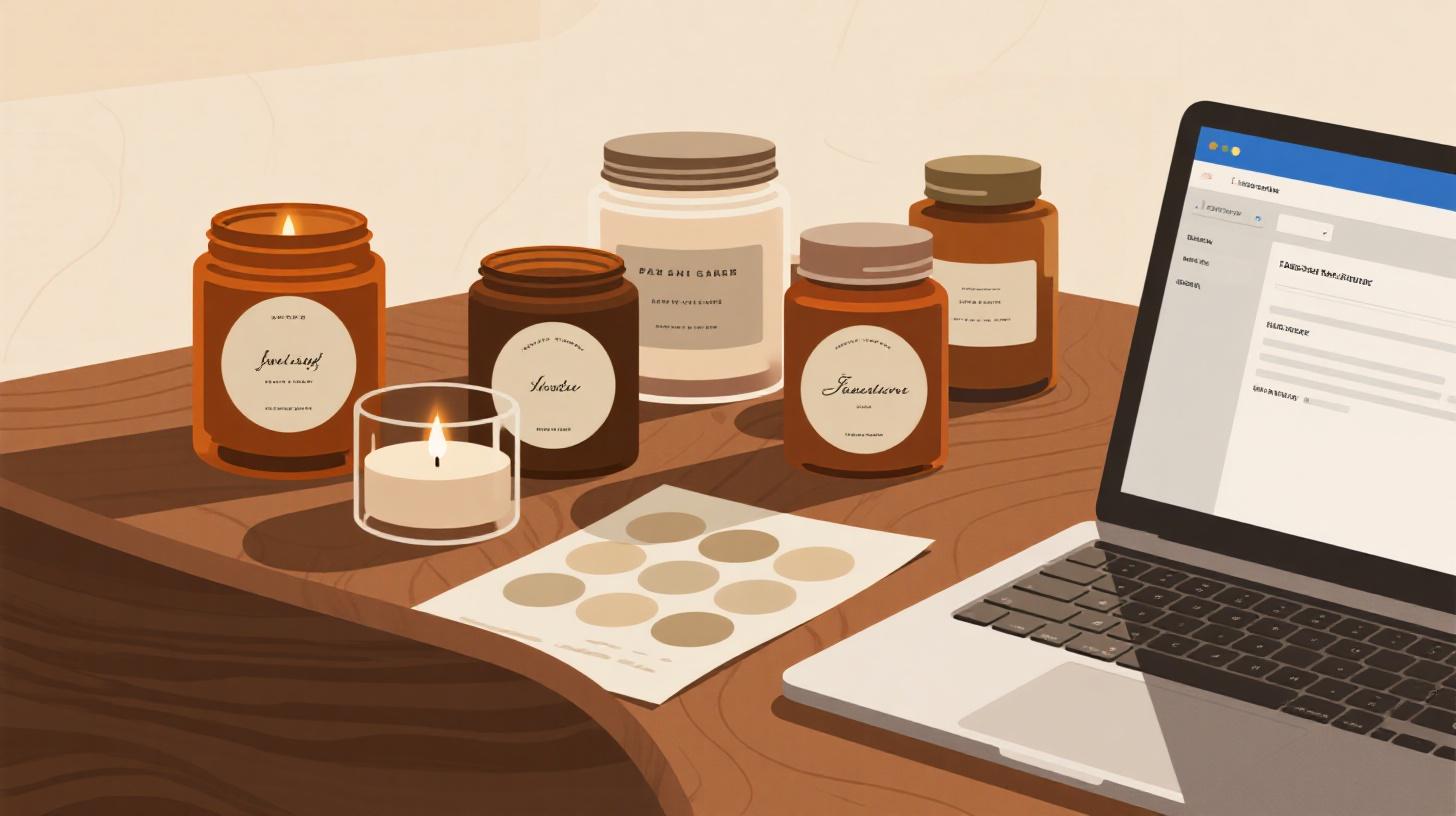
You spent weeks perfecting your soy candle formula. The scent is right, the wax is clean, and the jar looks gorgeous on a shelf. But then you slap on a crooked, rectangular label and the whole thing loses its charm. Round labels change the game for candles, jars, spice containers, and handmade products because they follow the natural curve of a lid or the face of a cylindrical container. They look polished, professional, and intentional.
The good news? You don't need expensive design software or a commercial print shop to make them. With Google Docs, Google Sheets, and the right template, you can design and print beautiful round labels from your home printer in under an hour. Whether you're making 24 candle warning labels or 200 branded product stickers for your Etsy shop, this guide walks you through the entire process. You can start by browsing round label templates in the FoxyLabels catalog to find the exact size that fits your jars, lids, or product containers.
Let's get into it.
Choosing the Right Round Label Size for Your Product
Before you open any software, you need to figure out which label size actually fits your product. This sounds obvious, but it's the step most people rush through, and it's the reason so many first batches end up wasted. Round labels come in several standard diameters, and each one serves a different purpose.
Common Round Label Sizes and Their Uses
The two most popular sizes for candle and jar products are 1⅔ inch and 2½ inch diameter labels.
1⅔ inch round labels are small but mighty. They're the size you see on the bottom of candles for burn safety warnings, on spice jar lids, or as seal stickers on packaging. A standard sheet fits 24 of these labels, which means you can print a full batch quickly. The Avery 5293 round label template is the go-to for this size. It works with Avery 5293 and 8293 label sheets, and you can open it directly in Google Docs.
2½ inch round labels are the sweet spot for front-facing product branding. Think of the main label on a candle jar, a jam lid, or a cosmetics tin. They're big enough to hold your logo, product name, scent description, and even a small decorative border. Each sheet holds 12 labels. The Avery 5294 round label template matches this size perfectly and is a popular choice for small business owners who sell handmade goods.
If you're not sure which size you need, grab a ruler and measure the surface where the label will go. For jar lids, measure the flat top area and subtract about ¼ inch from the diameter so the label doesn't hang over the edge. For the side of a cylindrical candle, round labels work best when they sit flat against the curve, so stay under 2½ inches unless the jar has a very wide diameter.
Matching Labels to Label Sheets
Here's a detail that trips people up: your digital template must match the physical label sheets you purchased. If you buy Avery 5294 label sheets (2½ inch circles, 12 per page), your template needs to have the same grid layout. Printing a 24-per-page template on a 12-per-page label sheet means every single label will be misaligned.
Always check three things before printing:
Label diameter matches between the template and the sheet
Number of labels per page is identical
Brand compatibility is confirmed (Avery templates often work with store-brand equivalents from Staples, Office Depot, and others)
This matching step alone will save you from wasting expensive label sheets. Take the extra two minutes to verify.
Designing Round Labels in Google Docs Step by Step
Google Docs isn't Photoshop, and that's actually an advantage here. It's free, it runs in any browser, and it handles text-based label designs surprisingly well. For candle labels, product stickers, and jar tops, you rarely need complex graphics. You need clean text, maybe a simple logo, and consistent formatting across every label on the sheet.
Step 1: Open Your Round Label Template
Start by selecting a round label template that matches your label sheets. When you open a FoxyLabels template in Google Docs, you'll see a full page with circular label outlines already positioned in the correct grid. These outlines show you exactly where each label's printable area is, so you don't have to guess about margins or spacing.
Once the template is open in your Google Drive, make a copy so you can customize it without affecting the original.
Step 2: Add Your Text and Branding
Click inside any label circle and start typing. For a candle label, a typical layout might include:
Your brand name at the top
The scent name in a larger or bolder font
The net weight (e.g., "Net Wt. 8 oz / 227g")
A short tagline or ingredient highlight
Use Google Docs' built-in font options to set the mood. A handmade candle brand might use a clean serif font like "Playfair Display" for the brand name and a simple sans-serif like "Lato" for the details. Keep your font choices to two maximum. More than that and the label looks cluttered, especially at small sizes.
For candle warning labels (the small ones that go on the bottom), the text is more standardized. You'll typically include fire safety instructions, a "keep away from children" notice, and your company name. The 1⅔ inch size fits this perfectly, though you'll need to use a small font size, around 5 to 6 points, to fit everything.
Step 3: Insert a Logo or Image
If you have a logo, go to Insert > Image > Upload from computer. Resize the image by clicking and dragging the corner handles. For round labels, a centered logo above or below the text works best. Keep the image file small and high-resolution. A blurry logo on a product label is worse than no logo at all.
One trick that works well: if your logo is already circular, it will visually blend with the round label shape, creating a cohesive branded look without any extra design effort.
Step 4: Copy Your Design Across All Labels
Once you've perfected one label, select everything inside it (text, images, formatting), copy it, and paste it into each remaining label position on the sheet. This is the most tedious part of the process, but it guarantees consistency. Double-check that nothing shifted during pasting, especially images.
If you're making labels where each one is different (for instance, different scents with different names), you'll want to use Google Sheets instead, which we cover in the next section.
Using Google Sheets to Print Multiple Round Label Variations
Google Docs works great when every label on the sheet is identical. But what if you're printing labels for 12 different candle scents? Or personalizing jar labels with customer names for wedding favors? That's where Google Sheets becomes your best friend.
The concept is straightforward: you organize all your label data in a spreadsheet (product names, scents, weights, descriptions), and then merge that data into a round label template so each label pulls its own unique information.
Setting Up Your Spreadsheet Data
Open a new Google Sheet and create columns for each piece of information that varies between labels. For a candle business, your spreadsheet might look like this:
Brand Name | Scent | Net Weight | Description |
Ember & Oak | Lavender Fields | 8 oz | Hand-poured soy wax |
Ember & Oak | Cedarwood Vanilla | 8 oz | Hand-poured soy wax |
Ember & Oak | Fresh Linen | 6 oz | Hand-poured soy wax |
Ember & Oak | Autumn Harvest | 10 oz | Hand-poured soy wax |
Each row represents one label. If you need three labels of the same scent, include that row three times. This gives you complete control over what prints and in what quantity.
The FoxyLabels add-on for Google Sheets connects directly to your spreadsheet data and maps each column to a position on the round label template. You select your template, choose which columns go where, and the tool generates a ready-to-print document with every label filled in. For businesses printing more than 100 labels, FoxyLabels offers premium plans that unlock unlimited label generation.
This workflow is a massive time saver if you sell products on Etsy, at craft fairs, or through local retailers. Instead of manually editing dozens of labels in Google Docs, you update one spreadsheet and regenerate everything in seconds.
If you also need to print shipping labels or barcode labels for your products, you can use a similar spreadsheet-driven approach. Check out this guide on how to print shipping labels from Google Sheets for a detailed walkthrough of that process.
Tips for Accurate Data
A few things to watch for when setting up your spreadsheet:
Spell-check every entry. A typo on a label is permanent once it's stuck on a product.
Standardize formatting. If one row says "8 oz" and another says "8oz" or "eight ounces," your labels will look inconsistent.
Include all required information. If you're selling products commercially, the Fair Packaging and Labeling Act requires that labels include the product identity, net quantity, and manufacturer or distributor name. Making these fields part of your spreadsheet ensures nothing gets accidentally left off.
Printing, Troubleshooting, and Getting Professional Results
You've designed your labels, your data is ready, and your document looks perfect on screen. Now comes the moment of truth: actually printing them.
Print Settings That Matter
These printer settings make the difference between labels that look homemade and labels that look store-bought:
Set scaling to 100% (Actual Size). This is the single most important setting. If your browser or printer driver scales the page to "Fit to Page" or "Shrink to Fit," every label will be slightly smaller than the template expects, and nothing will line up with the die-cut circles on your label sheet.
Set margins to "None" or "Minimum." Extra margins push the entire grid down and to the right, throwing off alignment.
Choose the correct paper size. US Letter (8.5" x 11") is standard for most label sheets. If you accidentally have A4 selected, the layout will shift.
Select "Best" or "High Quality" print mode. Round labels show imperfections more than rectangular ones because your eye naturally follows the curve. Higher print quality means sharper text and smoother color.
Do a Test Print First
Before loading your expensive label sheets into the printer, print a test page on regular paper. Hold the printed page up against a label sheet (hold them together up to a light source) and check whether the printed circles align with the die-cut circles on the label sheet. If they're off, adjust your print settings and try again.
This simple test costs you one sheet of regular paper and saves you from ruining a whole pack of labels.
Troubleshooting Common Problems
Labels are misaligned by a small amount. This is almost always a scaling issue. Make sure "Fit to Page" is turned off and the document is printing at exactly 100%. Some browsers add their own headers and footers to printed pages, which can also shift things. Disable headers and footers in the print dialog.
Colors look dull or different from the screen. Inkjet printers reproduce colors differently depending on the paper surface. Glossy label sheets produce more vibrant colors than matte ones. If color accuracy matters (for brand consistency), do a test print on the actual label sheet material and adjust your design's color saturation slightly.
Ink smudges on glossy labels. If you're using an inkjet printer with glossy label sheets, give the labels 30 to 60 seconds to dry before handling them. Some inkjet inks take longer to set on non-porous glossy surfaces. Pigment-based inks dry faster and are more water-resistant than dye-based inks.
The printer jams with label sheets. Feed label sheets one at a time through the manual or rear feed tray (not the main paper cassette). Label sheets are thicker and stiffer than regular paper, and the straight feed path of a rear tray reduces the chance of jamming.
Making Your Labels Look Professional
A few small finishing touches elevate your labels from "printed at home" to "this brand means business":
Use consistent colors across all your products. Pick two or three brand colors and stick with them. Consistency builds recognition.
Leave breathing room. Don't fill the entire circle with text. White space around the edges makes labels easier to read and more visually appealing.
Apply labels straight. Use the edge of a table or a ruler as a guide when placing round labels on jars. A slightly crooked label is more noticeable on a round shape than on a rectangle.
Consider a clear coat. For products exposed to moisture (like bathroom candles or kitchen jars), a light spray of clear acrylic sealant over the printed label prevents smudging and water damage.
Round labels bring a polished, intentional look to candles, jars, and handmade products, and you don't need a design degree or a commercial printer to make them. With a properly matched template, clean design choices, and careful print settings, your home printer can produce results that rival professional print shops.
Ready to get started? Browse the full collection of round label templates at FoxyLabels, pick the size that fits your product, and open it in Google Docs. Your labels could be printed and applied before the end of the day.
Install Foxy Labels
Get started with Foxy Labels and create perfectly aligned labels in minutes.
Get Started