Print Wedding Address Labels from Google Sheets Guest Lists
Turn your Google Sheets wedding guest list into perfectly printed address labels using mail merge. Step-by-step guide covering spreadsheet setup, template selection, and printing tips.
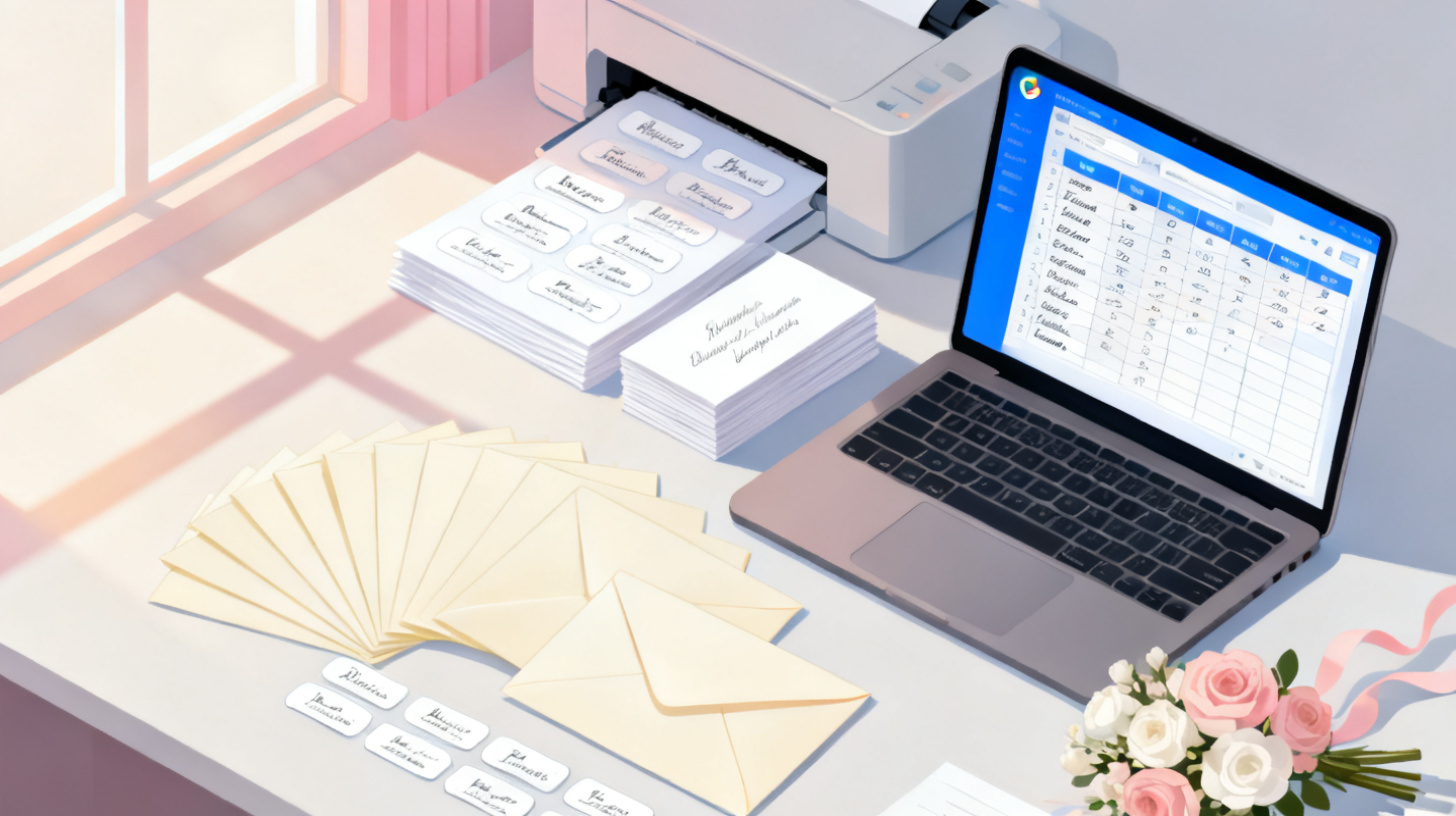
You've spent weeks perfecting your wedding guest list in Google Sheets, carefully collecting names, addresses, and plus-one confirmations. Now comes the part that makes most couples groan: getting all those addresses onto labels without losing your mind. Typing each one by hand? That's a recipe for typos, frustration, and probably a few tears that have nothing to do with the ceremony.
The good news is that you can turn your Google Sheets guest list into beautifully printed address labels using a mail merge workflow. No expensive software needed. No addressing envelopes by hand until 2 AM. Just a clean spreadsheet, a label template, and a few straightforward steps. Whether you're labeling save-the-dates, invitations, or thank-you cards, this guide walks you through the entire process from organizing your data to peeling those perfectly printed labels off the sheet.
To get started, you'll want to grab a label template that matches your label sheets, like the popular Avery 5160 or 5163 sizes. Then follow along as we break down every step of creating professional wedding address labels from your guest list.
Setting Up Your Google Sheets Guest List for Label Printing
Before you touch a single label template, the most important thing you can do is get your spreadsheet in order. A clean, well-structured Google Sheets guest list is the foundation of a smooth mail merge. Skip this step, and you'll end up with labels that print "Mr. and Mrs. Smith 123 Oak Street" all crammed into one line, or worse, blank labels scattered throughout your sheet.
Structuring Your Columns Correctly
The key to a successful mail merge is separating your address data into distinct columns. Each piece of information needs its own column so the merge can pull the right data into the right spot on your label. Here's the column structure that works best for wedding labels:
Column | Header Name | Example Data |
A | Name | Mr. and Mrs. David Chen |
B | Address Line 1 | 482 Maple Grove Lane |
C | Address Line 2 | Apt 3B |
D | City | Portland |
E | State | OR |
F | Zip Code | 97201 |
A few things to keep in mind with this structure:
Name formatting matters. Decide upfront whether you're using formal titles (Mr. and Mrs.), first names only, or family names (The Chen Family). Stay consistent across every row.
Address Line 2 is optional but important. Not every guest has an apartment number or suite, and that's fine. Leave the cell blank for those who don't. The mail merge will skip empty fields gracefully.
Keep Zip Codes as text. This is a classic gotcha. If your zip codes start with a zero (like 01234 for a Massachusetts address), Google Sheets will strip that leading zero unless you format the column as plain text. Select the entire Zip Code column, go to Format > Number > Plain Text, and save yourself the headache.
Cleaning Up Common Data Issues
Wedding guest lists tend to be collaborative documents. Maybe your partner added names in a slightly different format. Maybe your parents emailed a list that you copy-pasted in. Before running your merge, do a quick cleanup pass:
Remove extra spaces. Use the
TRIM()function to strip leading, trailing, and double spaces. In a helper column, type=TRIM(A2)and drag it down, then paste the cleaned values back.Check for missing data. Sort each column and scan for blanks. A missing city or state will produce a weird-looking label.
Standardize state abbreviations. Pick either full state names or two-letter abbreviations and stick with one format throughout.
Verify addresses. This might sound tedious, but cross-checking a handful of addresses against USPS records can prevent returned mail. Focus especially on guests who recently moved.
Handling Special Cases
Wedding guest lists have quirks that regular mailing lists don't. You might need to address an envelope to a couple with different last names, a family with children, or a guest being invited with "and Guest." Here are formatting suggestions:
Couples with different last names: "Ms. Sarah Johnson and Mr. David Chen"
Families: "The Martinez Family" or "Mr. and Mrs. Martinez and Family"
Plus ones: "Ms. Rachel Park and Guest"
Put all of this information in the Name column. The label template will display whatever text you place in that field, so format it exactly how you want it to appear on the envelope.
Once your spreadsheet looks clean and consistent, you're ready to connect it to a label template and start the merge.
Choosing the Right Label Template and Size
With your guest list polished and ready, the next decision is picking the right label size. This might seem like a small detail, but the wrong label size can make your wedding correspondence look cramped, unprofessional, or just off. The label you choose should complement your envelope size and give your text enough breathing room to look elegant.
Matching Labels to Envelope Sizes
Most wedding invitations use one of two envelope sizes: A7 (5.25" x 7.25") for the main invitation or A2 (4.375" x 5.75") for RSVP cards. Here's how common label sizes pair with these envelopes:
Label Size | Dimensions | Labels Per Sheet | Best For |
Avery 5160 | 1" x 2.625" | 30 | RSVP envelopes, return address labels |
Avery 5163 | 2" x 4" | 10 | Main invitation envelopes, larger text |
Avery 5162 | 1.33" x 4" | 14 | Mid-size envelopes, longer addresses |
Avery 8160 | 1" x 2.625" | 30 | Same as 5160, inkjet optimized |
For most wedding invitation envelopes, Avery 5163 is the go-to choice. The 2" x 4" label gives you plenty of space for formal names and multi-line addresses, and it looks proportional on an A7 envelope. If you're printing return address labels (the smaller ones for the back flap), Avery 5160 with its 30 labels per sheet is more economical and perfectly sized.
You can browse the full collection of Avery-compatible label templates at FoxyLabels to find the exact match for your label sheets. Templates are available for Google Docs, making them easy to use alongside your Google Sheets data.
Selecting Your Label Sheet Material
Beyond size, consider what your labels are printed on. Standard white matte labels work for most situations, but weddings often call for something a little more polished:
Clear labels disappear on white envelopes, giving the appearance of direct printing. They're a popular choice for a clean, modern look.
Kraft brown labels complement rustic or nature-themed weddings beautifully.
White matte labels are the most versatile and deliver the crispest text for traditional weddings.
Glossy labels add a subtle sheen but can smudge with inkjet printers, so use them only with laser printers.
Whichever material you pick, make sure it's compatible with your printer type (inkjet vs. laser). Using inkjet labels in a laser printer can cause the adhesive to melt and damage your printer, which is the last thing you need during wedding prep.
Font and Formatting Considerations
Once your template is loaded, you'll want to format the text to match your wedding aesthetic. A few practical tips:
Font size between 10pt and 12pt works best for address labels. Anything smaller becomes hard to read, especially for older guests.
Script fonts look beautiful but test them first. Some script typefaces become illegible at small sizes or when printed on textured label stock. Print a test sheet before committing to 200 labels.
Center-align or left-align your text based on your style. Centered text feels more formal, while left-aligned text is easier for postal workers to read.
Use consistent formatting across all labels, including return address labels. Mismatched fonts between the front and back of an envelope look unintentional.
If you need help choosing fonts or formatting your template, the FoxyLabels tutorials page has detailed visual guides for customizing label layouts in Google Docs.
Running the Mail Merge from Google Sheets to Labels
This is where the magic happens. You've got a clean guest list and the right template. Now it's time to connect them and generate your labels. The mail merge process pulls each row of your spreadsheet into a label on your template, filling in names and addresses automatically.
Step 1: Open Your Label Template in Google Docs
Start by opening your chosen label template in Google Docs. If you've downloaded one from FoxyLabels, it will already be formatted with the correct label dimensions and grid layout. You'll see a table structure where each cell represents one label on your sheet.
Step 2: Connect Your Google Sheets Guest List
Using a Google Docs add-on like FoxyLabels, you can link your Google Sheets guest list directly to the template. The add-on will read your column headers (Name, Address Line 1, City, State, Zip Code) and let you insert them as merge fields into the label template.
Place your merge fields inside the first label cell like this:
This tells the mail merge exactly where each piece of data should appear. The curly braces (or whatever placeholder syntax your tool uses) act as markers that get replaced with real data from each row.
Step 3: Configure and Preview Your Merge
Before generating all your labels, preview the first few to make sure everything looks right. Check for:
Names displaying in the correct format
Addresses wrapping properly within the label boundaries
No extra blank lines where Address Line 2 is empty
City, State, and Zip Code appearing on the same line
Consistent spacing between lines
If something looks off, go back to your spreadsheet and fix the source data. It's much easier to correct a cell in Google Sheets than to manually edit dozens of generated labels.
Step 4: Generate and Review All Labels
Once your preview looks good, run the full merge. The tool will create a document with every guest's address placed into its own label cell, filling page after page in the correct grid layout for your label sheets.
Scroll through the entire document and spot-check labels throughout, not just the first page. Common issues that show up mid-document include:
Long names or addresses that overflow the label boundaries
Rows in your spreadsheet that had hidden formatting issues
Duplicate entries (guests listed twice in your spreadsheet)
For a deeper dive into the mail merge process with Avery label sheets specifically, check out this guide on how to mail merge labels from Google Sheets to Avery templates.
Step 5: Print a Test Sheet
This step is non-negotiable. Before loading your good label stock, print the first page on regular paper. Then hold it up against a label sheet (or over it against a window with light behind it) to verify alignment. Labels that are even slightly off will look sloppy and can result in text printing across the edges of two labels.
If your alignment is off, check your printer settings:
Set page scaling to "Actual Size" or 100% (never "Fit to Page")
Set margins to match the template specifications
Select the correct paper size (Letter for US, A4 for international)
Once your test print aligns perfectly, load your label sheets and print the full batch.
Printing Tips and Troubleshooting for Flawless Labels
You're in the home stretch. The labels are generated, the test print looks great, and you're ready to run the full batch. But printing hundreds of labels comes with its own set of challenges. Here's how to handle the most common issues and make sure every single label comes out looking sharp.
Printer Settings That Matter
Your printer settings can make or break your label quality. Beyond the alignment settings mentioned above, pay attention to these:
Print quality: Set it to "High" or "Best" for crisp text. Draft mode saves ink but produces fuzzy characters that look cheap on wedding correspondence.
Paper type: If your printer has a "Labels" media setting, use it. Otherwise, select "Cardstock" or "Heavy Paper" so the printer adjusts its feed rollers for the thicker stock.
Feed one sheet at a time if your printer tends to grab multiple pages. Label sheets are slightly thicker and stickier than regular paper, so they can jam if stacked too high in the tray.
Dry time: If you're using an inkjet printer, let each sheet dry for 30 seconds to a minute before stacking. Wet ink on glossy or clear labels smudges easily.
Handling Large Guest Lists Efficiently
If you're printing labels for 150 or more guests, a few organizational strategies will save time:
Print in batches of 25-50 labels rather than the entire set at once. This way, if a jam occurs or your ink runs low mid-print, you won't waste an entire stack of label sheets.
Number your pages in the Google Docs document so you can easily reprint a specific page if needed.
Keep 10-15% extra label sheets on hand. Between test prints, misfeeds, and the occasional smudge, you'll be glad you have spares.
Sort your guest list alphabetically before merging. This makes it much easier to find specific labels after printing, especially when you need to match them with invitation inserts or RSVP cards.
Common Problems and Quick Fixes
Even with careful preparation, things can go wrong. Here are the most frequent issues and how to solve them fast:
Labels are misaligned after the first page. This usually means your template margins don't match your label sheets exactly. Double-check the template dimensions against the label packaging. Even a 0.05" difference compounds over multiple rows.
Text is getting cut off on some labels. Long addresses or names are overflowing the label cell. Go back to your spreadsheet and abbreviate where possible: "Avenue" to "Ave," "Boulevard" to "Blvd," or reduce the font size by half a point.
Blank labels appear randomly. You likely have empty rows in your Google Sheet. Scroll through your guest list and delete any blank rows between entries. Even a row that looks empty might contain a space character in one cell.
Print quality is poor or streaky. Run your printer's head cleaning utility and try again. For laser printers, gently shake the toner cartridge side to side to redistribute the toner evenly.
Making It Beautiful: Final Touches
Once your labels are printed and looking great, a couple of finishing touches can elevate the whole presentation:
Apply labels straight. It sounds obvious, but a crooked label undermines all your effort. Peel one label at a time, align it with the envelope edge, then press down firmly from the center outward to avoid air bubbles.
Consider a return address stamp or label. Using the same label stock and a matching font for your return address creates a cohesive look. You can set up a separate merge (or simply duplicate one address across all labels) for this.
Store unused label sheets flat in their original packaging. Humidity and curling can cause feed problems if sheets sit out too long.
If you want to unlock the full power of mail merge for your wedding labels, including premium templates and advanced merge features, take a look at FoxyLabels plans and pricing to find the option that fits your project.
Printing wedding address labels from a Google Sheets guest list doesn't have to be stressful. With a well-organized spreadsheet, the right label template, and a straightforward mail merge workflow, you can produce hundreds of beautiful, accurate labels in under an hour. That's time you can spend on the parts of wedding planning you actually enjoy.
Grab a label template that fits your envelopes, pull up your guest list, and start your merge. Your future self, the one who isn't hand-writing 200 addresses at midnight, will thank you.
Install Foxy Labels
Get started with Foxy Labels and create perfectly aligned labels in minutes.
Get Started